Connect Models & Plans
ZCode supports multiple ways to access GLM models for coding workflows. For global users, we recommend using the Z.ai Coding Plan to run GLM-5.4 in ZCode with a simple account-based setup.
Recommended for global users
Sign in with your Z.ai account to use GLM models in ZCode. ZCode uses a single Z.ai sign-in: users in mainland China sign in to Z.ai China (zchat.z.ai) with the same phone number as their BigModel account, and the plans and benefits on that BigModel account are linked automatically. If your account has a GLM Coding Plan, ZCode uses the plan and quota from that account directly.
Connect Z.ai
Best for GLM-5.4 coding workflows, a simple account-based setup, and users who already have a GLM Coding Plan.
GLM Coding Plan (BigModel)
For users in China: subscribe via the BigModel open platform for the same GLM Coding Plan with a cost-effective AI coding experience.
The GLM Coding Plan has been relaunched. The new plans meter usage in credits and introduce a weekly usage limit; Pro and Max provide 6× and 14× the Lite usage allowance respectively. Once your account has an active plan, ZCode applies its quota directly. For how the new plans differ from legacy ones, see the Coding Plan Revision Notice.
Other ways to connect
Third-Party Providers
Connect compatible model services through the Anthropic / OpenAI protocols, including team-managed channels.
Use API Key
Connect model services with an API key if you manage your own model access.
Setup Entry Points
Method 1: Sign-in Screen
The first time you open ZCode, or after you sign out, ZCode shows the sign-in screen. It offers two options:
- Login with Browser: opens the Z.ai sign-in page in your browser; once you authorize, you return to ZCode. Users in mainland China sign in with the same phone number as their BigModel account, and the plans and benefits on that BigModel account are linked automatically, so there is no separate BigModel sign-in.
- Use API key: fill in an API key directly and go to the model provider settings.
The sign-in screen has no separate BigModel sign-in. Plans on a BigModel account are used through the linked Z.ai account.
Region: the Z.ai region you sign in to depends on ZCode's interface language. An English interface opens Z.ai Global; any other language opens Z.ai China (zchat.z.ai). Use the Switch to Global / 切换到中国 link on the sign-in screen to change region, then click Login with Browser.
One identity at a time: ZCode keeps a single signed-in identity and does not support two accounts signed in at once. If your account has more than one plan, choose the connection method in Settings → Model settings. To use an account in the other region, sign out, switch region on the sign-in screen, and sign in again.
After you click Login with Browser, ZCode shows "Waiting for browser authentication...". If the browser does not open, click Browser didn't open? → Copy login link and paste the link into your browser. For sign-in problems, see FAQ → Sign-in.
Use API key opens the API-key panel: choose the API-key provider (Z.ai or BigModel) and enter your Coding Plan API key, and ZCode creates the matching "Coding Plan" provider from it (see Connect With an API Key); the key is masked as you type.
Method 2: Model Selector
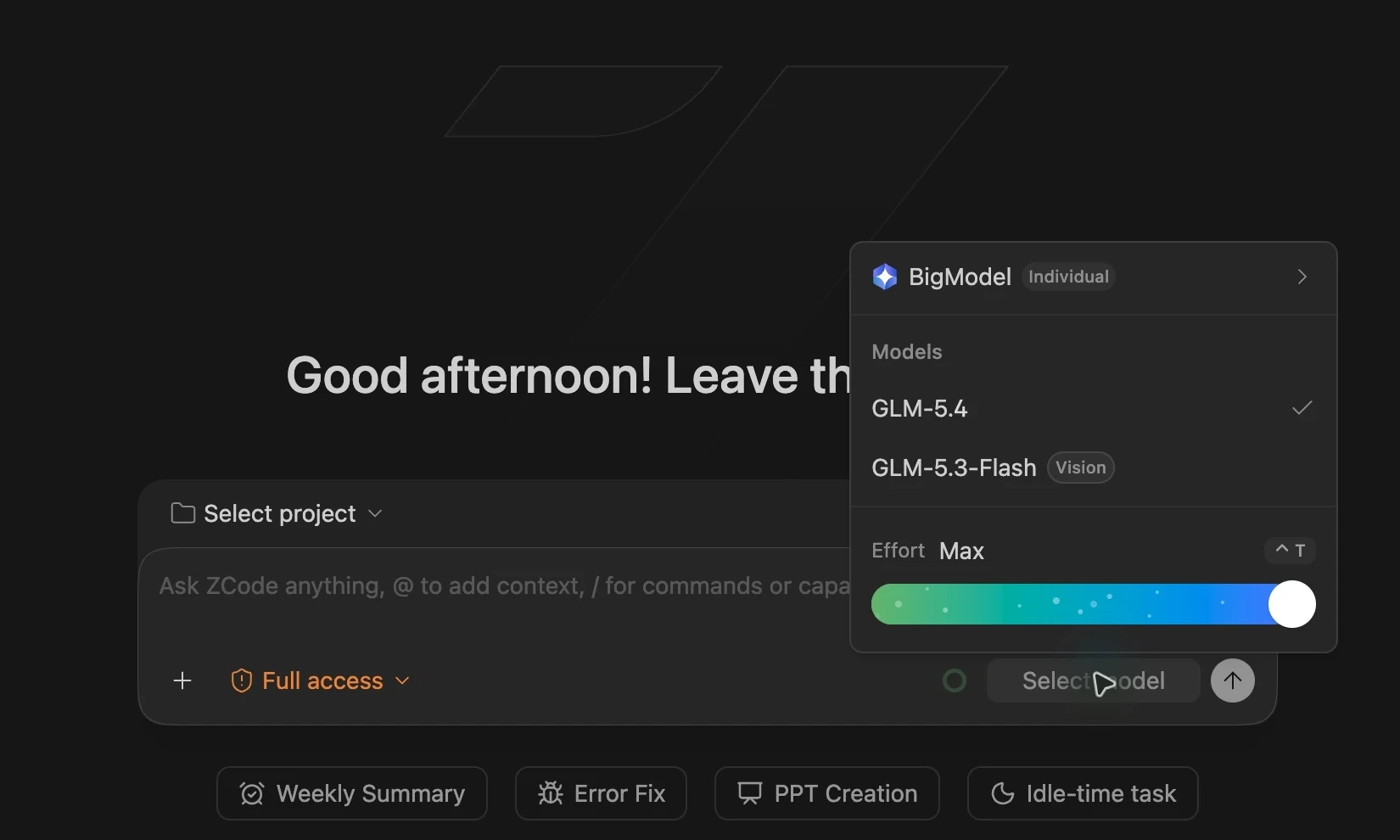
After entering ZCode, click the model name inside the chat box to open the model selector, then click the provider name at the top of the menu. Click Manage models at the bottom of the provider list to open the Settings → Model settings panel, where you manage the model channels available to ZCode Agent.
BigModel / Z.ai API Endpoints
The BigModel and Z.ai preset providers show a provider-managed, read-only Base URL in API key mode. The cards below list the endpoint to use for each scenario. When you need to enter an endpoint manually, choose a protocol in Add provider under Model settings, then enter the matching URL and API key.
GLM Coding Plan
Most commonUse the quota from a Coding Plan subscription — coding scenarios only.
BigModel
Z.ai
Resource package / Prepaid balance
General API usage with model resource packages or prepaid balance — the OpenAI Base URL is all you need.
BigModel
Z.ai
Before you fill in
- For a Coding Plan, the OpenAI URL must be the Coding-only endpoint (
/api/coding/paas/v4), not the general endpoint/api/paas/v4. - The Coding endpoint is for coding scenarios only; it and the general endpoint are not interchangeable.
- If you bind your account through Coding Plan authorization (not API Key mode), ZCode routes requests automatically — no manual setup needed.
Connect BigModel
- Open the Model settings panel through either method above
- Select BigModel in the Providers group on the left
- If you are signed in and your Z.ai account is linked to a BigModel account, the page shows your plan status directly. If the Coding Plan card shows Not connected, click Connect to BigModel; ZCode starts the sign-in flow, which you complete as described in Sign-in Screen
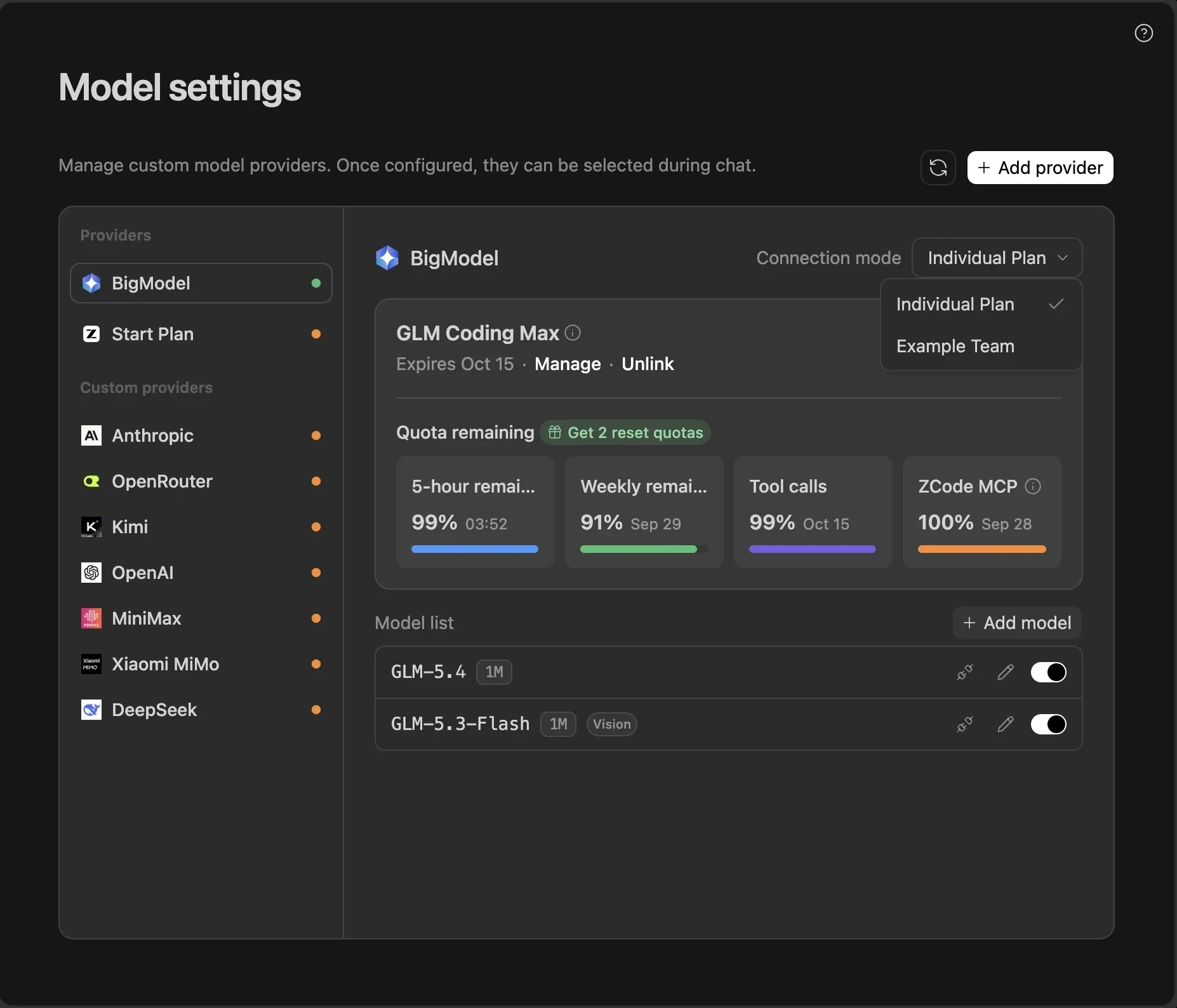
- Once connected, you can use built-in models such as GLM-5.4 and GLM-5.3-Flash according to your account permissions. If your account has both an individual and a team plan, switch between them with Connection mode in the upper-right corner
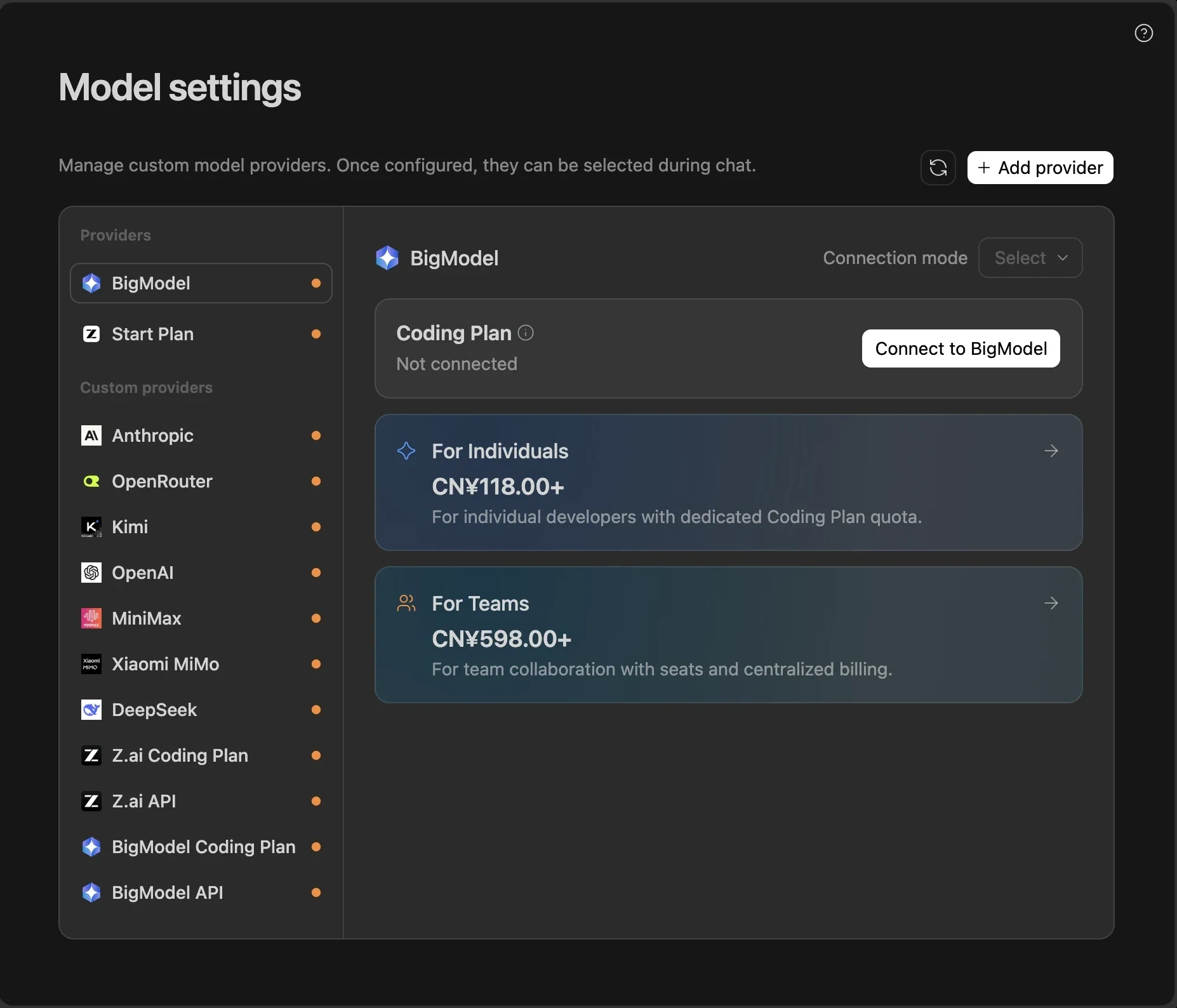
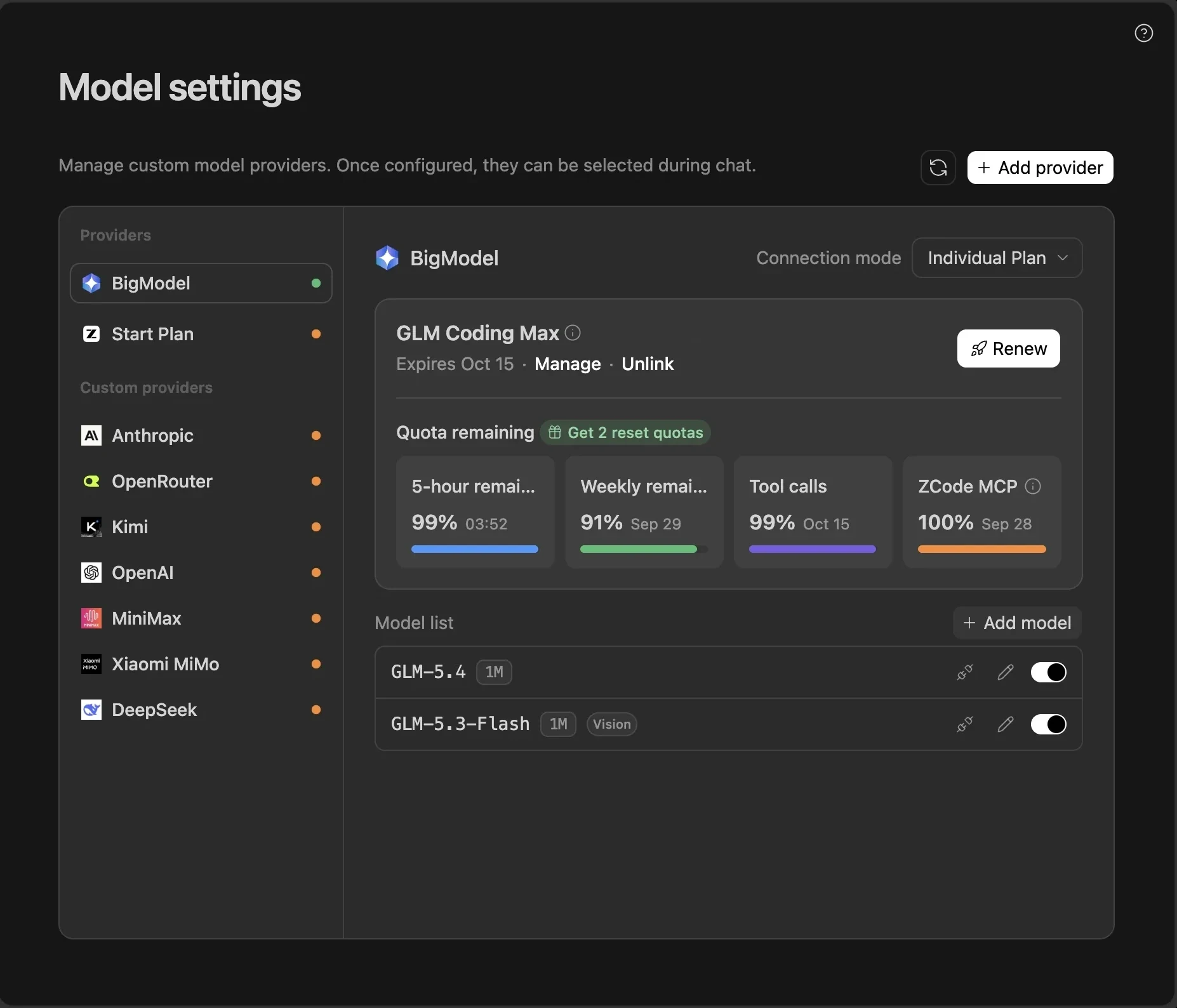
After you connect an individual plan, the plan card shows the expiry date and each remaining quota. Unlink on the card signs you out of the account ZCode is currently signed in to:
Start Plan (Free Trial)
New users can claim a Start Plan after signing in to ZCode. It is free and meant for trying ZCode Agent in real projects before deciding whether to upgrade to a GLM Coding Plan. The Start Plan has its own Start Plan entry on the left of Model settings:
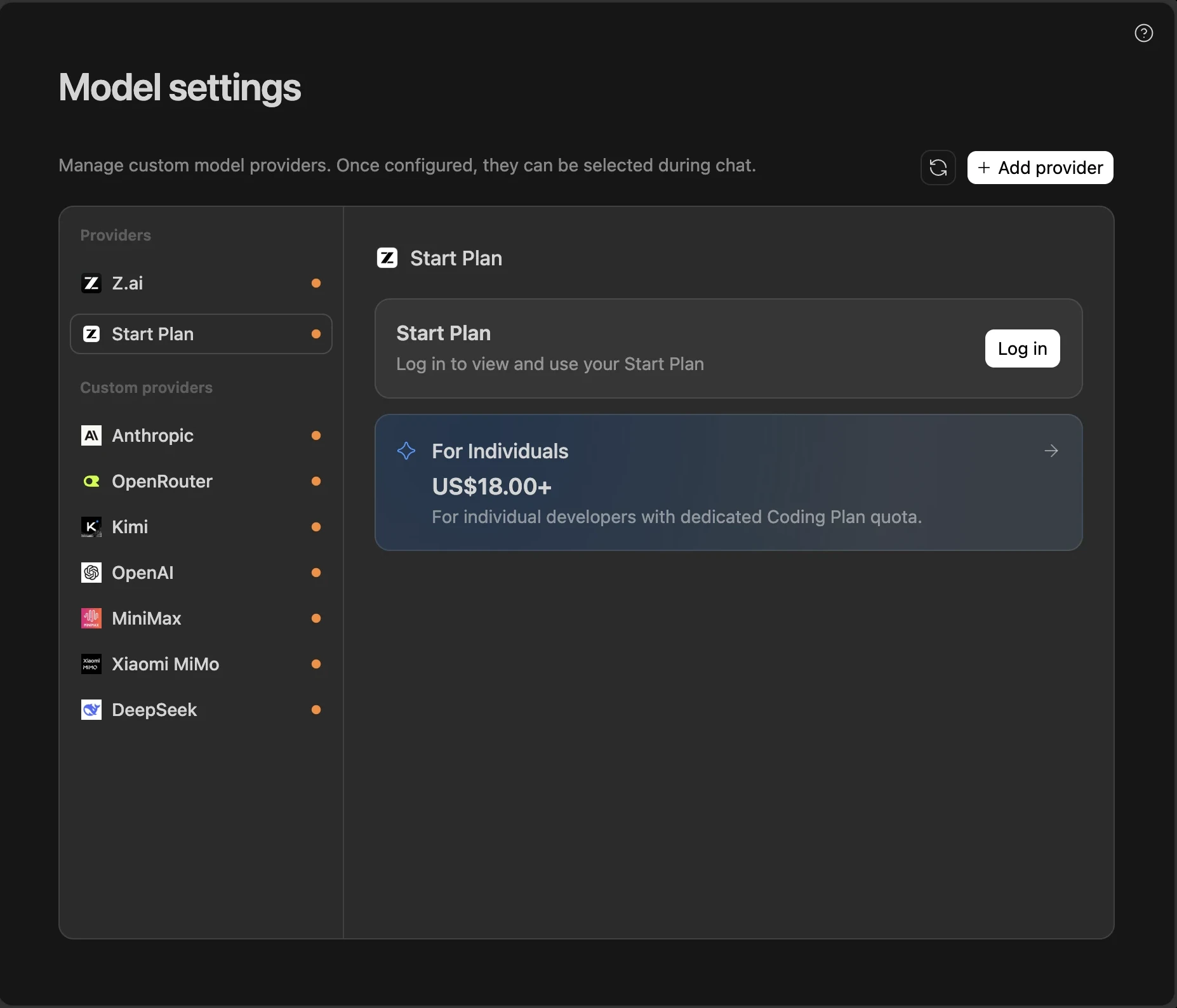
According to the Upgrade Plan page, the Start Plan lasts 5 days and provides 8 million tokens per day for GLM models:
| Model | Daily trial quota |
|---|---|
| GLM-5.4 | 3 million tokens / day |
| GLM-5.3-Flash | 5 million tokens / day |
Note: the trial lasts 5 days only and expires afterwards — it is not an ongoing daily allowance. The exact quota and available models are shown on the Start Plan page after you sign in.
Subscribe to a Coding Plan Inside ZCode
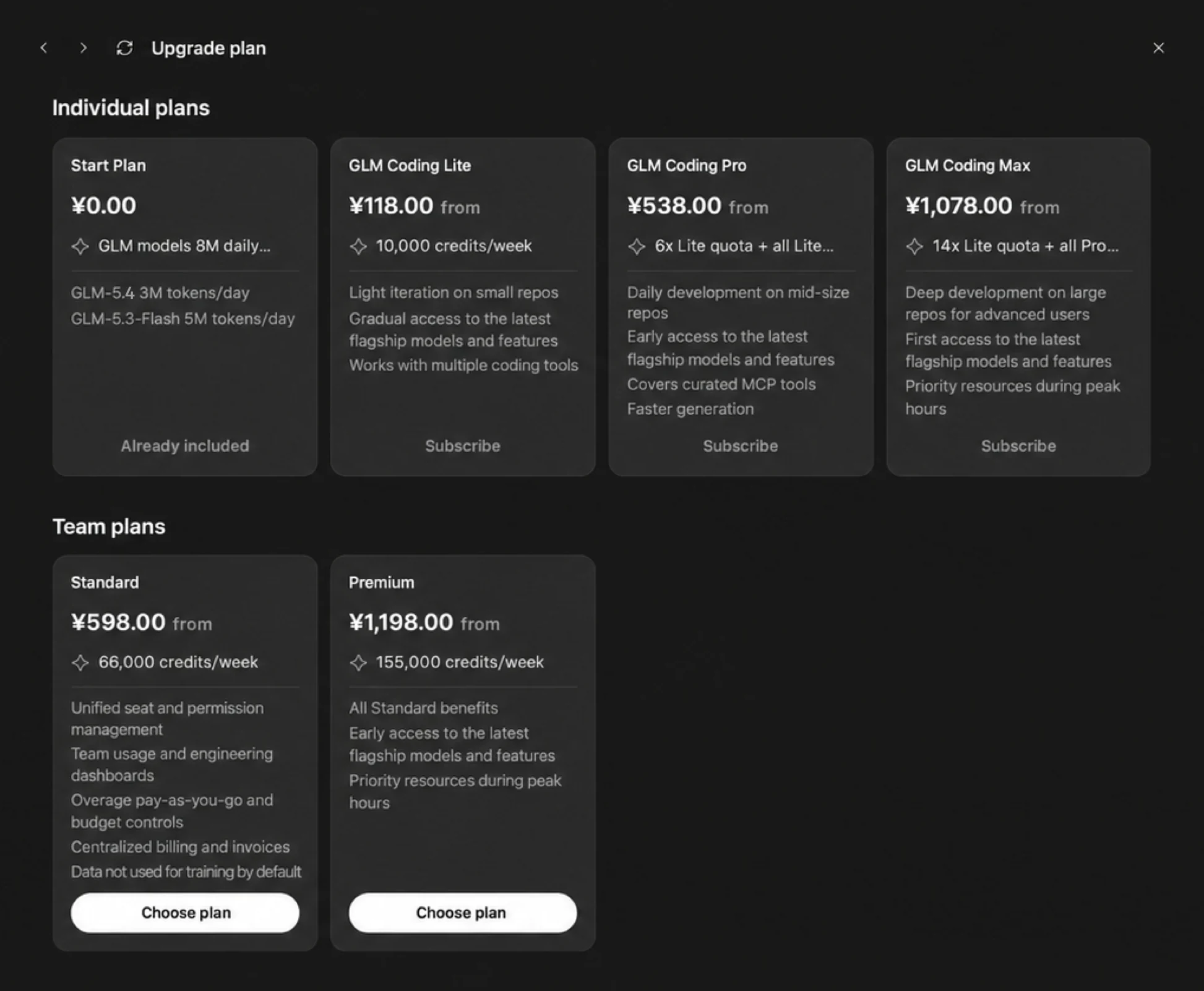
Need more than the trial quota? You don't have to leave ZCode: click the For Individuals or For Teams card on the provider page and, after signing in, the Upgrade Plan page opens. There you can browse the GLM Coding plans (Lite / Pro / Max), pick monthly, quarterly, or yearly billing, and complete the purchase. Existing subscribers can also manage their current plan and check quota status here.
The new plans meter usage in credits and add a weekly allowance on top of the 5-hour one; for each tier's exact benefits, credit allowances, and conversion rules, refer to the BigModel Coding Plan Revision Notice. When you run out of quota, watch for reset opportunities in the app — see Quota Reset Cards.
Using a Team Plan
If your team has a GLM Coding Plan team subscription, no extra setup is needed once you sign in: the Connection mode menu on the BigModel provider page lists each team you have access to as its own entry, named after the organization. Select one to run tasks against that team's quota. The same menu switches back to your Individual Plan.
After switching, the quota shown in the sidebar and usage stats follows the selected connection, and quota cards indicate whether they're personal or team.
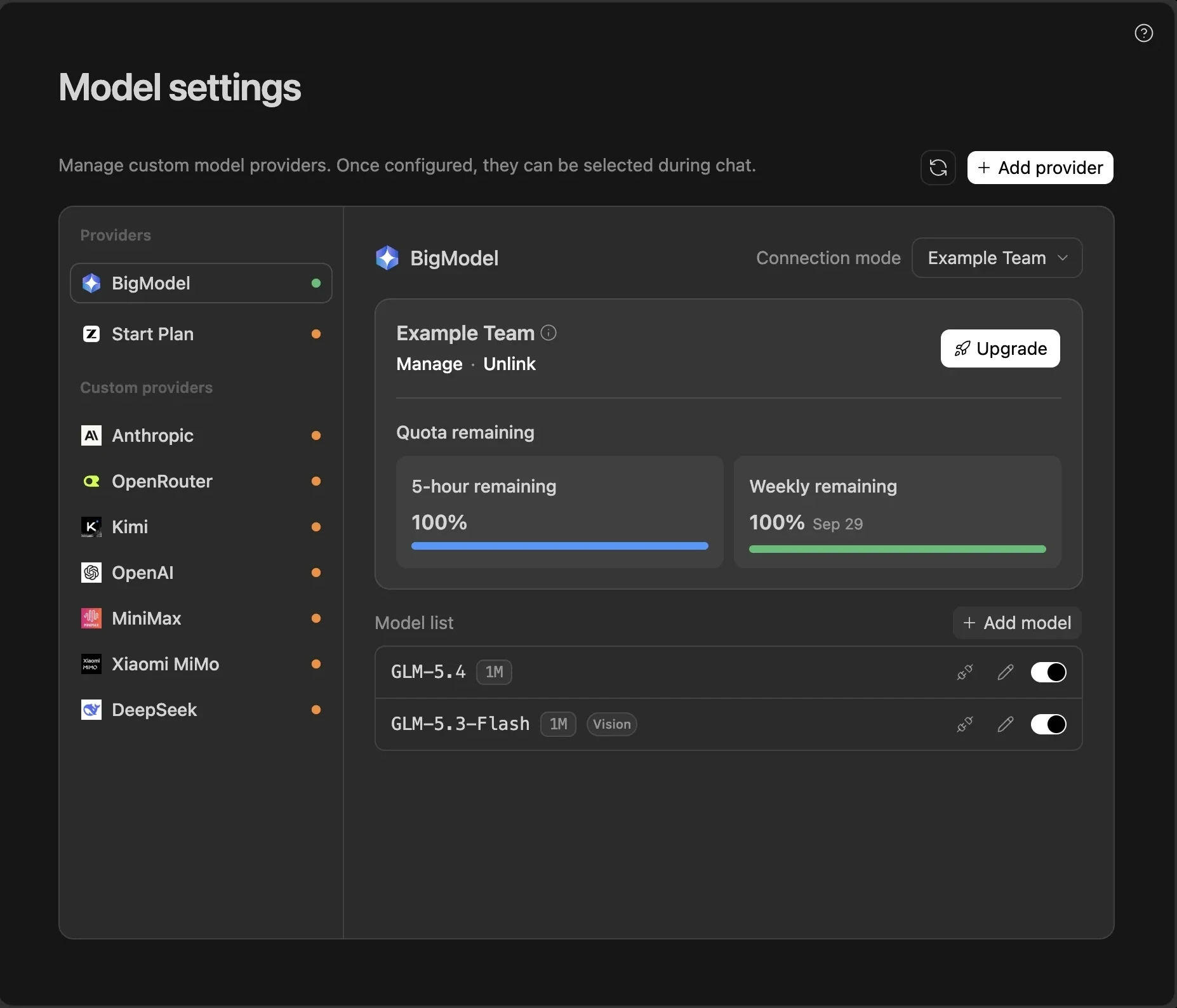
If selecting a team entry shows "Team plan not assigned. Contact your team admin.", your administrator hasn't added you yet — seat management happens on BigModel's team plan page, not in the client, and the page provides a direct link there.
Connect With an API Key
To connect with an API key instead of signing in, click Add provider in the top-right of Model settings and pick a template in the Zhipu group. Templates come with the Base URL, API format, and model list prefilled — you only enter the API key. The two templates draw on different quota sources, so pick the one that matches your account:
BigModel Coding Plan
Use this if you bought a GLM Coding Plan and want to spend its quota through an API key. Choosing Use API key on the sign-in screen with BigModel selected creates this same provider.
- Entry
- Add provider → Zhipu → BigModel Coding Plan
- API format
- Anthropic Messages (/v1/messages)
- Base URL
https://open.bigmodel.cn/api/anthropic
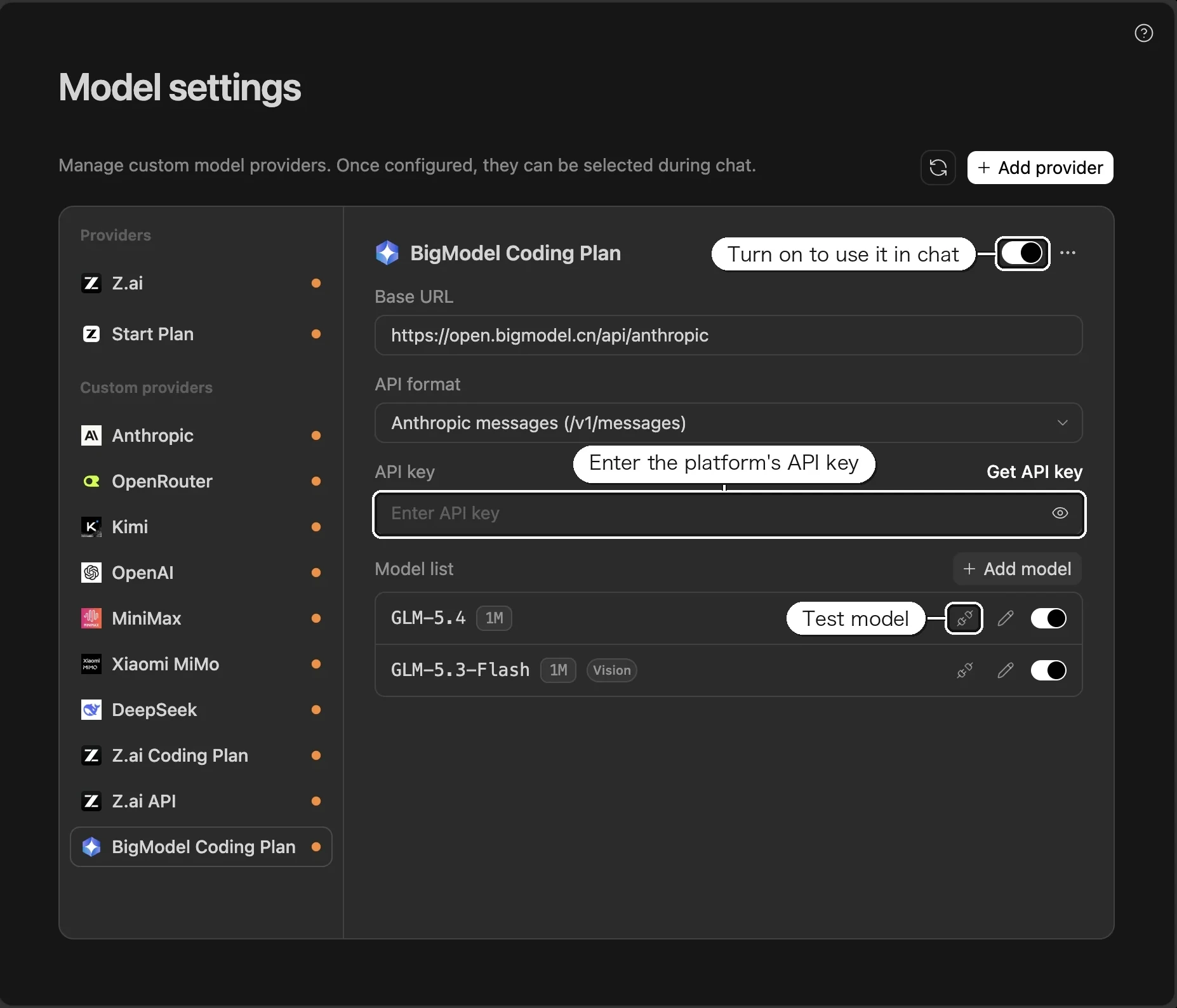
- 01In the Add provider panel, choose BigModel Coding Plan in the Zhipu group
- 02Enter your Coding Plan API key (Get API key opens BigModel's plan management page)
- 03GLM-5.4 and GLM-5.3-Flash are built in; click Test model to confirm the connection, then pick it in chat
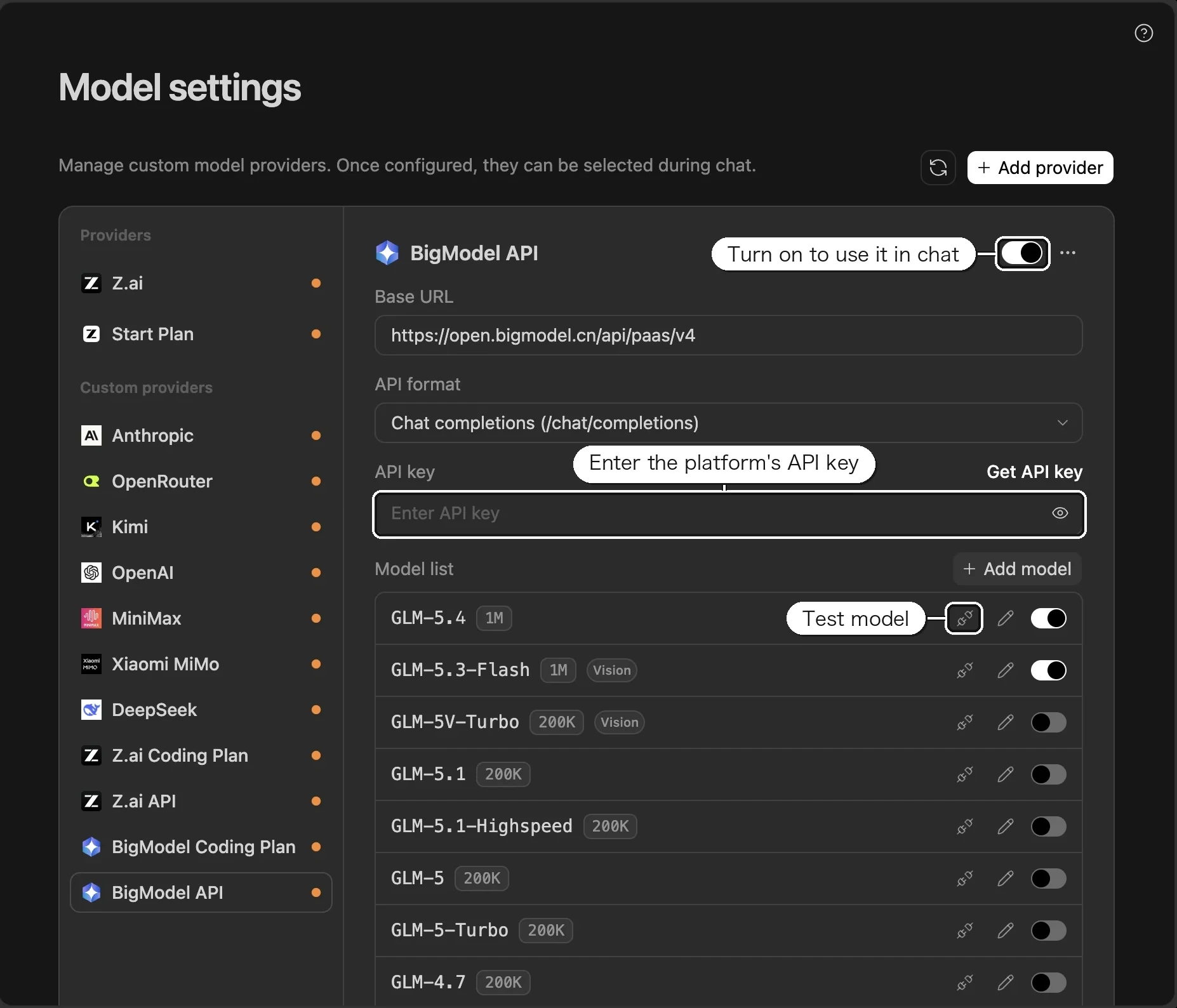
BigModel API (resource packages / balance)
Use this without a Coding Plan, when you pay with resource packages or account balance. It uses the OpenAI-compatible general endpoint.
- Entry
- Add provider → Zhipu → BigModel API
- API format
- Chat Completions (/chat/completions)
- Base URL
https://open.bigmodel.cn/api/paas/v4
- 01In the Add provider panel, choose BigModel API in the Zhipu group
- 02Enter an API key from the Zhipu open platform (Get API key opens the API key management page)
- 03The full GLM lineup is built in; turn on the models you need and verify with Test model
If you need an endpoint not covered by the templates (for example the OpenAI-compatible Coding endpoint https://open.bigmodel.cn/api/coding/paas/v4), use Create custom provider instead — see Custom Providers.
Connect Z.ai
Z.ai is the access path for users outside China. Setup mirrors BigModel:
- Open the Model settings panel through either method above
- Select Z.ai in the Providers group on the left
- If you are signed in with a Z.ai account, the page shows your plan status directly. If the Coding Plan card shows Not connected, click Connect to Z.ai; ZCode starts the sign-in flow, which you complete as described in Sign-in Screen
- Once connected, you can use built-in models such as GLM-5.4 and GLM-5.3-Flash
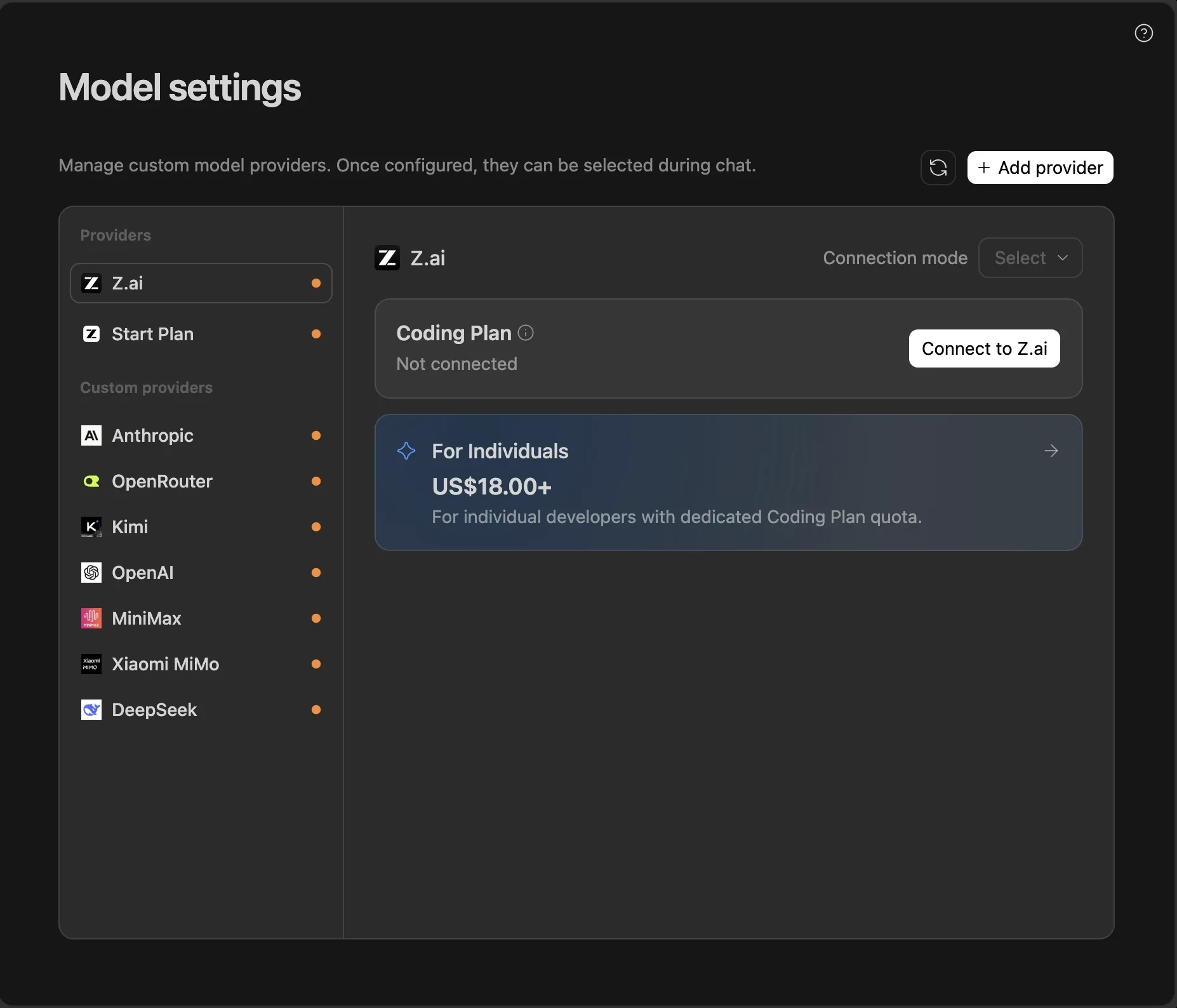
The Providers group on the left usually shows only the entry for your region: BigModel for accounts in China, Z.ai for everyone else.
Start Plan and Coding Plans
As with BigModel, new users can use the Start Plan from the Start Plan page on the left after signing in. You can also click the For Individuals card to buy a GLM Coding Plan (Lite / Pro / Max, priced in USD) on the Upgrade Plan page, with monthly, quarterly, or yearly billing. The new plans meter usage in credits and add a weekly allowance — see the Coding Plan Revision Notice.
Connect With an API Key
Likewise, pick a Z.ai template in the Zhipu group of the Add provider panel and enter the API key from the Z.ai platform:
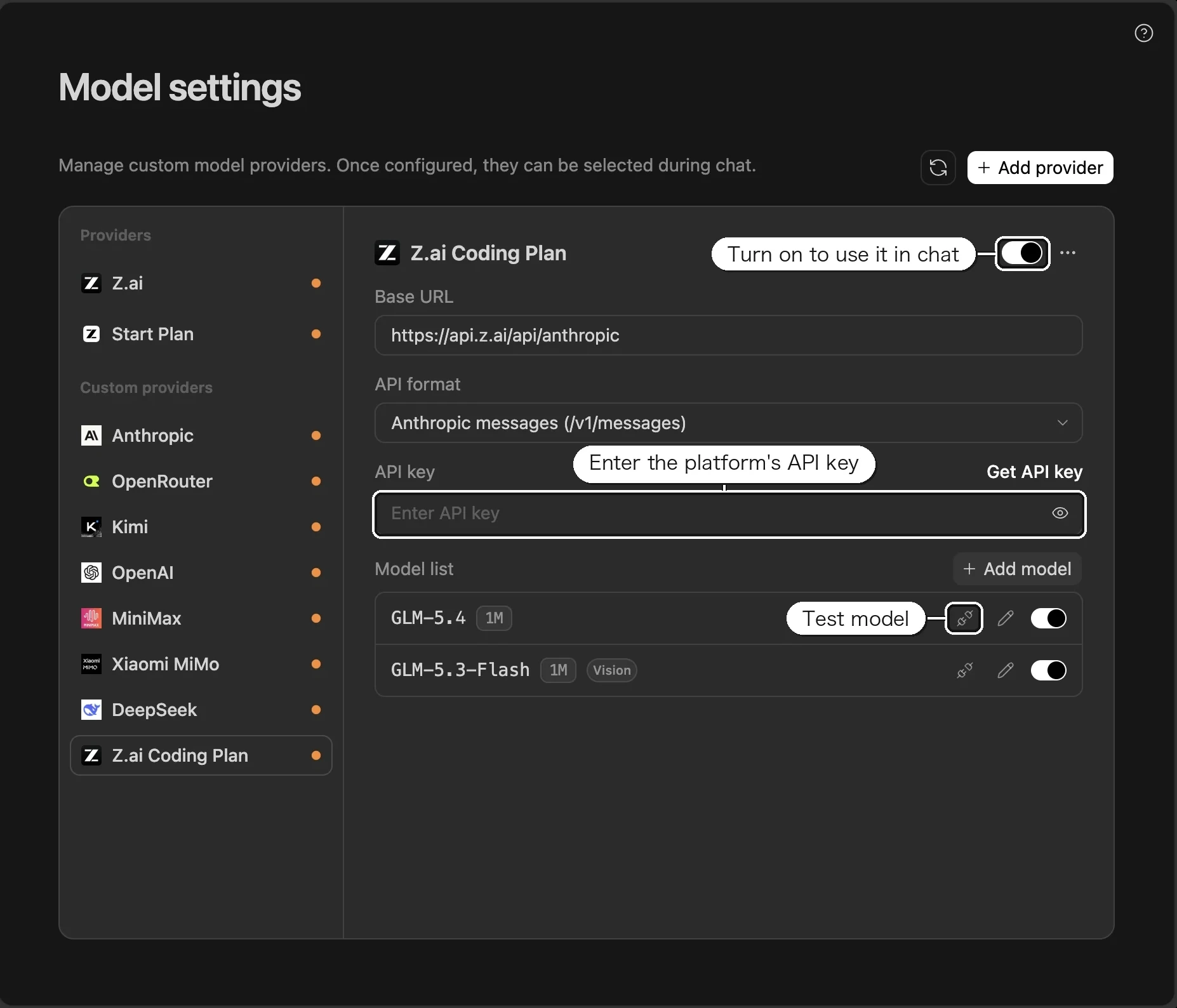
Z.ai Coding Plan
Use this if you bought a GLM Coding Plan and want to spend its quota through an API key.
- Entry
- Add provider → Zhipu → Z.ai Coding Plan
- API format
- Anthropic Messages (/v1/messages)
- Base URL
https://api.z.ai/api/anthropic
- 01In the Add provider panel, choose Z.ai Coding Plan in the Zhipu group
- 02Enter your Z.ai Coding Plan API key (Get API key opens Z.ai's API key management page)
- 03GLM-5.4 and GLM-5.3-Flash are built in; click Test model to confirm the connection
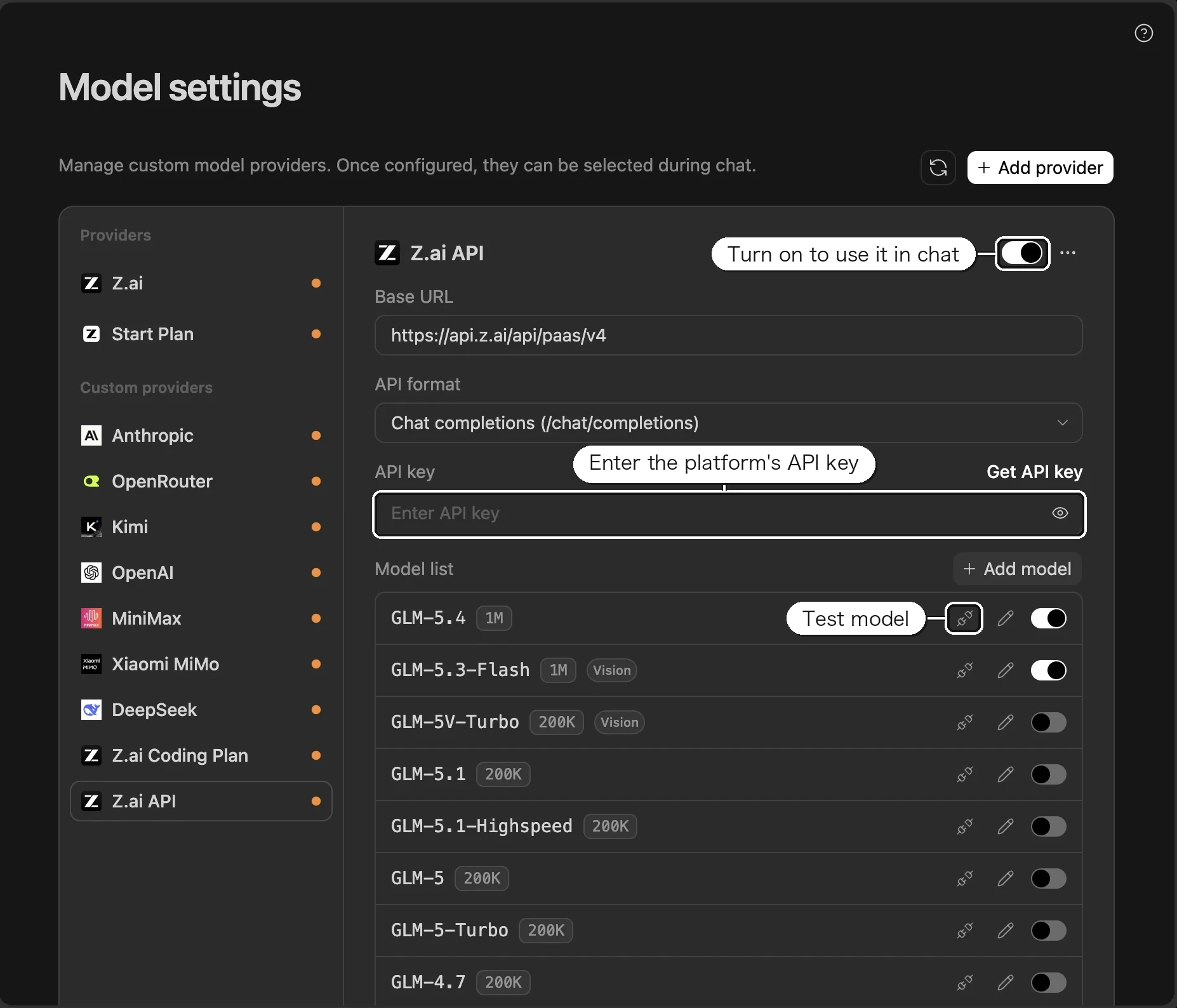
Z.ai API (resource packages / balance)
Use this without a Coding Plan, when you pay with resource packages or account balance. It uses the OpenAI-compatible general endpoint.
- Entry
- Add provider → Zhipu → Z.ai API
- API format
- Chat Completions (/chat/completions)
- Base URL
https://api.z.ai/api/paas/v4
- 01In the Add provider panel, choose Z.ai API in the Zhipu group
- 02Enter an API key from the Z.ai platform and turn on the GLM models you need
- 03Verify the setup with Test model
Preset Third-party Providers
The Add provider panel includes presets for common model services. When you pick a preset, the Base URL, API format, and available model list are filled in automatically — you only need to enter that platform's API key and turn on the switch. You can still click Add model to add other models by hand.
General steps:
- Open the Model settings panel through either method above
- Click Add provider in the upper-right corner and choose the preset in the Other group
- Enter the key from that platform in the API key field (Get API key opens the platform directly)
- Make sure the models you need are enabled in the model list, click Test model to confirm the connection, and pick them in chat
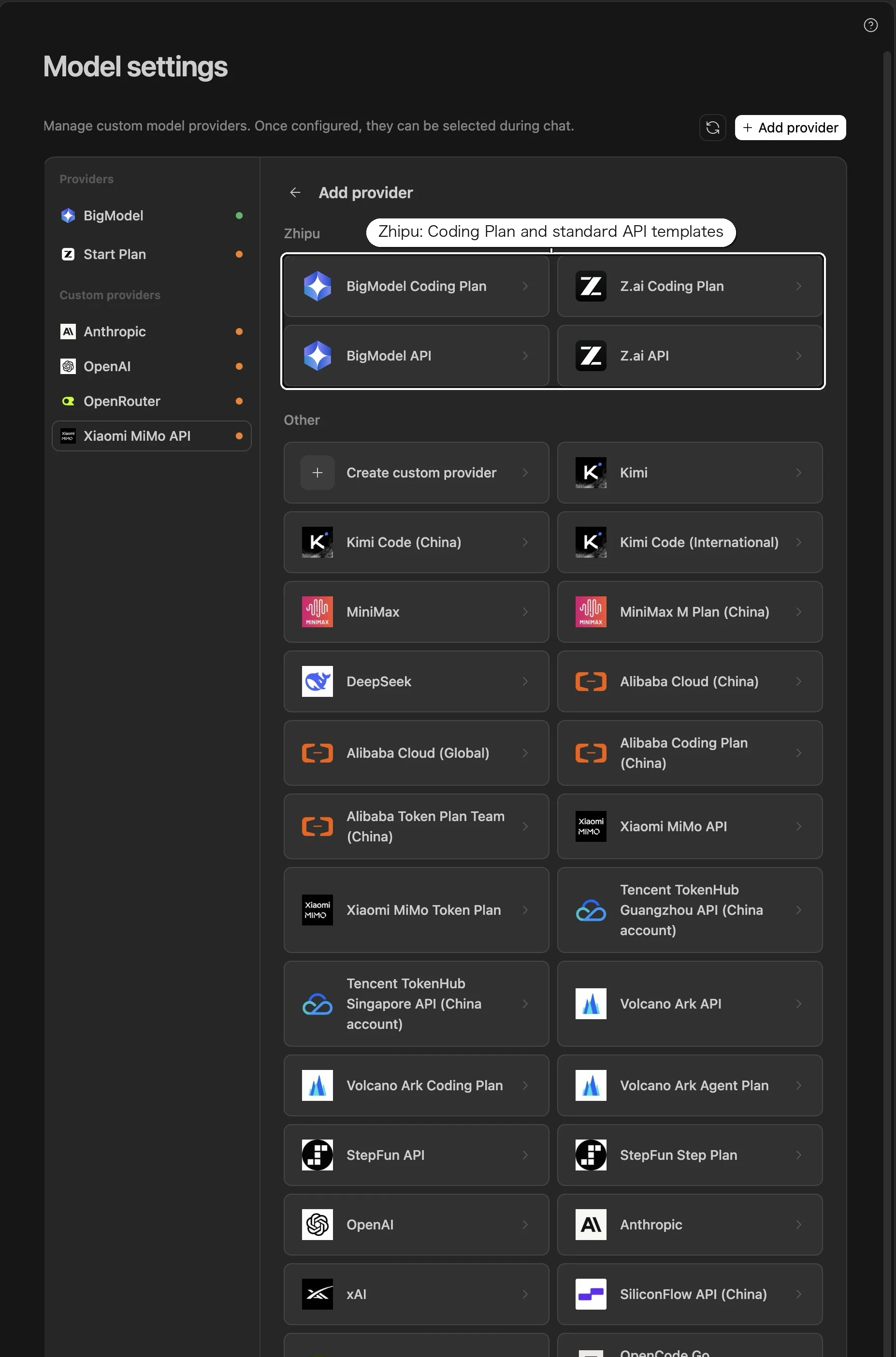
Scrolling further down the Other group shows Kimi Code, MiniMax M Plan, Alibaba Coding Plan / Token Plan Team, Xiaomi MiMo Token Plan, Tencent TokenHub, Volcano Ark, StepFun, SiliconFlow, OpenRouter, plus OpenCode Go and OpenCode Zen, each in three protocol variants. The sections below cover the key links and defaults of the most common presets; the rest are listed in the table at the end.
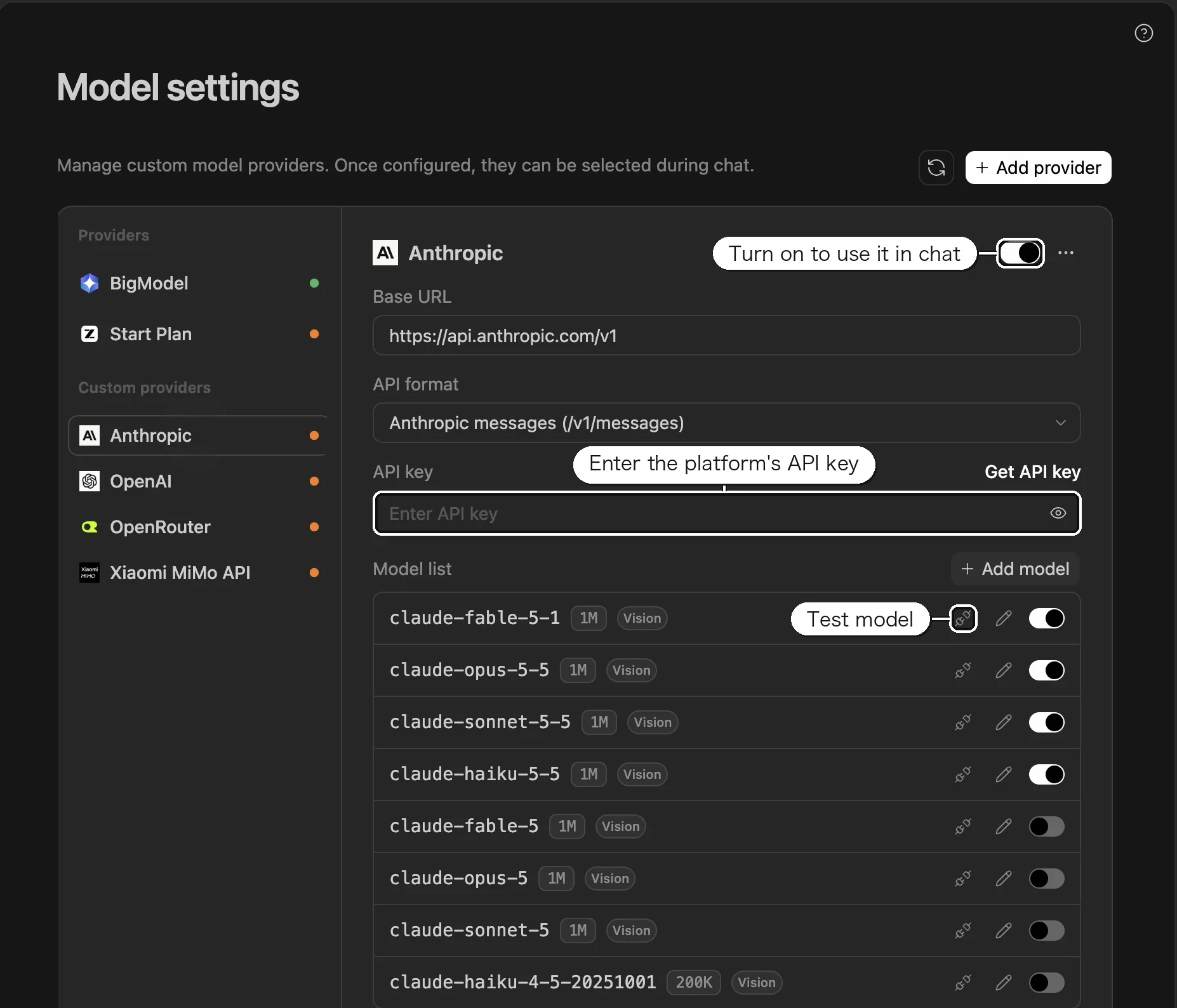
Anthropic (Claude API)
- Preset Base URL:
https://api.anthropic.com/v1, API format Anthropic Messages - Get an API key from the Anthropic Console, where you can also check usage and plans
- Preset models include
claude-fable-5-1,claude-opus-5-5,claude-sonnet-5-5, andclaude-haiku-5-5(on by default), plus the legacyclaude-fable-5,claude-opus-5,claude-sonnet-5, andclaude-haiku-4-5-20251001(off by default)
OpenRouter
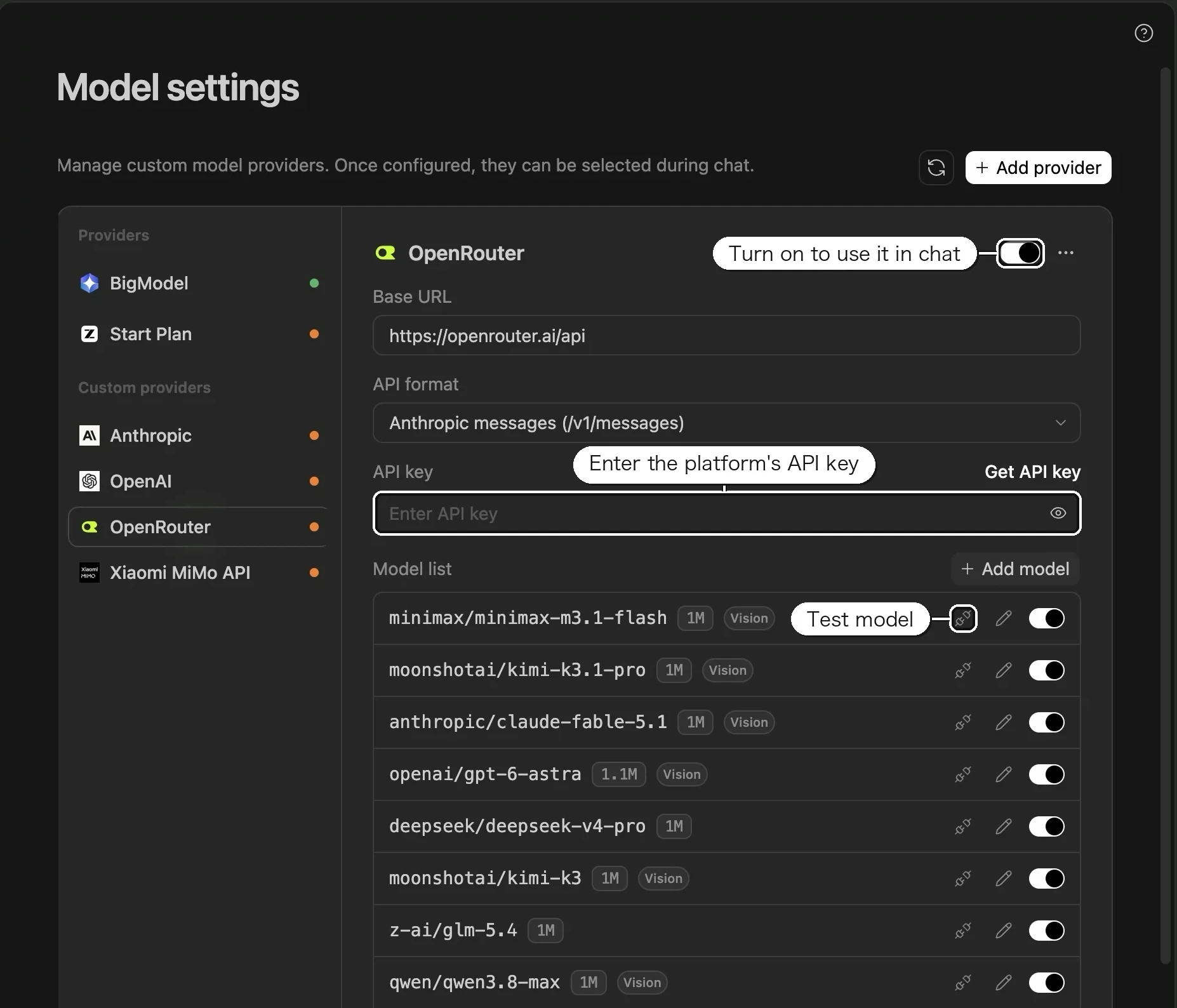
Go to the OpenRouter platform, register an account, create an API key, then choose OpenRouter in the Add provider panel.
- Preset Base URL:
https://openrouter.ai/api, API format Anthropic Messages - Preset models cover the mainstream models on OpenRouter, such as
anthropic/claude-opus-5.5,anthropic/claude-fable-5.1,openai/gpt-6.1-sol,openai/gpt-6-luna,deepseek/deepseek-v4-pro,moonshotai/kimi-k3.1-pro,z-ai/glm-5.4,x-ai/grok-4.7, andxiaomi/mimo-v2.6-pro, using OpenRouter'svendor/modelnaming
Moonshot (Kimi)
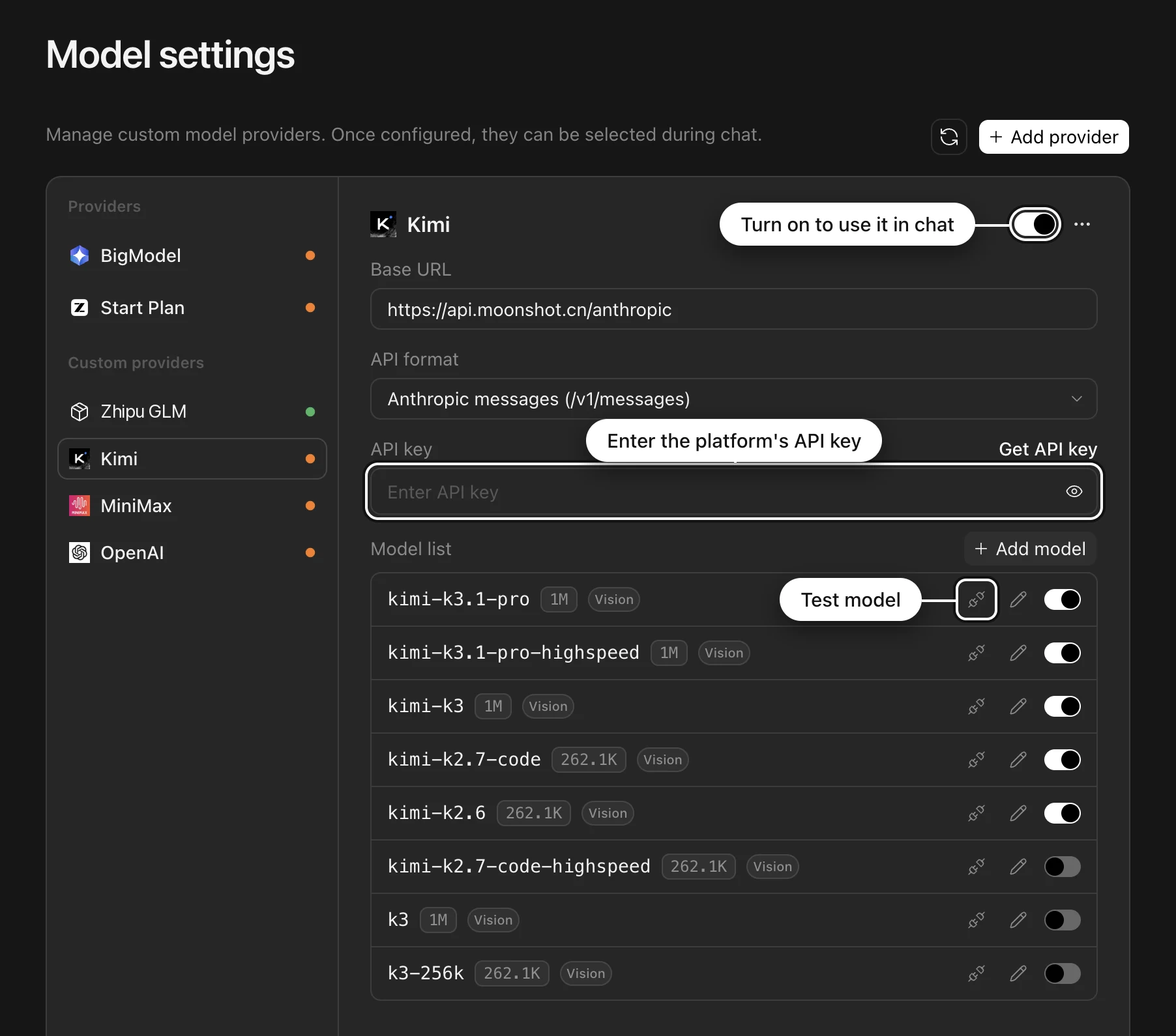
Choose Kimi in the Add provider panel.
- Preset Base URL:
https://api.moonshot.cn/anthropic, API format Anthropic Messages - Get an API key from the Kimi open platform, where token packages and usage are available
- Preset models include
kimi-k3.1-pro,kimi-k3.1-pro-highspeed,kimi-k3,kimi-k2.7-code, andkimi-k2.6 - If you subscribe to Kimi Code, choose the Kimi Code (China) or Kimi Code (International) preset instead; see More Presets
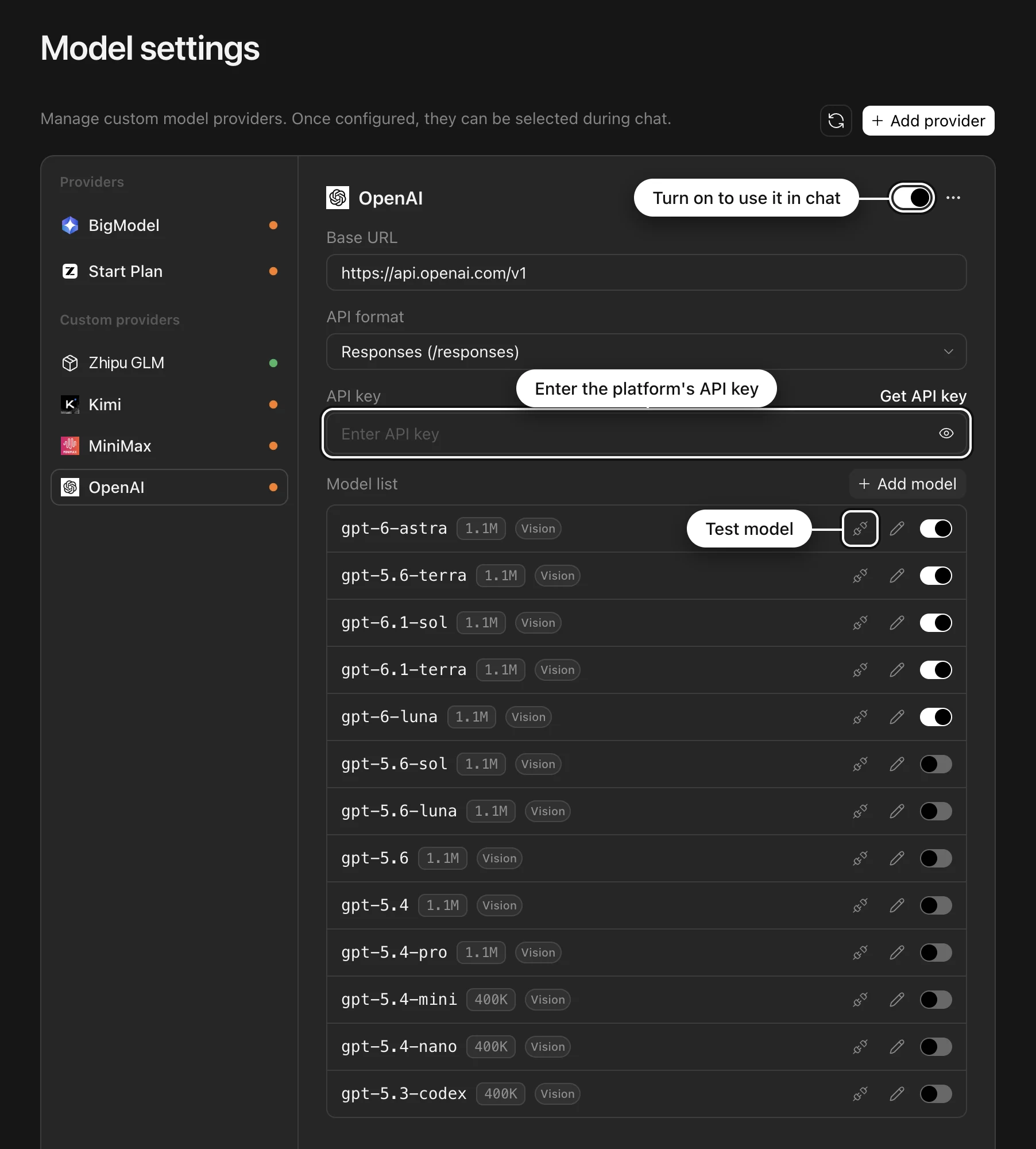
OpenAI
Choose OpenAI in the Add provider panel.
- Preset Base URL:
https://api.openai.com/v1, API format Responses - Get an API key from the OpenAI platform
- Preset models include
gpt-6.1-sol,gpt-6.1-terra,gpt-6-astra,gpt-6-luna, andgpt-5.6-terra(on by default), plusgpt-5.6-sol,gpt-5.6-luna,gpt-5.4, and others (off by default) - OpenAI's newest
gpt-6.2-astraandgpt-6.2-solare not in the preset list yet; click Add model and enter the model ID to use them. The same applies togpt-5.5andgpt-5.5-pro
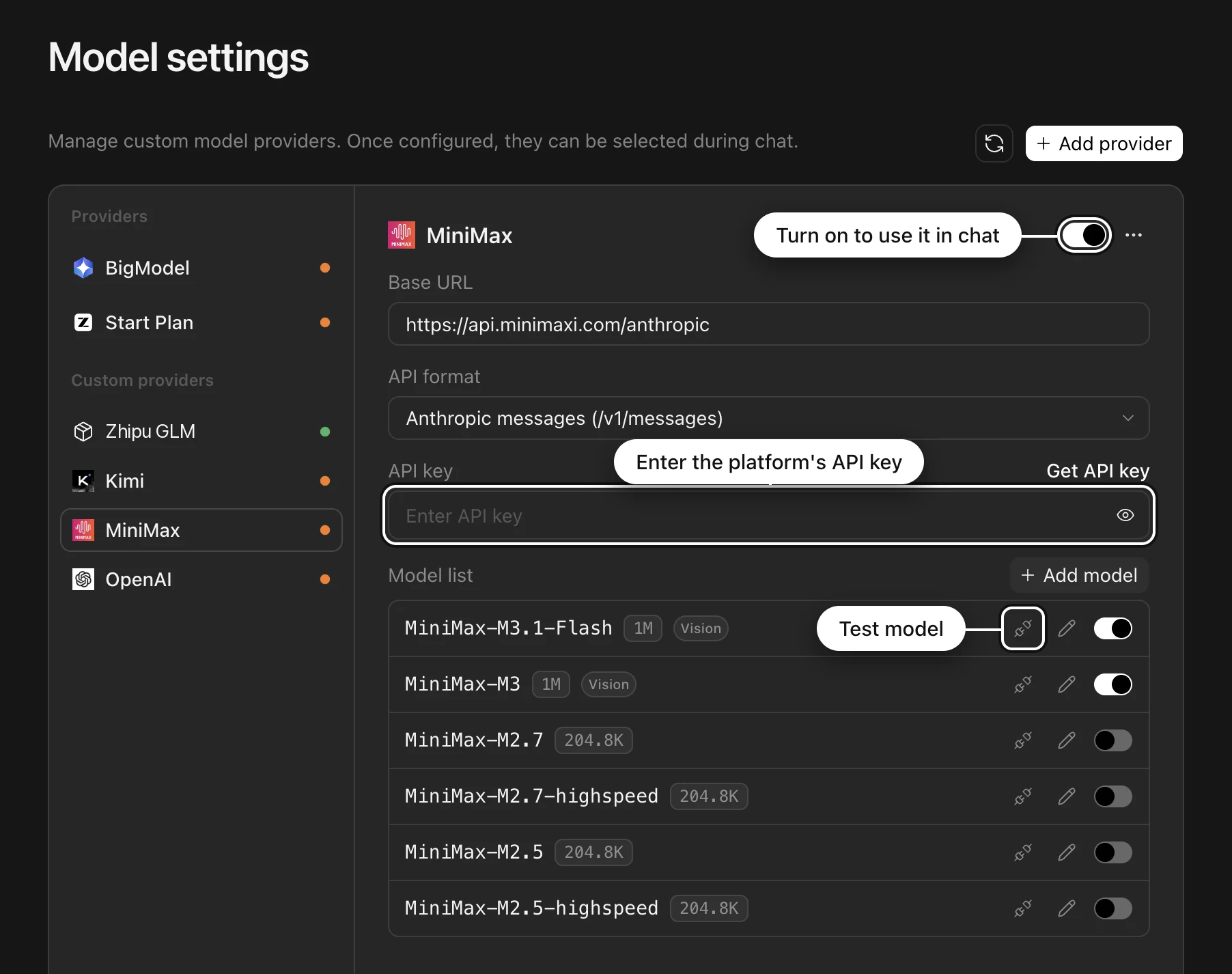
MiniMax
Choose MiniMax in the Add provider panel.
- Preset Base URL:
https://api.minimaxi.com/anthropic, API format Anthropic Messages - Get an API key from the MiniMax open platform, where plans and billing are available
- Preset models include
MiniMax-M3.1-Flash,MiniMax-M3,MiniMax-M2.7, andMiniMax-M2.7-highspeed - If you subscribe to MiniMax M Plan, choose the MiniMax M Plan (China) preset instead; see More Presets
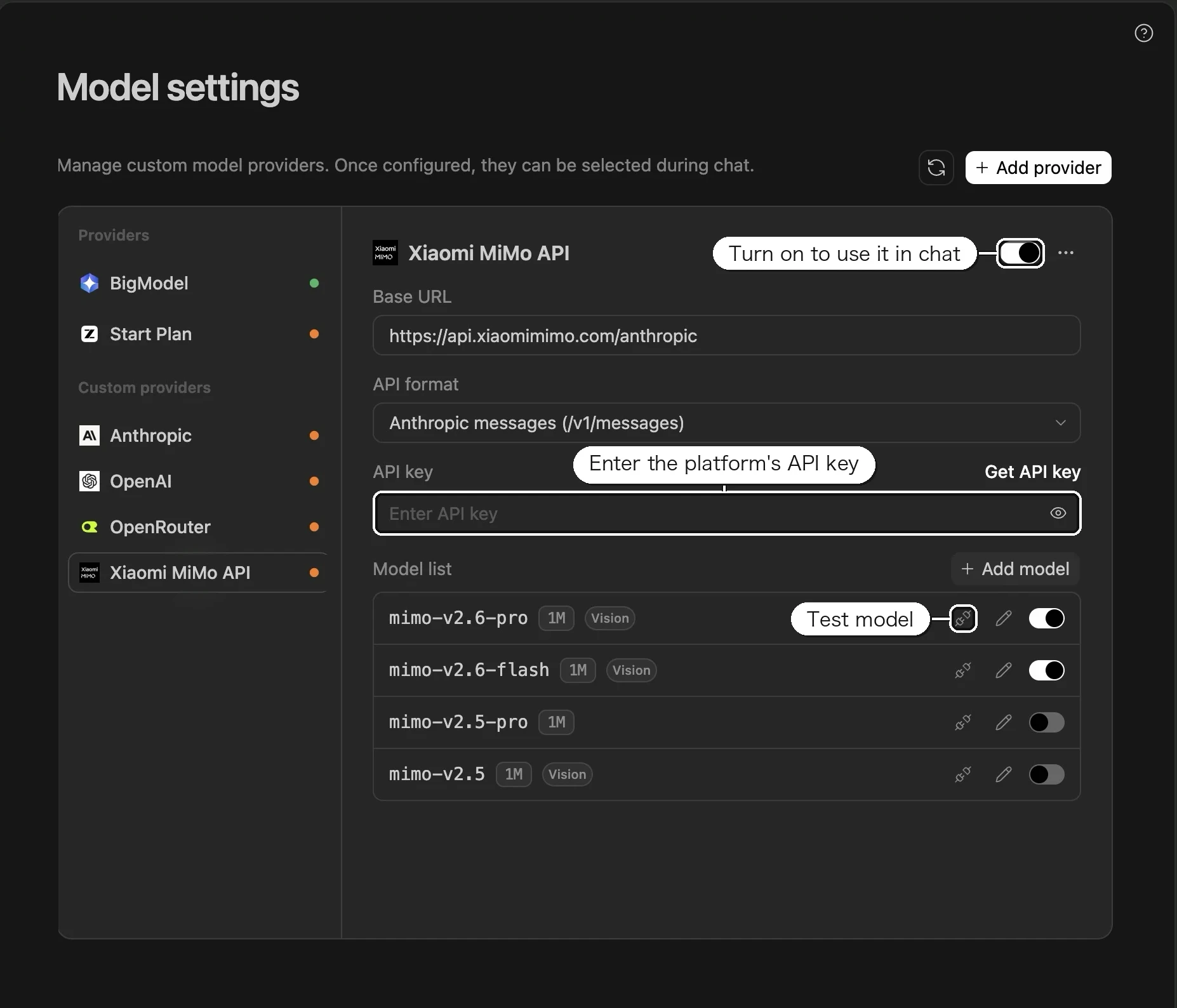
Xiaomi MiMo
Choose Xiaomi MiMo API in the Add provider panel.
- Preset Base URL:
https://api.xiaomimimo.com/anthropic, API format Anthropic Messages - Get an API key from the Xiaomi MiMo open platform, which offers Token Plan packages; with a Token Plan, choose the Xiaomi MiMo Token Plan preset instead (see More Presets)
- Preset models include
mimo-v2.6-proandmimo-v2.6-flash(on by default), plusmimo-v2.5-proandmimo-v2.5(off by default) mimo-v2.6-pro-ultraspeedis not in the preset list; click Add model and enter the model ID if you need it
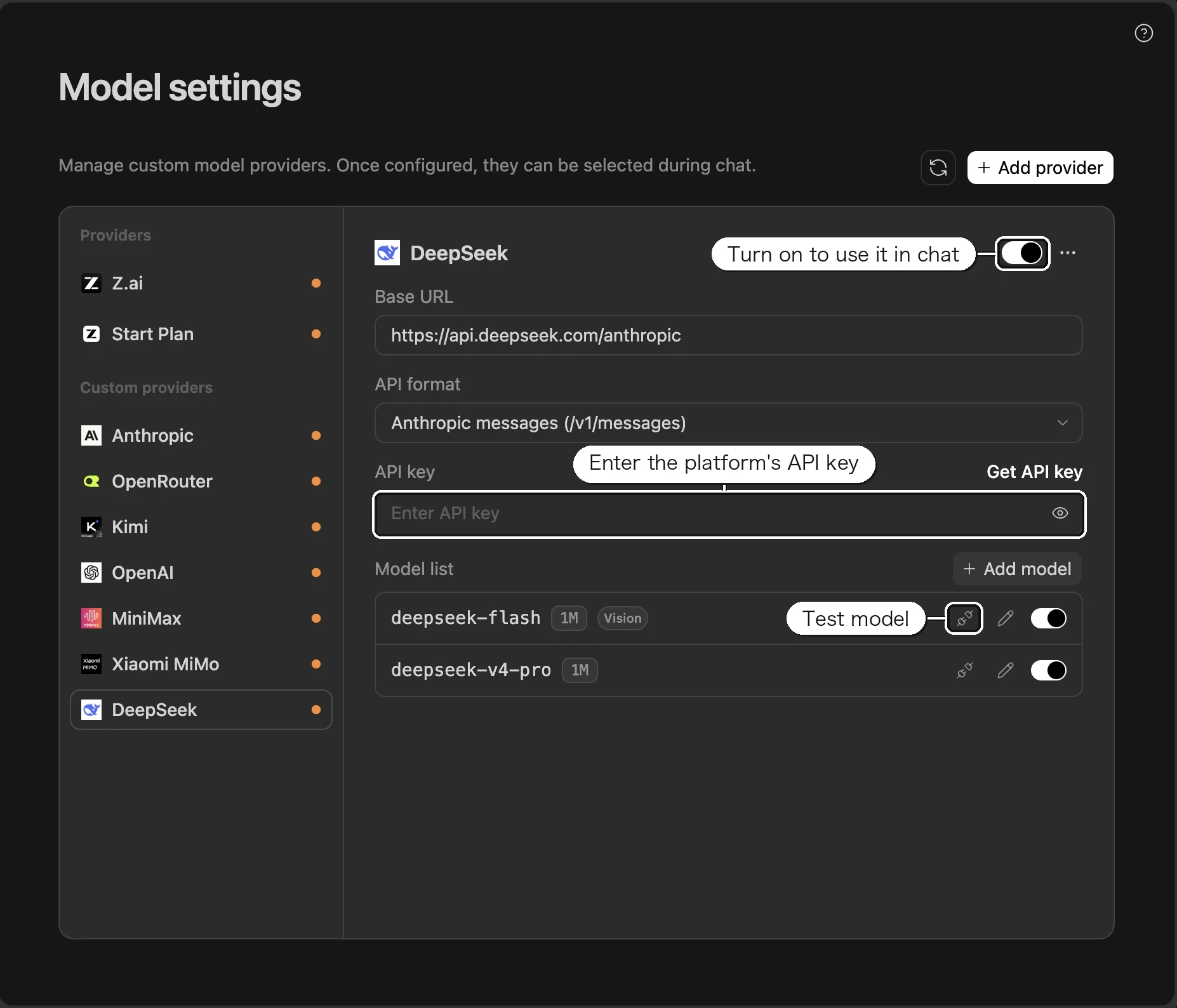
DeepSeek
Choose DeepSeek in the Add provider panel.
- Preset Base URL:
https://api.deepseek.com/anthropic, API format Anthropic Messages - Get an API key from the DeepSeek open platform
- Preset models include
deepseek-flashanddeepseek-v4-pro
More Presets
These presets work the same way — pick one and enter the platform's API key:
| Preset | API format | Preset Base URL | Get an API key |
|---|---|---|---|
| Alibaba Cloud (China) | Anthropic Messages | https://dashscope.aliyuncs.com/apps/anthropic | Model Studio console (China) |
| Alibaba Cloud (Global) | Chat Completions | https://dashscope-intl.aliyuncs.com/compatible-mode/v1 | Model Studio console |
| Alibaba Coding Plan (China) | Chat Completions | https://coding.dashscope.aliyuncs.com/v1 | Model Studio console (China) |
| Alibaba Token Plan Team (China) | Chat Completions | https://token-plan.cn-beijing.maas.aliyuncs.com/compatible-mode/v1 | Model Studio console (China) |
| Kimi Code (China) | Chat Completions | https://api.kimi.com/coding/v1 | Kimi Code console |
| Kimi Code (International) | Chat Completions | https://api.kimi.ai/coding/v1 | Kimi Code console |
| MiniMax M Plan (China) | Anthropic Messages | https://api.minimax.cn/anthropic | MiniMax console |
| Xiaomi MiMo Token Plan | Anthropic Messages | https://token-plan-cn.xiaomimimo.com/anthropic | Xiaomi MiMo open platform |
| Tencent TokenHub Guangzhou API (China account) | Chat Completions | https://tokenhub.tencentmaas.com/v1 | Tencent Cloud TokenHub console |
| Tencent TokenHub Singapore API (China account) | Chat Completions | https://tokenhub-intl.tencentmaas.com/v1 | Tencent Cloud TokenHub console |
| Volcano Ark API | Anthropic Messages | https://ark.cn-beijing.volces.com/api/compatible | Volcano Ark console |
| Volcano Ark Coding Plan | Anthropic Messages | https://ark.cn-beijing.volces.com/api/coding | Volcano Ark console |
| Volcano Ark Agent Plan | Anthropic Messages | https://ark.cn-beijing.volces.com/api/plan | Volcano Ark console |
| StepFun API | Anthropic Messages | https://api.stepfun.com | StepFun open platform |
| StepFun Step Plan | Anthropic Messages | https://api.stepfun.com/step_plan | StepFun open platform |
| SiliconFlow API (China) | Chat Completions | https://api.siliconflow.cn/v1 | SiliconFlow console |
| xAI | Responses | https://api.x.ai/v1 | xAI console |
| OpenCode Go (Chat / Anthropic / Responses) | As named in parentheses | https://opencode.ai/zen/go/v1 | OpenCode |
| OpenCode Zen (Chat / Anthropic / Responses) | As named in parentheses | https://opencode.ai/zen/v1 | OpenCode |
Alibaba Cloud presets include Qwen models such as qwen3.8-max, qwen3.8-flash, and qwen3.7-max. xAI includes grok-4.7 and grok-build-0.1 (on by default), plus grok-4.6 and grok-4.3 (off by default). The OpenCode presets are split by protocol because different models on the same platform use different protocols — pick the variant that matches the model you want.
Custom Providers (Anthropic / OpenAI Compatible)
Beyond the presets, ZCode can add any model service compatible with the Anthropic / OpenAI protocols as a custom provider — public model services, team-managed enterprise channels, or self-hosted services on a private network.
Setup Steps
- Open the Model settings panel
- Click Add provider and choose Create custom provider
- Name the provider (for example, the name of your team channel)
- Enter the Base URL and choose the matching API format (Anthropic Messages, Chat Completions, or Responses)
- Enter the API key for the service
- Click Add model and enter the model IDs supported by the service, or the IDs agreed on by your team
- Turn on the enable switch, click Test model to confirm the connection, and start using it
Team usage tip: for enterprise model channels, manage the Base URL, API key, model list, and access policy at the team level so long-running tasks have a stable and traceable model connection. For team-level seats, usage, and permission management, see the GLM Coding Plan Team edition.
Per-Model Advanced Settings
Click the Edit icon (the pencil) on the right of a model in the model list to open the Edit model settings dialog. Settings here apply to that one model only.
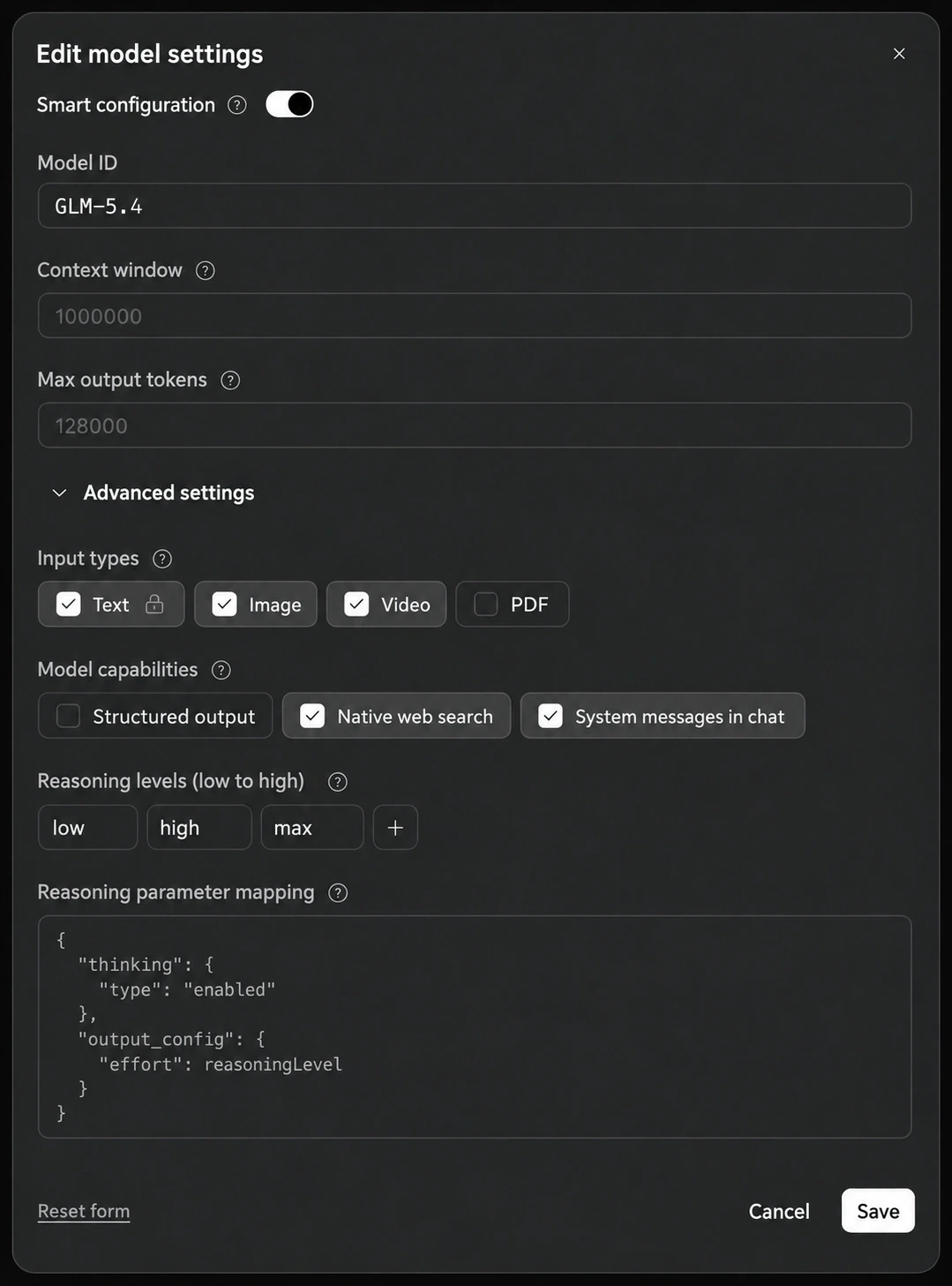
| Field | Description |
|---|---|
| Smart configuration | When on, ZCode matches a recommended configuration by model ID, Base URL, and API format and keeps it updated. Fields you change in the dialog override the recommendation; the other fields keep following it. When off, every parameter of this model is managed by hand. |
| Model ID | The model name actually sent to the provider. |
| Context window | How many tokens the model can handle at once. ZCode uses it to manage context and automatic compaction. Do not exceed the model's real limit. |
| Max output tokens | The maximum number of tokens one request may generate, i.e. the length cap for a single reply. With Smart configuration on, leaving it empty keeps the recommended value; with it off, the field is required. |
| Input types | The content the model can accept: Text (required), Image, Video, PDF. ZCode only sends matching attachments when the type is checked. |
| Model capabilities | Structured output (JSON Schema constraints), native web search, and mid-conversation system messages. Do not check capabilities the model lacks. |
| Reasoning levels (low to high) | The reasoning effort levels selectable in chat, ordered from low to high. Do not add levels the model does not support. |
| Reasoning parameter mapping | A CEL expression that maps the current reasoningLevel to request fields; the returned JSON object is merged into the request body. Preset models ship with a mapping, so you rarely need to change it. |
Each row in the model list also has a Test model icon (the plug shape to the left of Edit). Clicking it sends one real request to that model with the current configuration and, within a few seconds, reports "provider / model connected" or "Failed to connect" with the reason. After changing a key, Base URL, or model ID, test first before starting a conversation — it saves a lot of troubleshooting.
When raising max output tokens, keep in mind that automatic compaction reserves part of the context for output, and the reserve is the smaller of max output tokens and 21K. Below 21K, a higher cap makes compaction start sooner; above 21K, raising it further does not.
Editing the Config File
Everything you change in the settings page is written to a local config file, which you can also edit directly — handy for bulk changes or copying a setup between machines:
~/.zcode/v2/provider_config.json
The file holds three main sets of rules:
providerConfigRules.providerRules: the providers you added or modified.modelConfigRules.providerModelRules: model parameters you changed with Smart configuration on. Write only the fields you want to override.modelConfigRules.manualProviderModelRules: models with Smart configuration turned off. Every editable field of the model must be written out.
The example below shrinks the context window and max output of deepseek-v4-pro in the DeepSeek preset and turns off image input. It lives in providerModelRules, so the other fields keep following Smart configuration:
{
  "schemaVersion": 1,
  "config": {
    "providerConfigRules": {
      "providerRules": [
        {
          "providerId": "deepseek",
          "templateId": "deepseek",
          "providerName": "DeepSeek",
          "config": {
            "group": "standard-personal",
            "personalModelIds": [],
            "modelOrder": []
          }
        }
      ]
    },
    "modelConfigRules": {
      "providerModelRules": [
        {
          "providerId": "deepseek",
          "modelId": "deepseek-v4-pro",
          "config": {
            "properties": {
              "contextWindow": 200000,
              "inputFormat": { "supportsImage": false }
            },
            "optionSpecs": {
              "maxOutputTokens": { "max": 64000 }
            }
          }
        }
      ],
      "manualProviderModelRules": []
    }
  }
}
Notes:
templateIdrefers to a preset in the Add provider panel. Custom providers have notemplateId; their Base URL and API format live inconfig.api(typeisanthropic-messages,openai-chat-completions, oropenai-responses, andbaseUrlis the full address).- Model fields map one-to-one to the dialog:
contextWindowis the context window,maxOutputTokens.maxthe max output,supportsImage/supportsVideo/supportsPdfunderinputFormatare the input types,supportsJsonSchemaOutput/supportsNativeWebSearch/supportsMidConversationSystemare the capabilities,reasoningLevel.valuesare the reasoning levels, andreasoningLevel.mapis the reasoning parameter mapping. - A model in
manualProviderModelRulesmust include all of the fields above (includingreasoningLevel.map). A missing field prevents the whole personal config from loading, so useproviderModelRuleswhen you only want to change a few fields. - A model cannot appear in both
providerModelRules(Smart configuration) andmanualProviderModelRules(manual). - ZCode checks the file once per second while running, so saved changes apply automatically without a restart; you can also click Refresh in the top-right of Model settings. A valid file is rewritten into ZCode's canonical format.
- If the JSON is invalid, ZCode neither changes nor backs up the file; it simply ignores your personal config for now (built-in providers are unaffected) and picks it up again once the file is fixed.
- Do not commit this file to a repository or share it — it may contain your API keys.
Changing the Context Window
- Every model's context window can be edited in Edit model settings, including custom providers, presets, and the built-in models of plans (Individual Plan / Start Plan).
- Your change is stored in your local personal config and overrides the recommended value; server-side updates to the recommended configuration do not revert it.
- Models that match no built-in rule (for example, a model you just added to a custom provider) default to a 1M (1000000) context window and 128K max output in the recommended configuration; if the model's real window is smaller, change it to the actual value.
When a session approaches the window limit, ZCode compacts the context automatically. Compaction starts before the nominal window: the window minus the output reserve (the smaller of max output tokens and 21K), minus a buffer of about 13K.
Effort
Click the model name in the chat input to open the model selector, then use Effort in the menu to choose a reasoning level. Available levels come from the model configuration. The highest level in the list is selected by default.
Supported levels vary by model. Use the options shown for the selected model as your reference. Custom models without a matching level rule typically provide only an on/off option.
View model level reference
The following levels are defined by built-in rules. Manual configurations and third-party services may use different rules.
| Model | Available levels |
|---|---|
| GLM-5.4, GLM-5.3-Flash | low / high / max |
| GLM-5.2 | off / high / max |
| Claude Fable 5.1, Opus 5.5, Sonnet 5.5, Fable 5, Opus 5, Sonnet 5 | low / medium / high / xhigh / max |
| Claude Haiku 4.5 | on / off |
| GPT-6.1 Sol, GPT-6 Astra | low to max |
| GPT-6 Luna | none to max |
| GPT-5.6 | none to max |
| GPT-5.4, GPT-5.4 Mini, GPT-5.4 Nano | none to xhigh |
| GPT-5.4 Pro | medium / high / xhigh |
| GPT-5.3 Codex | low to xhigh |
| Kimi K3 | low / high / max |
| DeepSeek V4 series | off / low / high / max |
| Custom models without a matching rule | on / off |
Third-party Service Compatibility
The same model may support different reasoning levels through different providers. If a request fails with a reasoning-parameter error, select a level supported by the provider or update the mapping under Edit model settings → Reasoning parameter mapping.
Reasoning parameter mapping
ZCode converts the selected level into request parameters for the API format:
| API format | Related request fields |
|---|---|
| OpenAI Responses | reasoning.effort |
| OpenAI Chat-compatible | reasoning_effort, thinking, enable_thinking, and related fields |
| Anthropic-compatible | thinking, output_config.effort |
For provider-specific requirements, use a CEL expression to map reasoningLevel to the required request fields. The returned object is merged into the request body. ZCode does not currently provide a separate input for arbitrary request parameters.
For example, some third-party DeepSeek V4 services do not accept max. Select a level supported by that service instead of reusing the official endpoint configuration without adjustment.
Image Input
ZCode uses the model's Input types configuration to determine whether to send images. The built-in GLM-5.3-Flash model requires no additional setup when used through a BigModel or Z.ai Coding Plan.
For a custom model or third-party service:
- Confirm that both the model and the provider's endpoint support image input.
- Enable Image under Edit model settings → Input types.
- Send an image in a conversation to verify that the model can process it.
When image input is disabled, ZCode removes images before sending the request and substitutes a text notice. Enabling Image changes what ZCode sends; it does not add image capabilities to the model.
Model and API matching rules
Image support is determined by built-in model rules, the API protocol, and manual configuration. Defaults may differ when the same model uses different protocols. For example, GLM-5.4 supports images through the official Anthropic-compatible endpoint, while its OpenAI Chat-compatible configuration defaults to no image support.
Suffixed model names may match a base model rule: for example, glm-5.3-highspeed matches GLM-5.3. Custom models without a matching built-in rule require image input to be enabled manually.
If an image request fails, check the model ID, the endpoint's supported inputs, and the input-type configuration.
Verify The Setup
The quickest check is the Test model icon on the model row, which confirms within seconds that the endpoint, key, and model ID match. Then choose the channel from the model selector in the chat box and send a short test instruction. Once the model responds reliably, you are ready to go.