Core Features
Keyboard Shortcuts
Use shortcuts to create and switch tasks, toggle panels, and send messages. Everything below shows the default keys, and the Windows keys also apply to Linux. Every shortcut can be changed in Settings; see Customize Shortcuts.
The 8 you'll use mostKeycaps show macOS; Windows / Linux keys are listed below
⌘N
New task
Ctrl + N
⌘K
Open the command center
Ctrl + K
⌘⇧[]
Previous / next task
Ctrl + Shift + [ / ]
⌘B
Toggle the left sidebar
Ctrl + B
⌘J
Toggle the terminal
Ctrl + J
Esc
Stop the running task
Esc
⌃M
Open the model menu
Ctrl + M
⌃⇧M
Cycle the session mode
Ctrl + Shift + M
Tasks and Navigation
| Windows Key | Mac Key | Description |
|---|---|---|
| Ctrl+N | Command+N | New task |
| Ctrl+O | Command+O | Open workspace |
| Ctrl+W | Command+W | Close current context |
| Ctrl+Shift+[ | Command+Shift+[ | Previous task |
| Ctrl+Shift+] | Command+Shift+] | Next task |
| Ctrl+[ | Command+[ | Back |
| Ctrl+] | Command+] | Forward |
Panels and Window
| Windows Key | Mac Key | Description |
|---|---|---|
| Ctrl+B | Command+B | Toggle left sidebar |
| Ctrl+J | Command+J | Toggle terminal |
| Ctrl+Alt+B | Command+Option+B | Toggle right panel |
| Ctrl+Shift+F | Command+Shift+F | Enter or exit full view |
| Ctrl+, | Command+, | Open settings |
| Ctrl+Shift+L | Command+Shift+L | Toggle dark/light theme |
| Ctrl+= | Command+= | Zoom in |
| Ctrl+- | Command+- | Zoom out |
| Ctrl+0 | Command+0 | Reset zoom |
Search
| Windows Key | Mac Key | Description |
|---|---|---|
| Ctrl+K/Ctrl+Shift+P | Command+K/Command+Shift+P | Open Command Center |
| Ctrl+F | Command+F | Find in task |
Composer
| Windows Key | Mac Key | Description |
|---|---|---|
| Enter | Enter | Send message |
| Shift+Enter | Shift+Enter | New line |
| ↑/↓ | ↑/↓ | Browse input history when the composer is empty |
| Esc | Esc | Stop the running task |
| Ctrl+M | Control+M | Open model menu |
| Ctrl+T | Control+T | Cycle thought level |
| Ctrl+Shift+M | Control+Shift+M | Cycle session mode |
| Ctrl+Shift+D | Command+Shift+D | Start or stop voice input |
In the / command or @ mention panel, use ↑ / ↓ to choose, Enter or Tab to confirm, and Esc to close.
Customize Shortcuts
Open Settings → Keyboard Shortcuts to search, change, or clear the shortcut for any command. Besides searching by command name, you can switch to searching by key combination: press the keys to list the commands bound to them.
- Change: click the keys or the pencil icon, then press a new combination. Press Esc to cancel or Backspace to restore the default. Letter, number, and symbol keys need at least one modifier key.
- Conflicts: if the combination is already used by another command in the same scope, record a different one or choose Rebind anyway (current command loses it), which removes the keys from the other command. Combinations reserved by the system or the browser cannot be bound.
- Reset: click Reset all to defaults to return every shortcut to its default.
Shortcut list · search and reset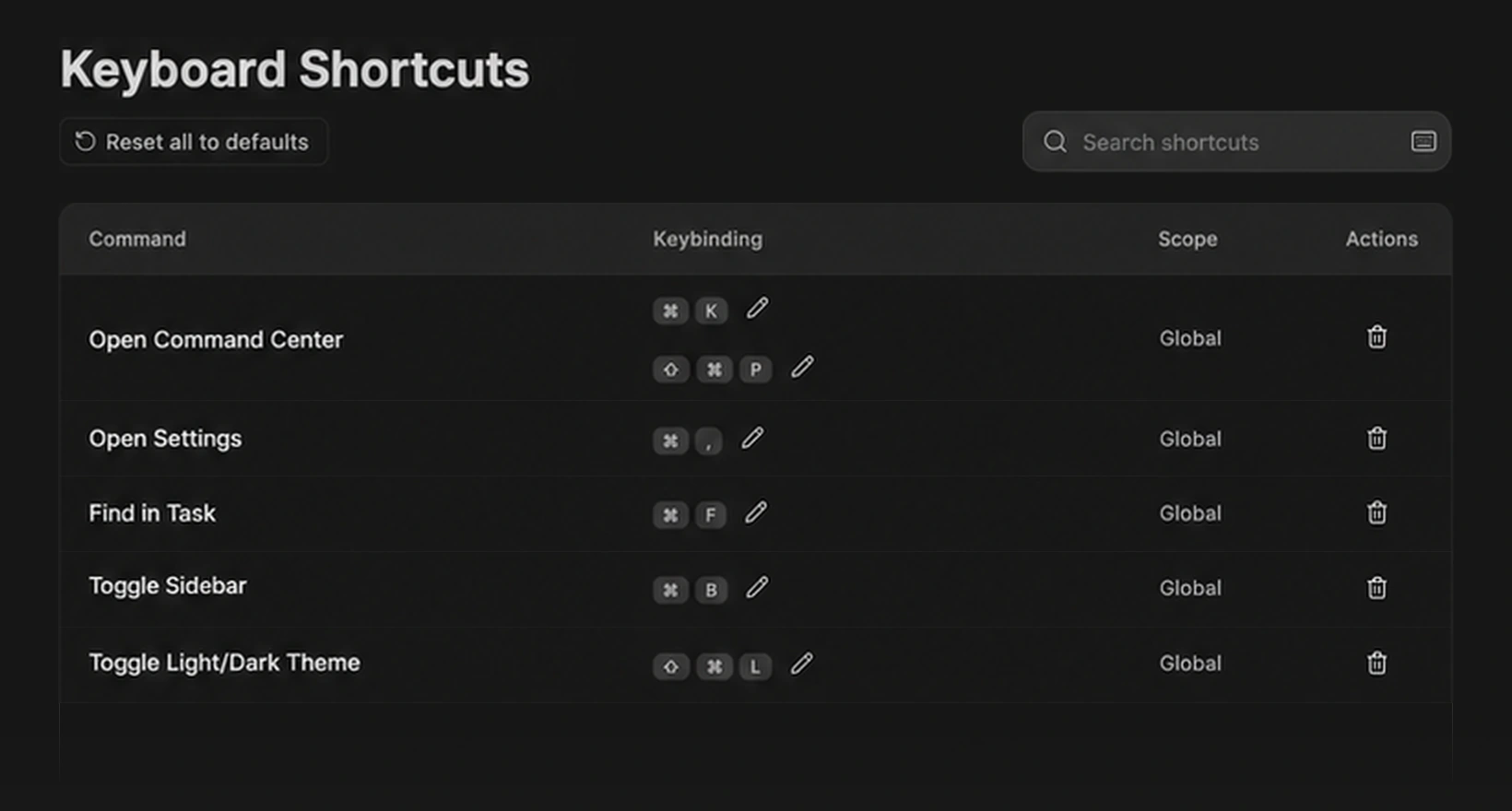 Record a new combination
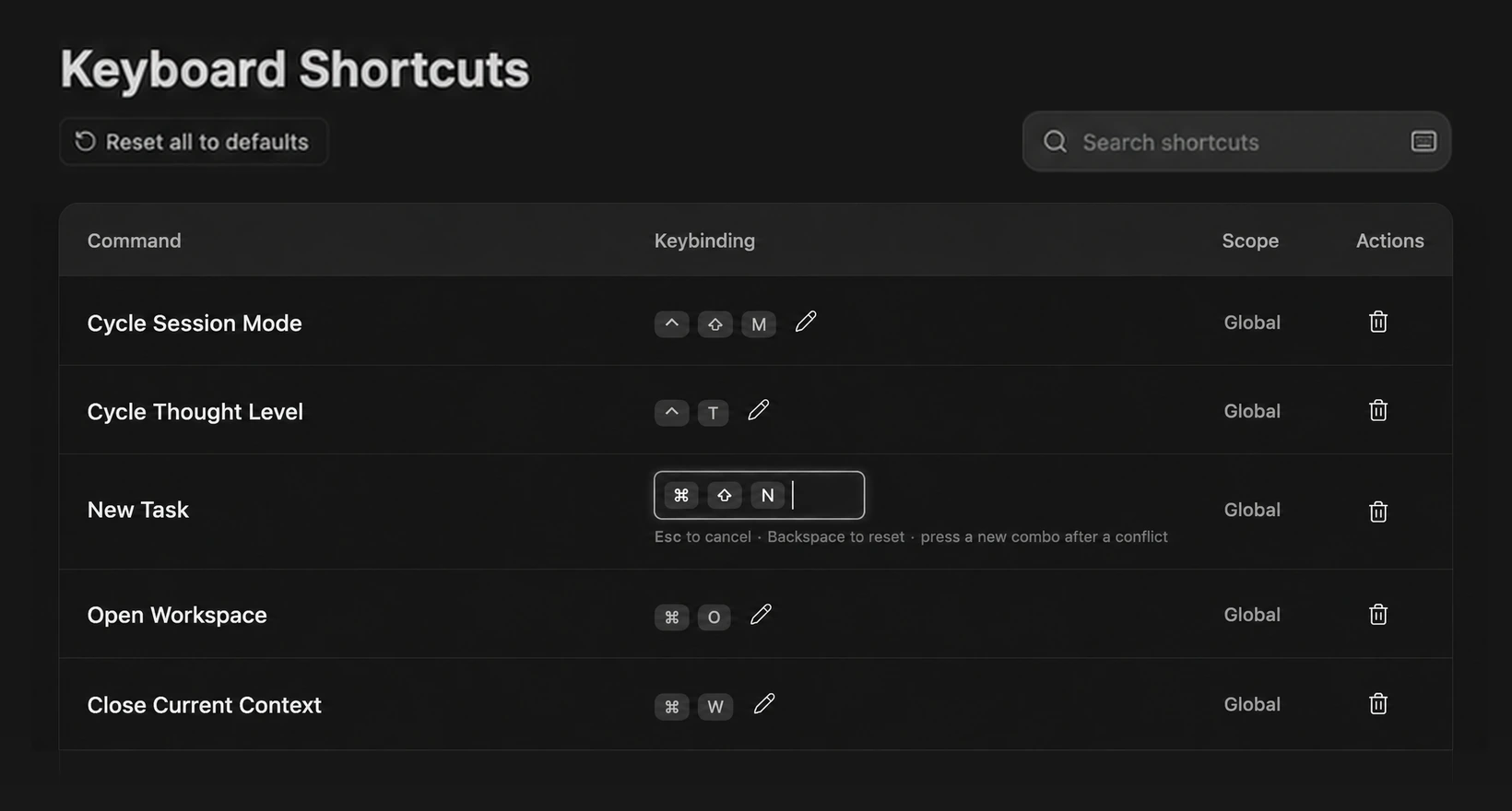
Record a new combination