Subagents
A subagent is a specialized agent that the primary Agent launches in its own isolated context; when it finishes, the results are summarized back into the main conversation. The primary Agent dispatches one whenever a task needs a separate context or parallel research, and you can also call one by name with @ in the chat input.
ZCode ships with two built-in subagents, and you can create your own under Settings → Subagents.
Built-in Subagents
| Subagent | Tools | Use cases |
|---|---|---|
| general-purpose | Every tool (default) | Independent tasks involving file access and command execution |
| Explore | Read and search tools only; never changes files | Wide searches, tracing call chains, and scoping risk before a change |
For example, specify Explore in the task instructions:
Use Explore to trace this module's call chain first, then summarize the entry points and risks.
Subagents Inside a Session
Once subagents start, a card for each appears in the conversation, and a status pill above the composer shows how many are running or completed. The example below shows Explore and general-purpose running in parallel.
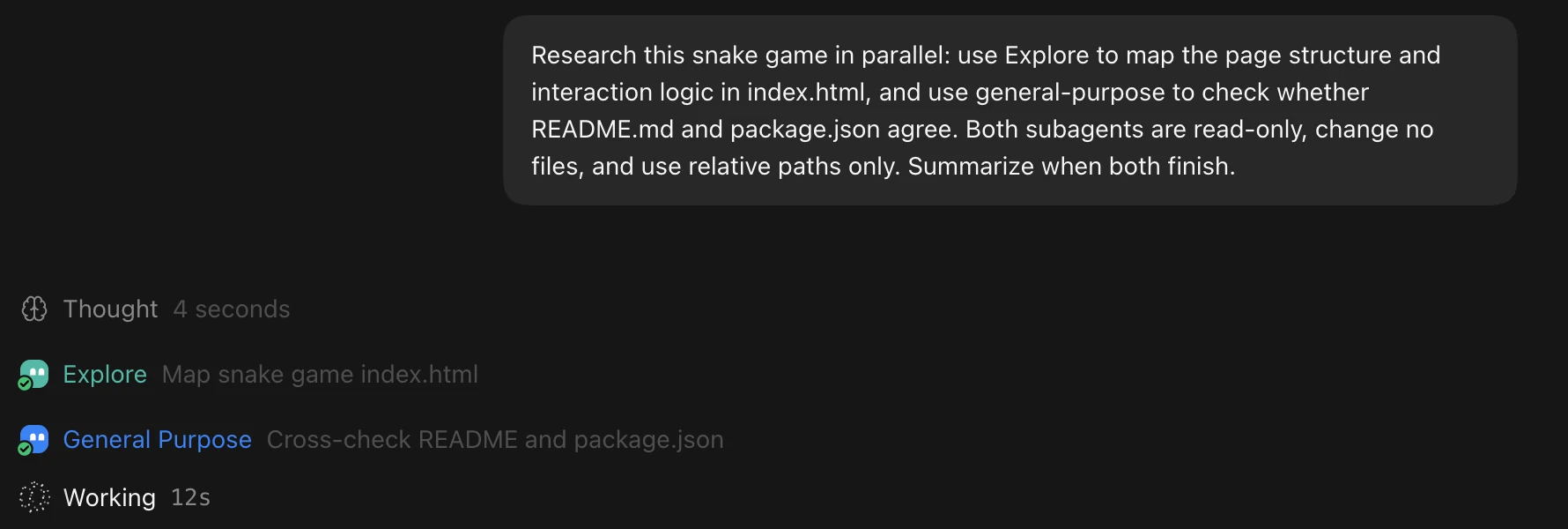 Open the status pill to see each subagent's state and time
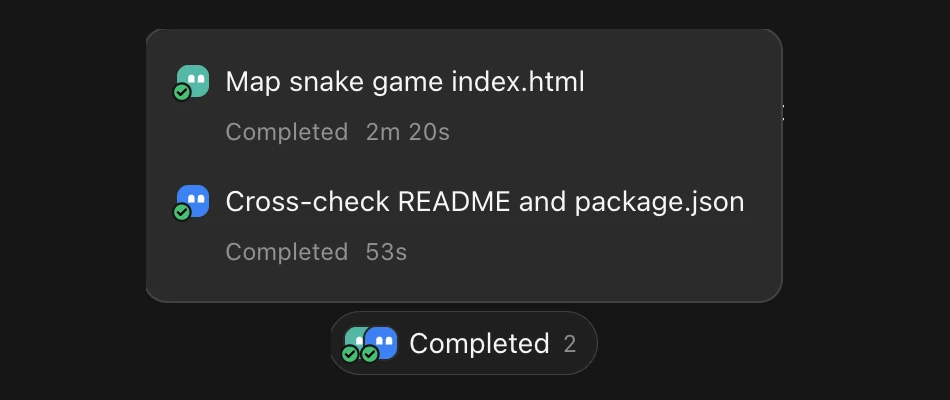
- Subagent cards: show the subagent type and the task it was given.
- Status pill: reads Active while any subagent is running and Completed once all have ended; open it to see each subagent's state (running, completed, failed, cancelled, and so on) and how long it took.
- Subagent directory: lists every subagent this session has dispatched under Running / Ended.
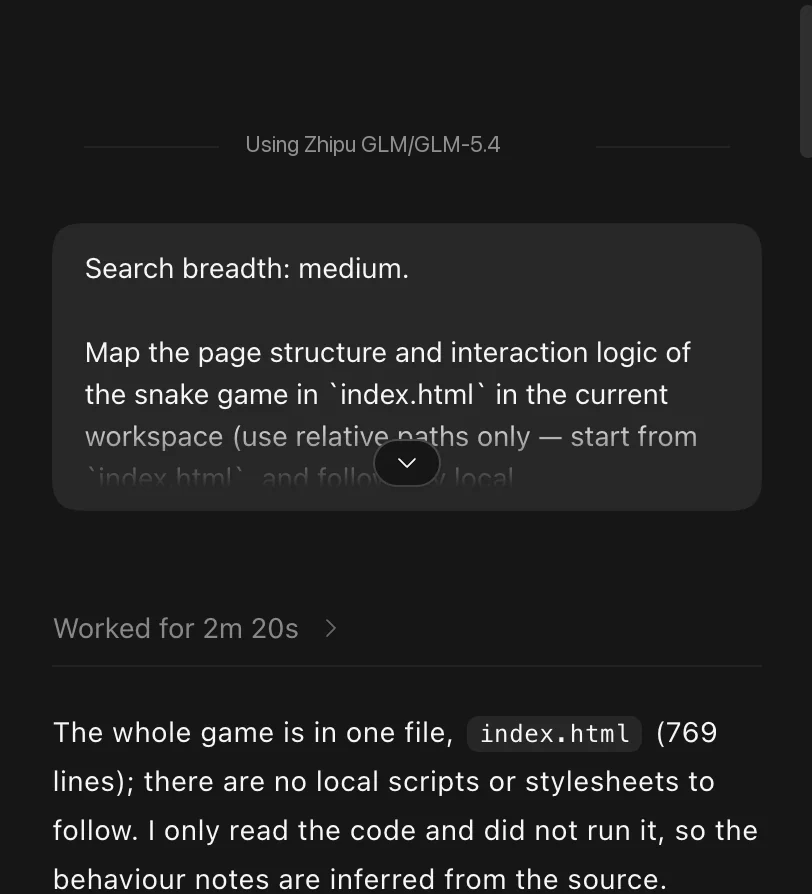
Click a subagent in the status pill's list to open its full session on the right: the model it uses is shown at the top, followed by the instructions the primary Agent gave it, what it did, and its result.
After the subagents return their results, the primary Agent continues processing and summarizes them in the main conversation.
A background subagent's card also shows its stages: launched, running in the background and syncing output, then result received. The primary Agent continues processing when results are available.
Managing Subagents
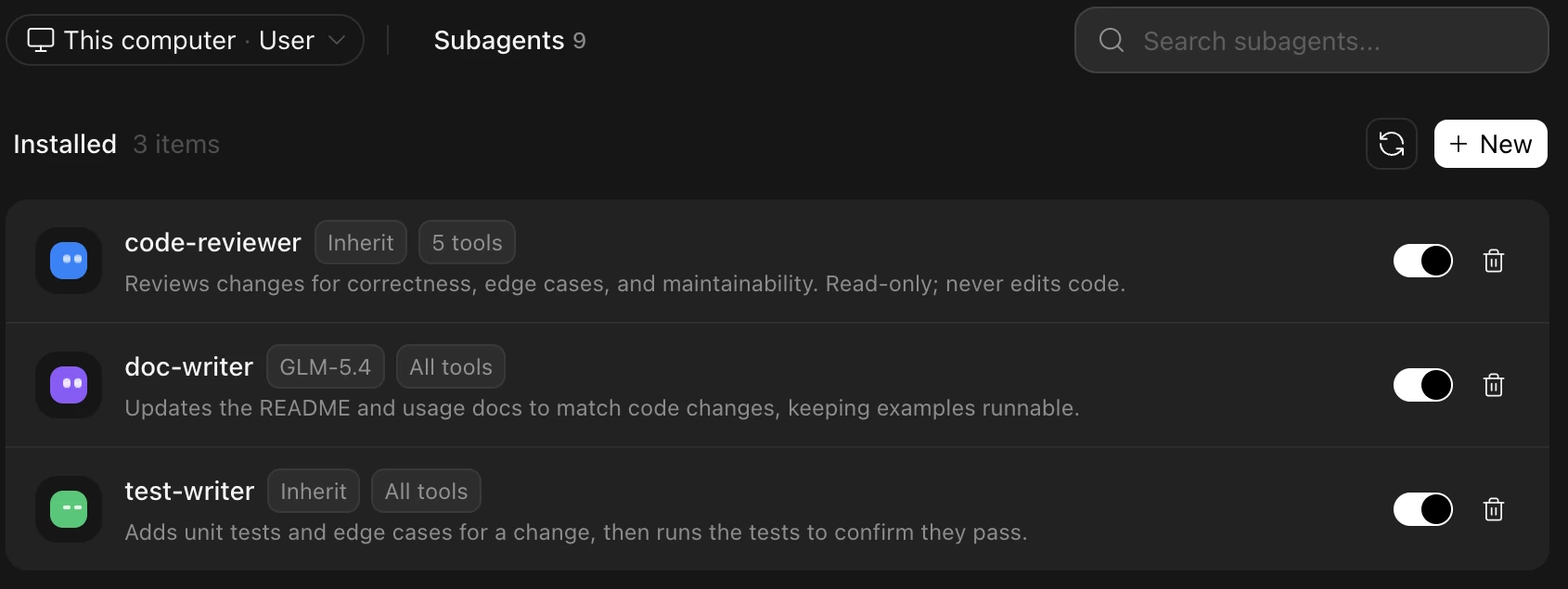
Open Settings → Subagents to see every subagent currently available.
Configuration Scope
Use the scope menu at the top left to switch between user-level and workspace-level configurations. Their storage locations and scope are shown below.
| User level | Workspace level | |
|---|---|---|
| Location | ~/.zcode/agents/ | <project>/.zcode/agents/ |
| Scope | Any project opened on this machine | This project only |
| Owner | Stored in the local user directory | Shared through the project repository |
| For | Code review or writing roles used across projects | Project-specific roles, such as reviewing PRs against this repo's conventions or running this project's release checks |
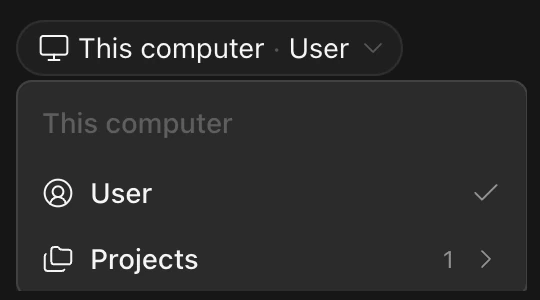
The menu has User and Projects; the Projects submenu lists every workspace currently open. Switching to a workspace shows only that project's subagents, and New writes into its folder. Built-in subagents are listed under User only, but they are available in every project.
The list has three groups:
- Installed: subagents you created or manually added to the configuration directory. You can edit, enable or disable, and delete them.
- Subagents from plugins: contributed by enabled plugins; each plugin forms its own group under the plugin's name. Their body is read-only, but you can give each one its own model and reasoning effort.
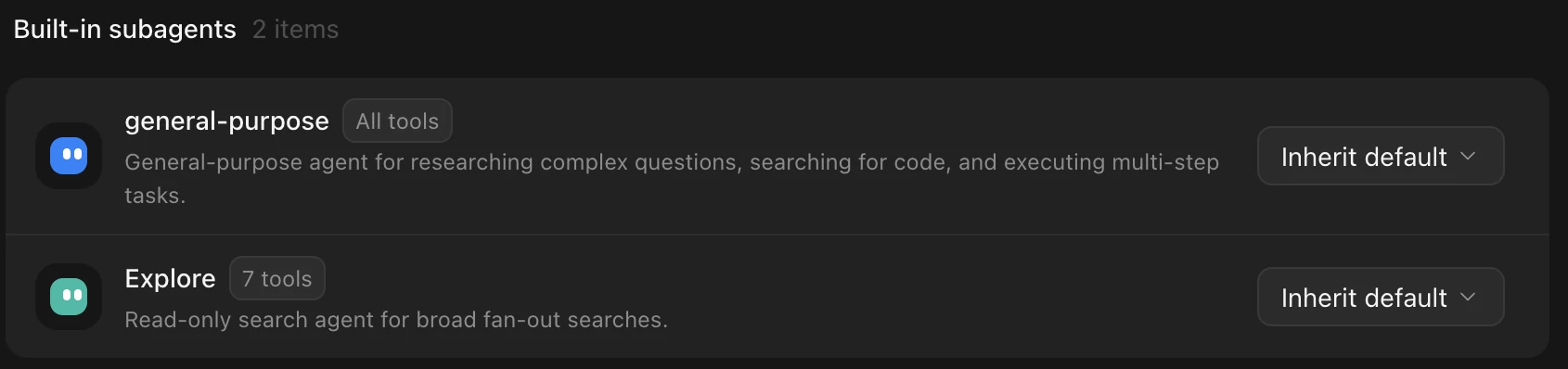
- Built-in subagents: general-purpose and Explore. They cannot be edited, deleted, or disabled, but support model and reasoning-effort overrides.
The badges after each name show its current model and tool setup: Inherit means it follows the primary Agent's current model; All tools means it inherits every tool from the main session, otherwise a tool count is shown. The switch on the right enables or disables it; a disabled subagent is never dispatched.
Creating a Subagent
Click New to the right of the Installed group and fill in the form:
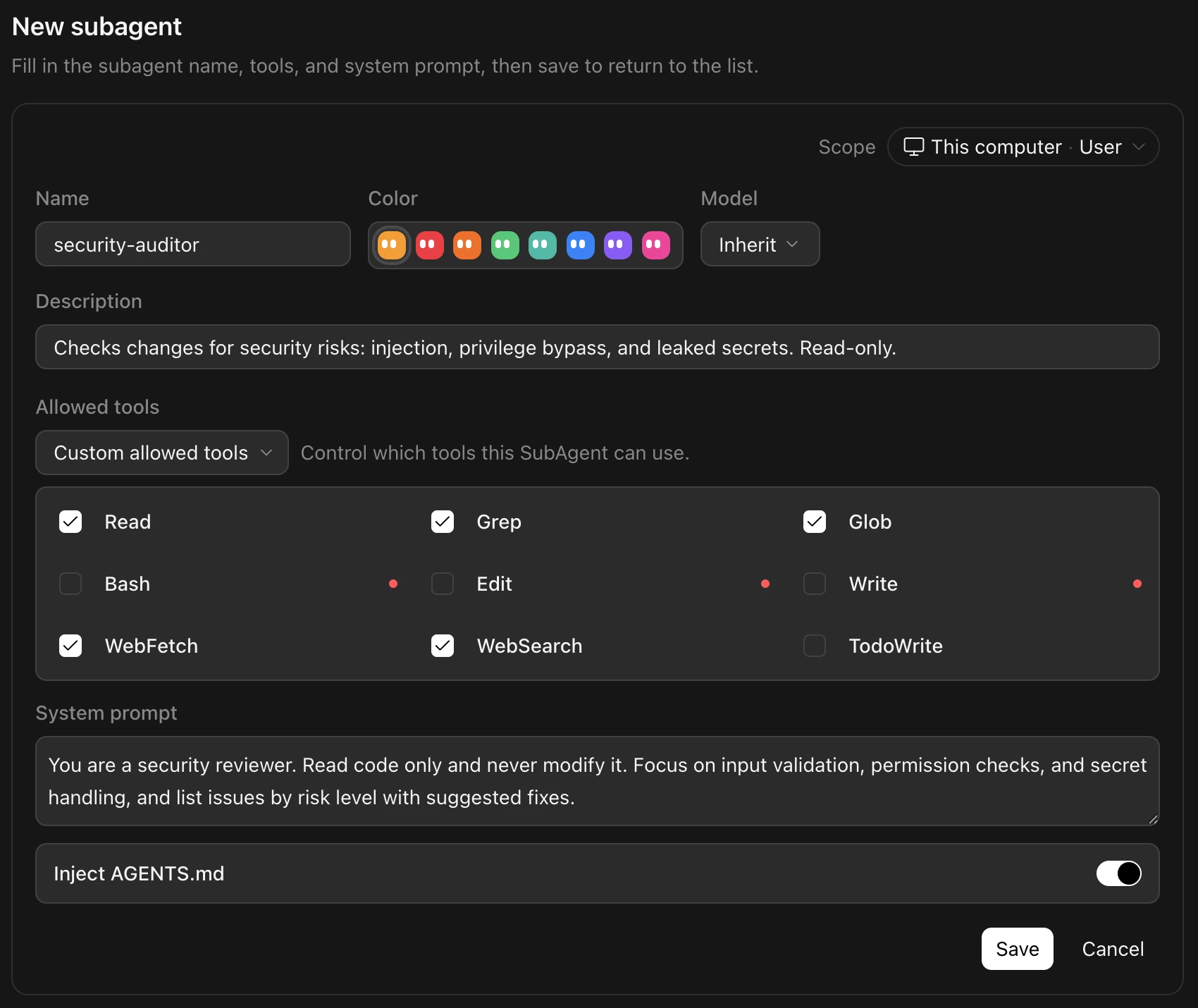
| Field | Description |
|---|---|
| Scope | User or a specific workspace; decides where the file is written. Cannot be changed after saving. |
| Name | Letters, digits, and hyphens only, 3–50 characters, e.g. code-reviewer. |
| Color | Distinguishes the subagent in lists and sessions. Identification only. |
| Model | Defaults to "Inherit", following the primary Agent's current model; or select a specific model. |
| Reasoning effort | Appears only after selecting a specific model; the options depend on that model. |
| Description | Describes the responsibilities and applicable tasks, allowing the primary Agent to determine when to use the subagent. |
| Allowed tools | "Default all permissions" inherits every tool; "Custom allowed tools" supports individual selection, with write-capable tools flagged. |
| System prompt | The subagent's role, boundaries, and rules. |
| Inject AGENTS.md | Controls whether user-level and workspace AGENTS.md instructions are included. Enabled by default. |
On save, ZCode writes <scope folder>/<name>.md, a Markdown file with frontmatter whose body is the system prompt. Start a new session for it to take effect; open sessions do not hot-reload, but you can send /reload in an open task to apply it.
Adjusting Existing Subagents
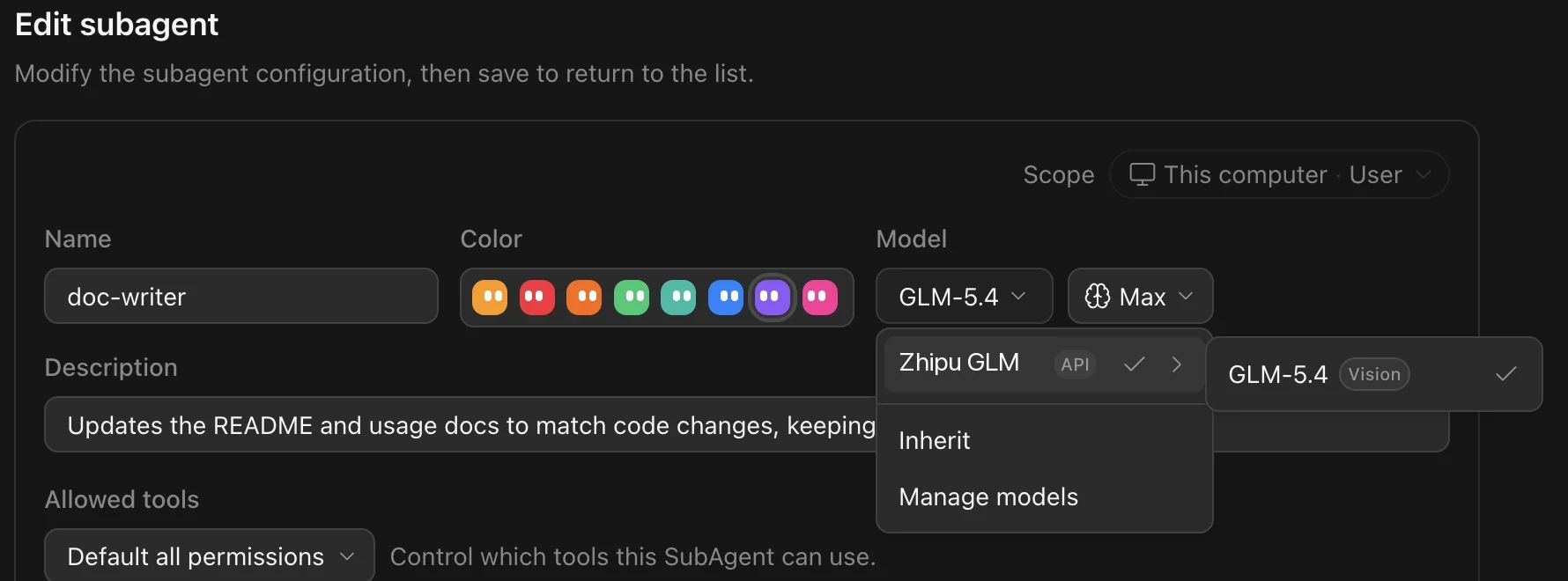
- Custom subagents: click the row to edit every field, or edit the Markdown file directly. Either way, start a new session or send
/reloadin the current task afterwards. - Plugin and built-in subagents: only the model and reasoning effort at the end of the row can change; everything else stays as is.
- Disable: turn off a custom subagent to prevent subsequent calls while retaining its configuration file.
Inheritance
Model, tool, and project-instruction settings follow these inheritance rules:
- Model: follows ZCode Agent's current model unless set
- Reasoning setting, when the model is inherited
- Every tool, including connected MCP tools
- User-level and workspace
AGENTS.md
- MCP servers connected after the main session started
- MCP tools once you switch to a custom tool list (unless named in full)
AGENTS.mdfor the built-in Explore- Dispatching other subagents
- Model: "Inherit" is the primary Agent's current model. When you switch the main session's model, subagents without a fixed model follow it on their next call; subagents with a specific model are unaffected.
- Reasoning effort: only applies when a specific model is set; with an inherited model, the primary Agent's reasoning setting is inherited too.
- Tools: "Default all permissions" inherits every tool from the main session, including connected MCP tools. With a custom list, only the checked built-in tools are available and MCP tools are excluded; to keep an individual MCP tool, write its full name
mcp__<server>__<tool>intotoolsin the definition file. Wildcards are ignored. - MCP connections: a subagent only sees MCP servers that were connected when the main session started; servers connected mid-session are invisible to it.
- Project instructions: the user-level
~/.zcode/AGENTS.mdand workspace AGENTS.md are injected by default, same as the primary Agent; the built-in Explore does not inject them. - No nesting: a subagent cannot dispatch subagents of its own.
When editing the definition file by hand, these frontmatter fields are supported beyond what the form shows (camelCase, case-sensitive; unknown fields are silently ignored):
| Field | Description |
|---|---|
model / thoughtLevel | Specific model and reasoning effort; thoughtLevel only applies when model is set |
tools / disallowedTools | Allowed / blocked tool lists |
maxTurns | Maximum turns per call |
background | Allow the primary Agent to dispatch it as a background task |
injectAgentsMd | Whether to inject AGENTS.md, default true |
mcpServers | MCP servers it depends on; the call fails if a required server is not connected |
Foreground and Background Execution
| Foreground | Background | |
|---|---|---|
| Main task | Waits for all subagents before continuing | Does not wait; can keep going or even finish its turn |
| Results | Several subagents run in parallel and are summarized together | Return to the main conversation automatically for the primary Agent to process |
| Use cases | Research whose results are required by the main task | Long-running work that can proceed independently |
The primary Agent selects the execution mode based on the task. A background Explore only has read-only tools. Terminal commands can run in the background too, see ADE tools.