Remote Control
Remote Control lets you view and operate ZCode on your computer from a mobile browser: choose a computer, review tasks, continue chats, create projects and tasks, and use the files, terminal, and review panels. Tasks still run on the selected computer and the environments it is connected to; the phone sends actions and shows the results.
Remote Control works together with Remote Development: the desktop app connects to a server, WSL, or Docker first, and your phone then reaches those projects through that computer. The phone page does not start a separate Agent of its own.
Features
| Feature | Purpose |
|---|---|
| Choose a computer | List the computers on your account and connect to one that is online |
| View tasks | Browse the project and task sidebar shared with the desktop, filtered by four views |
| Continue chats | Open an existing task, add requirements, and follow the ZCode Agent's work |
| Create tasks and projects | Start new tasks; create projects and choose directories on connected devices |
| Files, terminal, review | View files, run commands, and check code changes from the chat's side drawer |
Before Connecting
- Sign in to the computer and the phone with the same ZCode account. The Account region you choose on the phone's sign-in page (China or Global) must match the computer.
- Keep ZCode running and online on the computer. On first use, finish the model setup in the desktop app.
- To reach remote projects, connect the corresponding devices in the desktop app first; see Remote Development.
Remote Control pairs by account. The QR code and link only locate your computer; they are not sign-in-free credentials. Having the link without signing in to the same account does not grant control.
The official ZCode remote control is a web page opened in your phone's browser; there is no app to install. Mobile apps built by third parties are not the official remote control, so if something goes wrong, first make sure you are using the official web entry.
- Mobile browserSame account; scan or choose a computer
- Desktop ZCodeRunning, with remote control on
- ProjectsLocal projects or connected remote ones
- Task keeps goingRuns on the computer; results come back to the phone
Scan to Connect and Choose a Computer
- Select the phone icon at the bottom left of the desktop app to open Mobile remote control. If you are signed out, sign in when prompted; if remote control is already on, the panel shows the current connection status.
- Scan the QR code with your phone camera, or select Copy link and open it in a mobile browser.
- If the phone is not signed in, the page shows "Sign In To Continue". Choose the same Account region as the computer, select Authorize in browser, and finish authorization in the new tab; the page then returns and continues connecting.
- Once connected, you land on the task home; choose the project or task you need.

1Connection status2Stop: end remote access3Copy link4Bot Channel entries and Manage bots
Use the QR code or link your own desktop app shows. The QR code, computer, and project names in these images are examples, and the QR code shown cannot be scanned to connect.
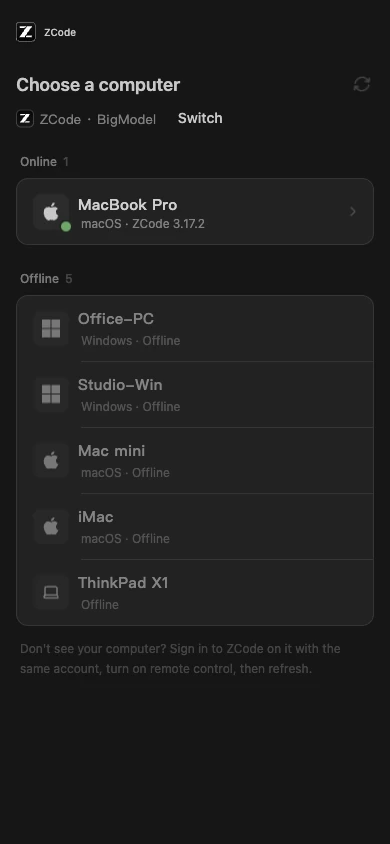
You can also open Choose a computer from the remote control page. It lists the computers on your account under Online and Offline; choose an online one to connect. If a computer has several connections, choose the specific one first. If your computer is missing, make sure it is signed in to the same account with remote control turned on, then select refresh at the top right.
When you open the remote control page again, it may reconnect directly if the computer you last used is still online. To change computers, select the current computer row at the top of the task home to open Choose a computer. That switches the remote control target; if the account is wrong, use Switch on the computer list to change accounts.
The right side of the desktop panel also has Bot Channel entries for WeChat, Feishu, Lark, and Telegram, with Manage bots at the bottom. Scanning to control from a browser does not require a bot; set up the matching Bot Channel only when you want to reach ZCode through a chat app.
Use the Task Home on Your Phone
Task Home and Filter Views
The task home shares the project and task sidebar with the desktop app. The current computer is shown at the top, followed by New task, search, and Filter view. You can browse pinned tasks, projects, and other tasks. Unread, running, and needs-attention states in the list help you find what to look at next.
Filter view offers four views; the current one has a check mark:
- By project: tasks are grouped under their projects.
- By group: tasks are shown by the task groups you created on the desktop.
- Recently updated: tasks ordered by update time.
- Unread: only tasks with unread messages.
New Task
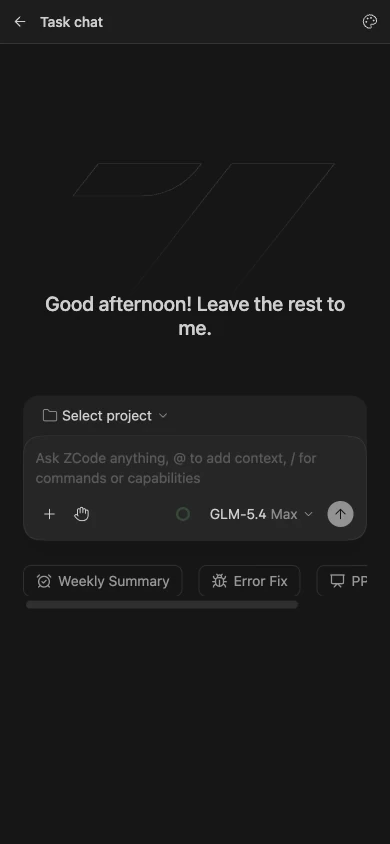
Select New task at the top, or the new task entry in a project, to open a draft. Check the project above the input box, enter your request, and send it. The model and permission options are whatever the page currently offers. If a remote project is not connected yet, reconnect it first.
 New task: check the project, model, and permissions before sending
Create a Project and Choose Folders
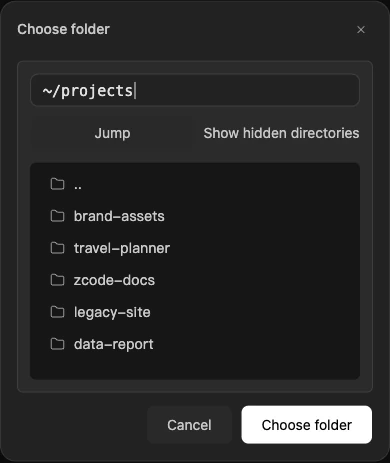
Select New project next to Projects, choose a connected device and its source folders, then create the project; existing projects can be restored with Add to sidebar. The phone can browse and choose directories within the access of devices you already have, not only the directories the desktop has open.
Continue a Chat
Select an existing task to open its chat, review the replies, execution steps, and results, and keep typing in the input box at the bottom. Follow-up requests sent while the task is running are handled according to the current interaction mode; when a permission request or question appears, respond in its card. The stop button in the chat only stops generation for the current task.
Select the back button at the top left to return to the task home. Choosing a task on the phone does not force the desktop to switch to the same task.
Files, Terminal, Review, and Settings
In a chat, select the side panel button at the top right to open an overlay drawer. Its New tab offers Files, Terminal, and Review: pick a file to view it, run commands in the terminal and see their output, or check code changes and diffs. Collapse the drawer to get back to the chat.
 Side drawer: Files, Terminal, Review
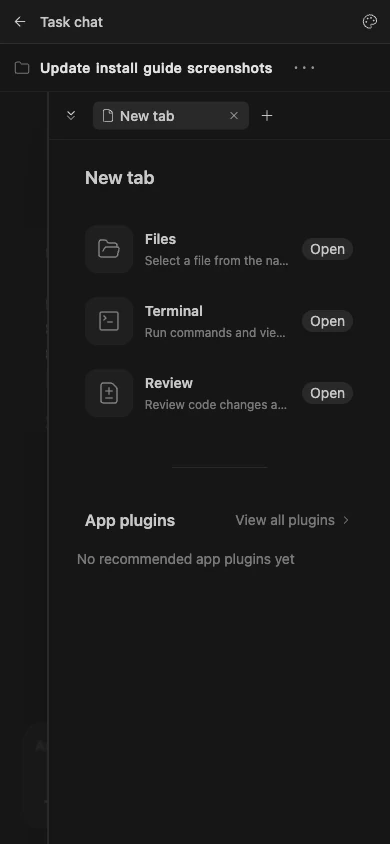
These actions apply to the project's actual runtime environment:
| Project kind | Where it runs |
|---|---|
| Local | The selected computer |
| SSH | The corresponding remote host |
| WSL | The corresponding WSL distribution |
| Docker | The corresponding container |
Check the current project and device before running commands or changing files.
The bottom of the phone's task home also has a settings entry with the model and Agent settings that are currently available; each settings page shows only what is open to the phone. Remote devices and Data sync are still managed in the desktop app. The top right of a chat lets you choose a theme; the phone browser's theme preference is independent of the desktop theme.
Connection Management and Recovery
| Action or situation | Current behavior |
|---|---|
| Close the desktop remote control panel | Only hides the panel; remote control stays on. |
| Select Stop in the desktop panel | Ends remote access and clears the intent to restore it automatically. Turn remote control on again when you need it. |
| Stop generation in a chat | Stops generation for the current task; this is different from stopping remote access. |
| The desktop app quits or the computer sleeps | The phone temporarily loses its way in. Reconnect after the computer, app, and network are back; remote tasks do not necessarily stop. |
| Remote control was on before the app restarted | It can come back automatically after sign-in and workspace restore; you do not have to toggle it every time. |
| The phone goes to the background or the network blips | The page tries to reconnect and resync; if it still fails, retry as prompted or choose another device. |
| The same connection is taken by another phone or tab | One connection keeps one phone controller at a time. Close the extra pages, then retry on the page you want to use. |
When something goes wrong, follow the page prompt to sign in, retry, choose a computer, or restore remote control on the desktop. If a link does not open or is reported as invalid, scan the code or copy the link again from the panel in the current desktop app. While a phone is connected, the desktop panel shows a Pull mobile logs button; use it to fetch the phone-side logs before reporting a connection problem.
| Problem | What to do |
|---|---|
| Account mismatch, or no permission for the target computer | Make sure both sides use the same account and channel, and switch accounts if needed; you can also choose another computer on the current account. |
| The computer is offline or remote control is off | Bring the computer and ZCode back, turn on remote control, and refresh the computer list. |
| The computer is connected, but a remote project is not | Reconnect the existing connection from the project. If credentials, an installation, or an update are needed, handle them in the desktop app. |
| The page keeps showing a connection failure | Check the network and the desktop app, then retry as prompted; if needed, choose another device or copy a new link from the current desktop. |
Limits
- From the phone you can create tasks, create projects and choose directories on connected devices, continue chats, and use the files, terminal, and review features that are open to it.
- Adding SSH, WSL, or Docker connections and managing remote services still happen in the desktop app.
- The available devices and projects come from the desktop you are connected to; this does not mean you can reach any file on every computer on your account.
- Remote Control always needs the desktop computer as the phone's way in. Remote tasks can keep running after the desktop goes offline, but the phone cannot bypass an offline desktop to reach the remote service directly.
FAQ
Can the phone create a remote connection?
No. Adding SSH, WSL, or Docker connections happens in the desktop app. For a remote project the desktop has already connected but that is currently disconnected, you can start a reconnection from the phone; credentials, installations, and updates are still handled in the desktop app.
Can the phone open directories the desktop has not opened?
Yes, within the access of connected devices: you can browse directories and create projects there; see Create a Project and Choose Folders. The phone cannot reach computers or environments the current desktop has not connected.