Bot Channel
Bot Channel connects a chat app to ZCode. Once it is set up, you message a bot in Telegram, WeChat, or Feishu / Lark, hand a job to ZCode Agent in one sentence, such as "write me a small game", then follow the progress and collect the result in the chat.
The bot is only the entry point. ZCode Agent still does the work on your computer and the files stay there, so ZCode has to keep running on that computer with a network connection.
Before you start, check three things:
- ZCode on the computer has a working model configured. The bot uses the desktop's model settings.
- The project you want to work on has been opened in ZCode. The bot can only enter workspaces the desktop already has.
- The chat app is installed, and the computer running ZCode can reach that service. For Telegram this means
api.telegram.org.
The channels differ in how you connect and in how replies look:
| Telegram | Feishu / Lark | ||
|---|---|---|---|
| Connect | Create a bot with BotFather, save its token, then send a bind command | Scan to connect, then send a first message to activate | Scan to create an app, then send a bind command |
| You chat with | The bot you created | The 微信ClawBot contact inside WeChat | The agent app you created |
| Replies | Text messages, three levels of detail | Text messages, three levels of detail | A streaming card that updates in place |
| Choices | Buttons under the message | A numbered text menu; reply with a number | Buttons on the card |
This page starts with Telegram. WeChat and Feishu / Lark follow, and everything from Use It from Chat onward applies to all three.
About the screenshots: QR codes are samples, the bind codes have expired, and a dashed line marks where a tall phone screen is shortened.
Create a Bot
Open Mobile remote control at the bottom of the sidebar. Chat apps are listed on the right of the dialog, and Manage bots at the bottom opens the Bots dialog. Click New bot there, then choose a channel.
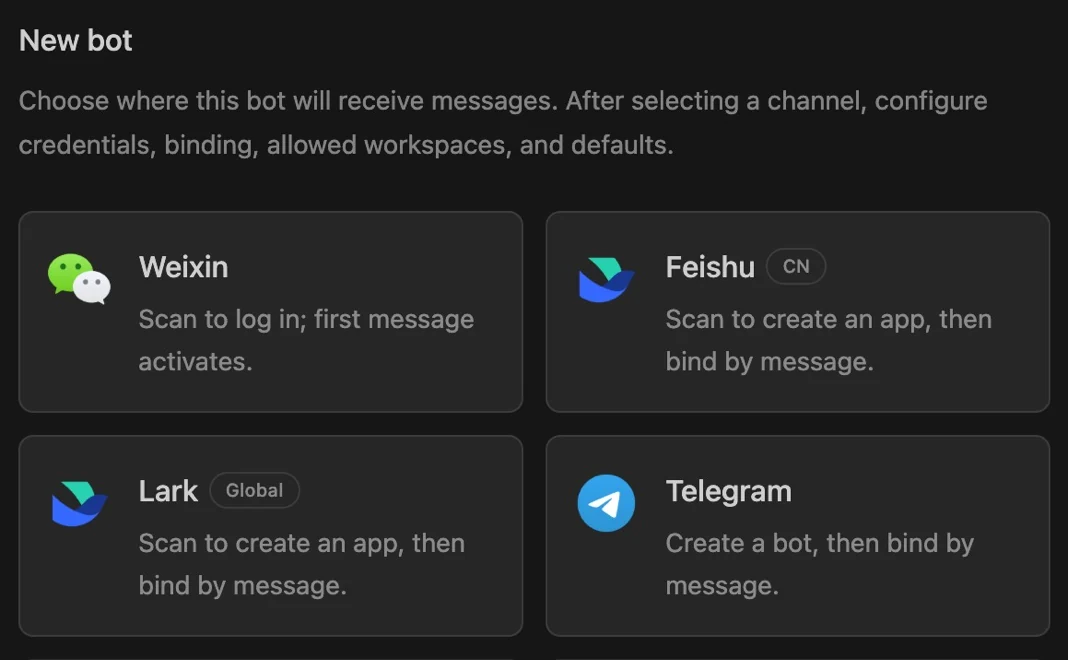
1Weixin: WeChat. Scan to log in; the first message activates2Feishu: for tenants in China3Lark: for global tenants4Telegram: create a bot, then bind by message
WeChat appears as Weixin in the client.
Connect Telegram
Telegram needs a bot of your own. You create it with BotFather, give its token to ZCode, and then bind your private chat to it. ZCode receives Telegram messages through long polling, so nothing has to be exposed to the internet.
1. Create a Bot and Save Its Token
Choose Telegram. The panel shows a QR code and an Open BotFather button; both open @BotFather in Telegram. In that chat, send /newbot and follow the prompts to pick a display name and a username. BotFather replies with an HTTP API token.
Paste the token into the Link bot field and click Save.
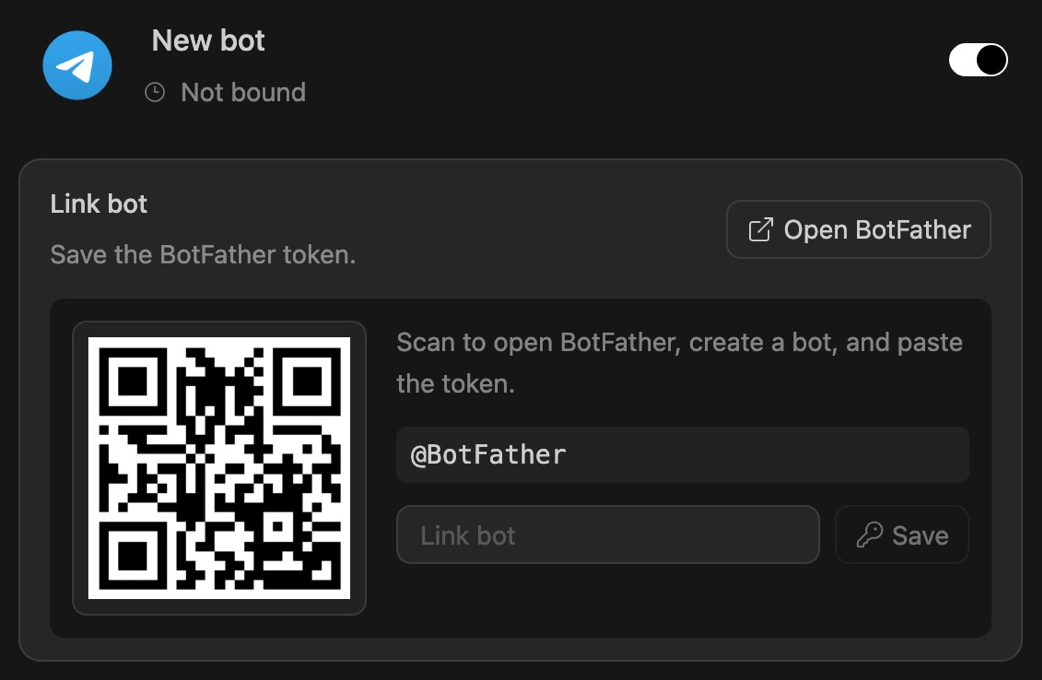
1Open BotFather on this computer2Or scan to open BotFather on your phone3Paste the token, then click Save
The token is the bot's credential: anyone who has it can control the bot. Do not share it or show it in screenshots. ZCode stores it on this computer.
2. Send the Bind Command
After the token is saved, the bot takes the name you gave it in BotFather, and the panel shows a Bind command: /bind followed by a 6-character code.
Open the private chat with your bot in Telegram. The first time, Telegram shows a START button; tapping it sends /start, and the bot answers "Unknown command: /start". That is expected, because the chat is not bound yet.
Now send the command currently shown on the panel. The bot replies "Bound successfully. Send /help to see available commands." and lists the commands.
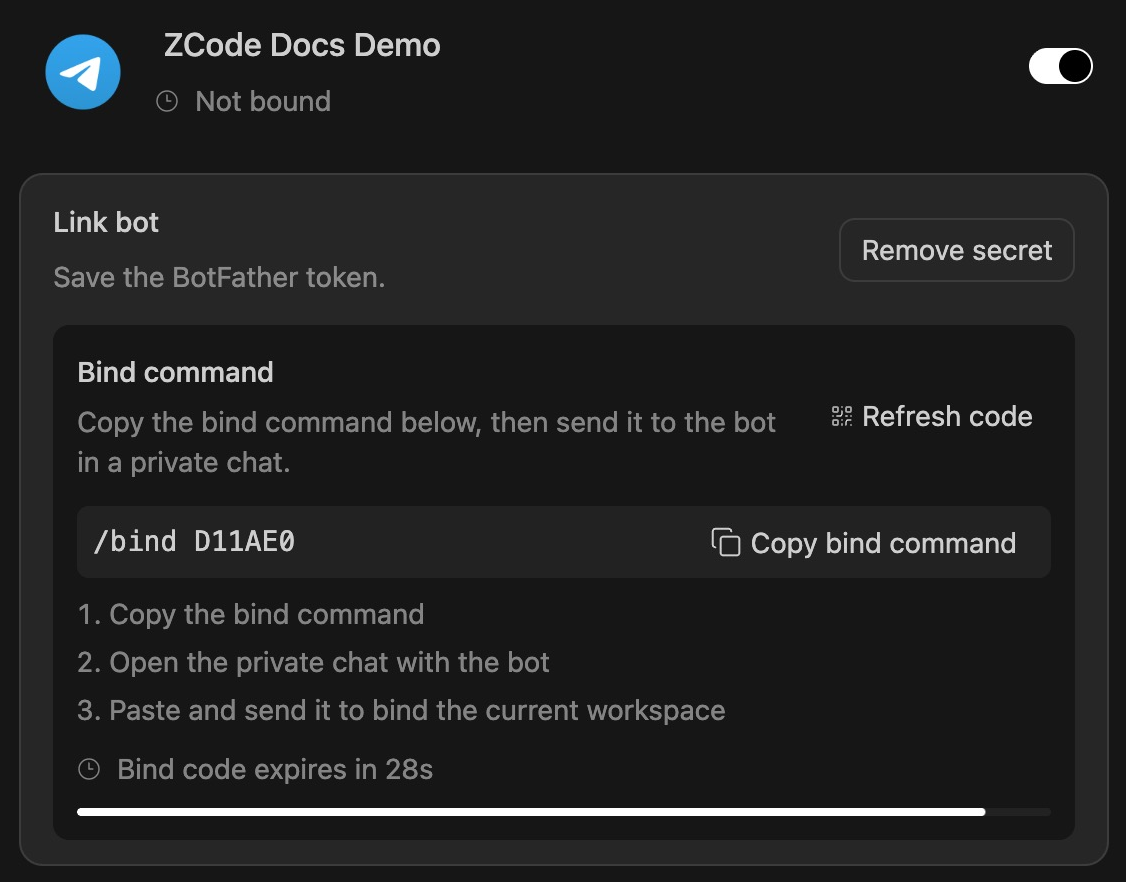 Telegram · Send it to your bot
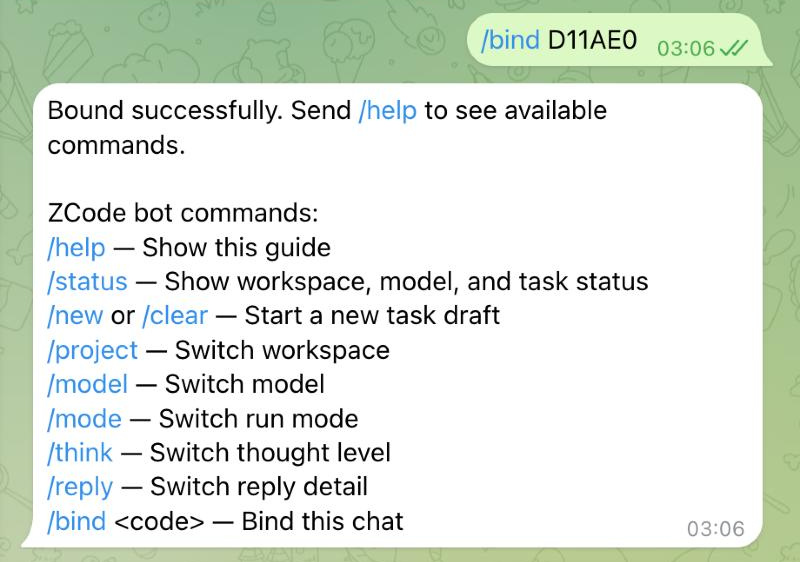
1The current bind command2Refresh code3Time left4Send the same command to your bot5Bound successfully
The bind code is valid for 30 seconds. While the panel is open it renews automatically when it expires, and you can also click Refresh code. Always send the command that is on the panel right now; an expired one gets "The bind code is invalid or expired. Generate a new one in the zcode UI."
Binding only works in a private chat with the bot. The bind command is a short-lived value, so do not forward it.
3. Check the Connection
Once bound, the panel shows Telegram long polling is running. and Connected. The bot now accepts instructions from that private chat.
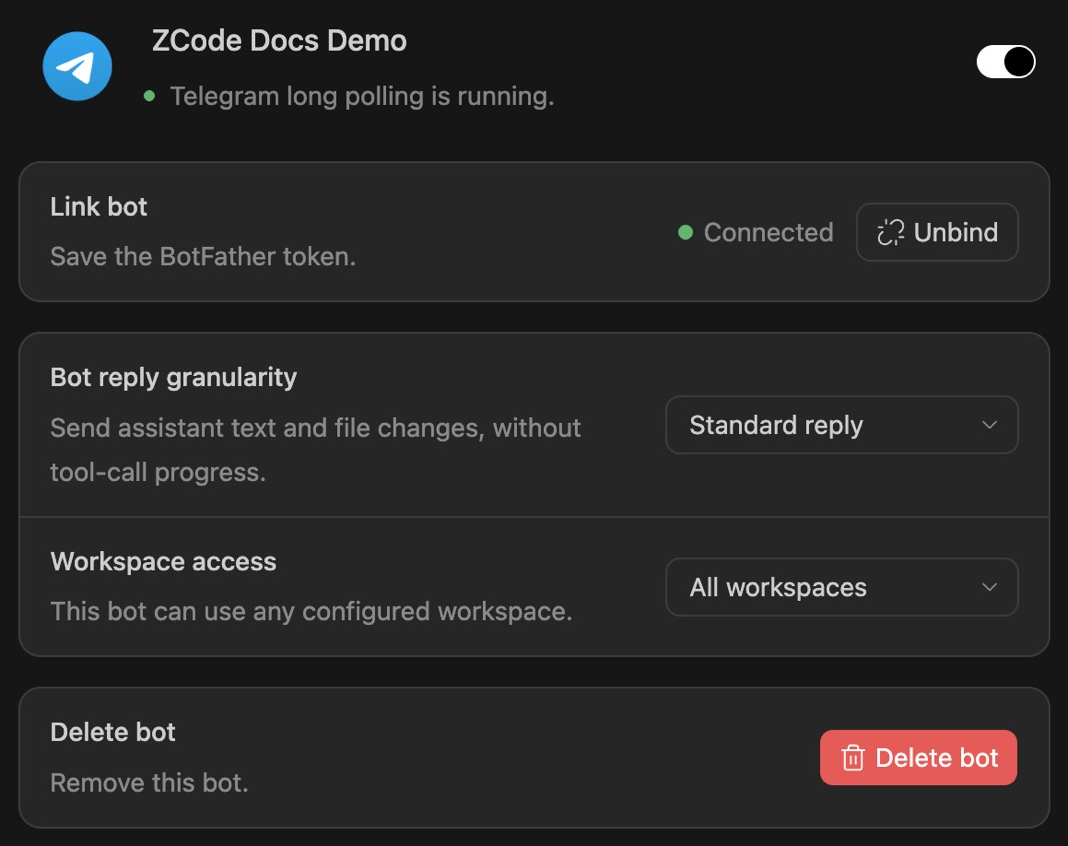
1Run state2Connected; Unbind releases the chat3Reply granularity4Project access
ZCode also fills in the bot's command menu in Telegram, so you can pick a command from the menu button next to the message field instead of typing it.
Use It from Chat
After a bot is connected, tell it what you want the way you would tell a colleague. No special format is needed. Screenshots and files can be sent to it as well.
An Example
Send one sentence:
Write me a small game, and ask me which one I want first
ZCode Agent does not start right away. It asks which game you want and offers a few options. In Telegram and Feishu / Lark the options are buttons; in WeChat they are a numbered menu and you reply with a number. You can also reply with a sentence of your own as a custom answer.
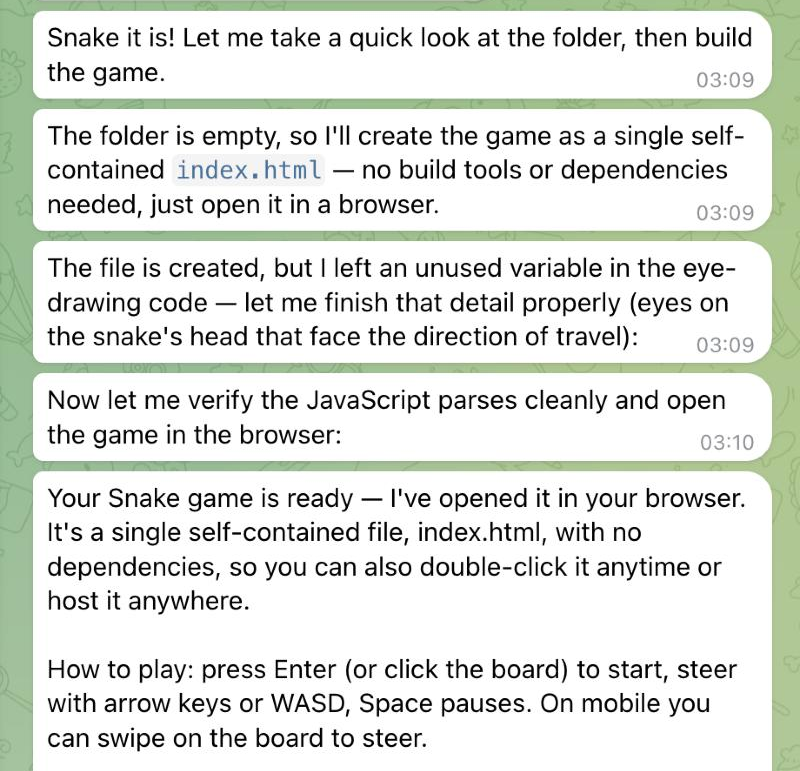
Once you pick one, it gets to work. What it says along the way arrives message by message, followed by the final result. This is the run in Telegram, with Snake chosen:
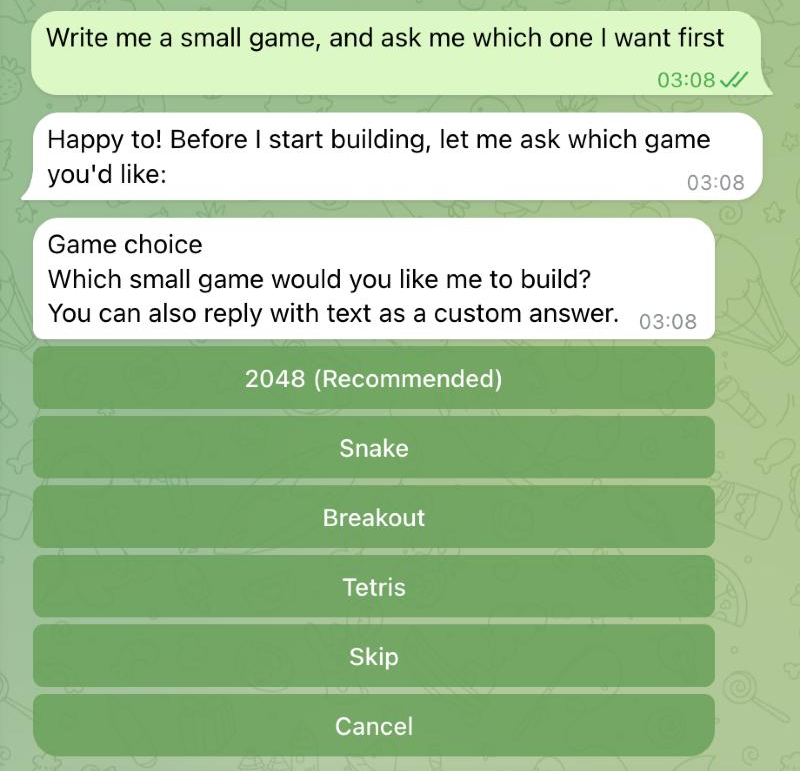 It reports as it works, then sends the result
1One plain sentence that says what you want2Tap an option to answer3Or skip the question, or cancel it
When the game is done, the file is in the project folder on your computer; open it in a browser to play:
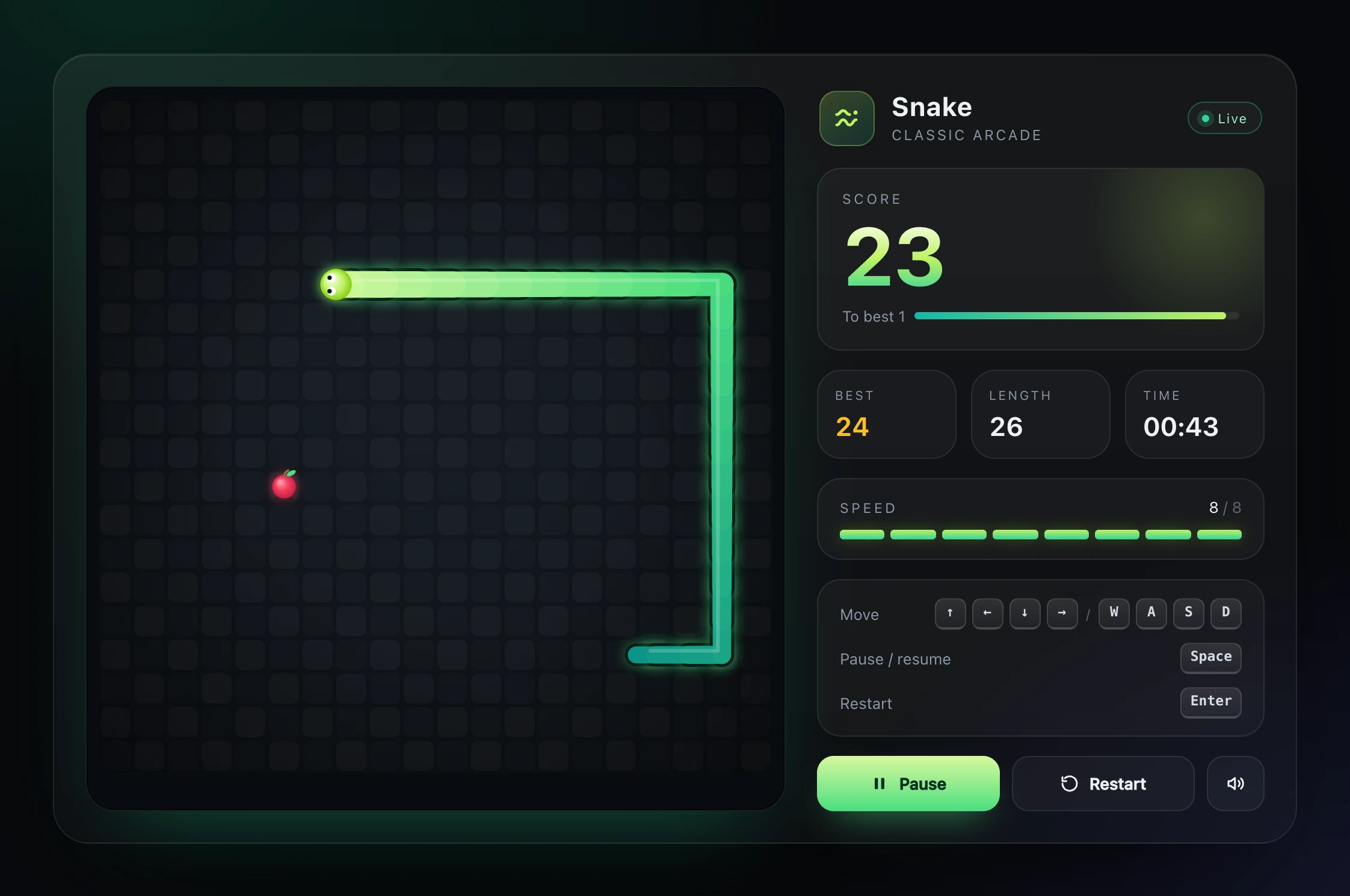
Not happy with something? Say so in one more message, such as "make it look more polished". Send it in the chat, or in this task in the ZCode desktop app; either way it continues the same task. See Sync with the Desktop.
Commands
Besides plain requests, slash commands switch projects and check status. Send /help at any time to see them.
| Command | What it does |
|---|---|
| /help | Show the command guide |
| /status | Show the current workspace, model, task, and run state |
| /project | List the available workspaces and switch |
| /new | Start a new task draft without touching existing tasks; /clear does the same |
| /task | List recent tasks in the current workspace and switch back to one |
| /model | Choose a provider, then a model |
| /think | Change the thinking level of the current model |
| /reply | Change how detailed replies are (Telegram and WeChat) |
| /stop | Stop the current task |
| /cancel | Dismiss the current menu or question |
| /reconnect | Reconnect when the current workspace is a remote workspace that got disconnected |
/task, /stop, /cancel, and /reconnect are not in the /help list but work all the same. A mistyped command gets an "Unknown command" reply.
Choose a Project and a Task
If the computer has several projects, send /project first to choose where to work, then say what you want.
/project answers with the list of workspaces. In Telegram and Feishu / Lark each workspace is a button, with Cancel at the end. In WeChat the list is numbered: reply with a number to choose or 0 to cancel. 0 only means cancel while a menu is waiting for a choice. /model, /think, /reply, and /task work the same way.
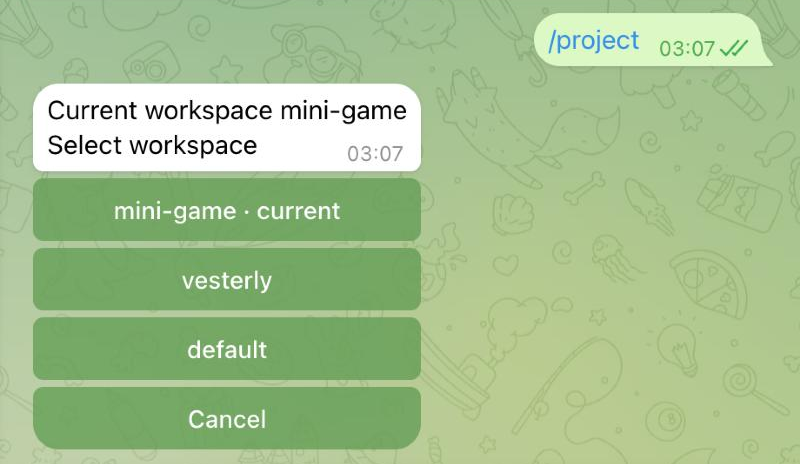 Tap a workspace
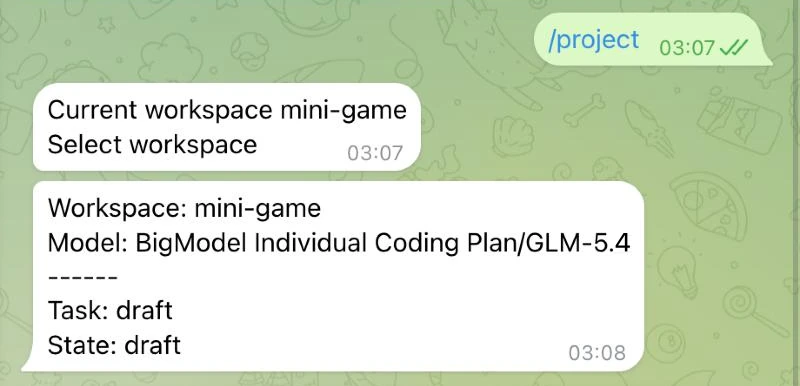
1Send /project2Tap a workspace; the one marked current is in use3The buttons go away and the bot reports the workspace, model, and task state
Within one project, a conversation is one task. Send /new to start another. Send /task to go back to an earlier one: it lists recent tasks in the current workspace, and after you pick one, your next messages continue that task.
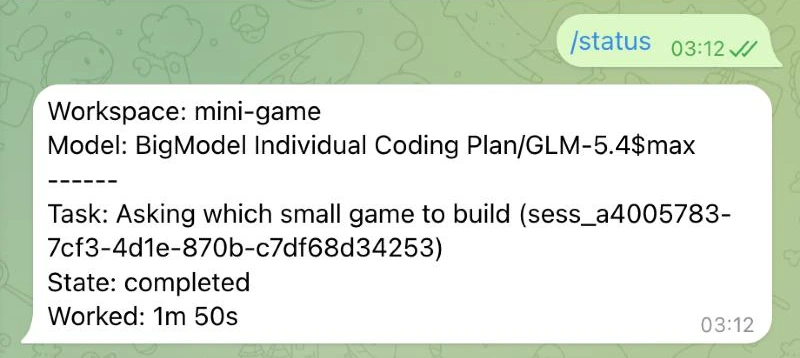
/status shows which project and task you are following, the model in use, and how long the task has been working.
1The model in use2Task state and time worked
Switch the Model and Thinking Level
/model takes two steps: choose a provider, then one of its models. The options come from the desktop's current model settings. /think lists the levels the current model supports, which vary by model. Both are available only while no task is running.
While a Task Is Running
While a task runs, new plain messages and /new, /project, /model, and /think get "The current task is still running" and are not queued. Wait for it to finish, or send /stop first. /status, /stop, /reply, and /help always work, and you can still answer a question the task is asking.
Run Mode and Questions
Tasks started from a bot always run in yolo mode, which matches Full access on the desktop. The /mode command listed by /help only returns a notice that the mode is locked in the current version, so it is not in the table above. In this mode ZCode Agent edits files and runs commands without asking you each time. Limit the risk by narrowing Project access and by handing the bot only work you really want done.
When ZCode Agent needs you to decide something, it asks: which game you want in the example above, or whether to go ahead with its plan. Telegram shows the options as buttons under the message, followed by Skip and Cancel; after you answer, the buttons go away and the bot confirms "Question response submitted." WeChat sends a numbered menu. Feishu / Lark sends a separate Question card with the options, plus Custom answer if you want to write your own. These are questions inside the task, not permission prompts for individual operations.
Sync with the Desktop
A task started from chat appears in the task list of the matching project on the desktop, with the message you sent and ZCode Agent's reply. Back at the computer, you can continue the same conversation in the desktop app. This is the example above as it appears on the desktop:
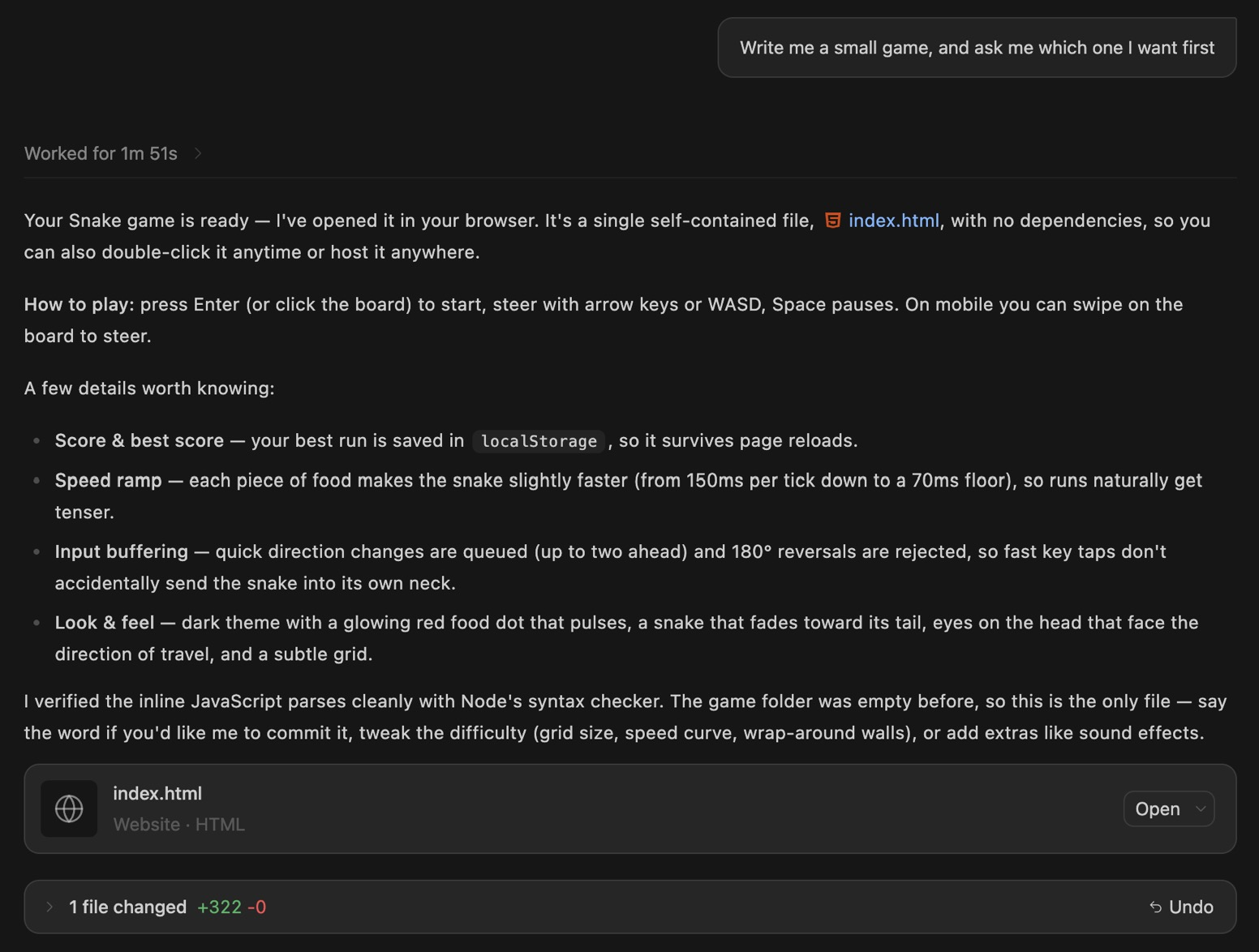
1The message you sent from chat2ZCode Agent's reply3Which files changed, with Undo
Connect WeChat
WeChat calls this capability OpenClaw, and the contact you chat with after connecting is 微信ClawBot, referred to as ClawBot below. One WeChat account can be connected to one OpenClaw at a time. Connecting a new one releases the previous connection, and WeChat says so on the confirmation page.
1. Scan and Confirm
Choose Weixin. The panel shows a QR code and Waiting for scan. Scan it with WeChat on your phone; WeChat opens a page for connecting OpenClaw to WeChat. Tap the green Connect button at the bottom, labeled 连接 in the Chinese interface. Tapping it counts as accepting the terms of use listed on that page.
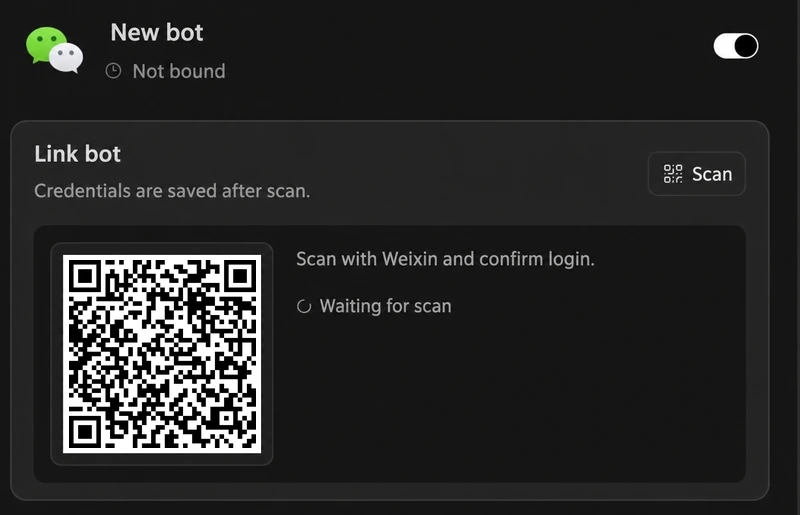 WeChat · Scan, then tap Connect
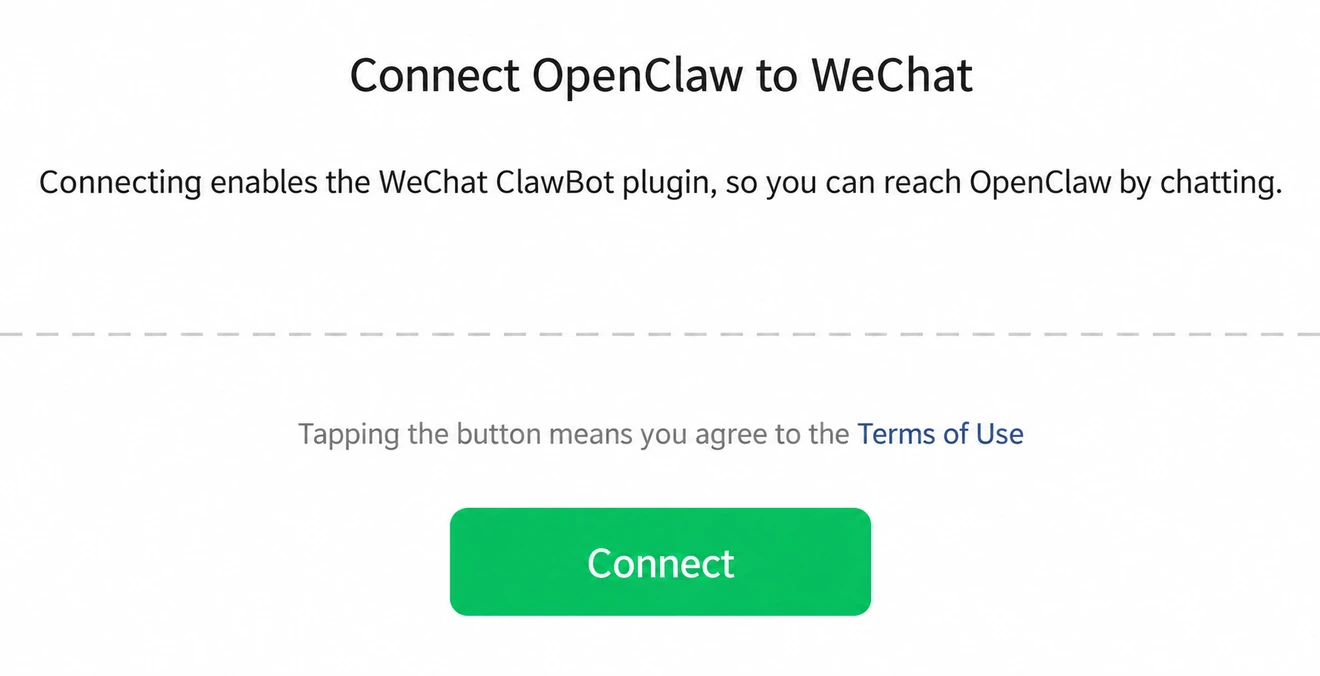
1Scan this QR code with WeChat2Waiting for scan3Click here for a new code after it expires4Tap Connect
The QR code is valid for 120 seconds. After that the panel shows "The QR code expired. Start again." It does not refresh by itself: click Scan again for a new one. WeChat also reports an expired code on its side.
If this WeChat account is already connected to another OpenClaw, the confirmation page warns that continuing will release the existing connection, and the button changes to Continue (继续连接).
2. Send a First Message to Activate
After you confirm, WeChat opens the chat with ClawBot. ZCode shows Weixin long polling is running. and Connected, and asks you to send a message in WeChat.
Send any message. The bot replies "Weixin bot is active" and lists the commands. That first message only activates the chat and is not run as a task; from the next message on, what you send goes to ZCode Agent.
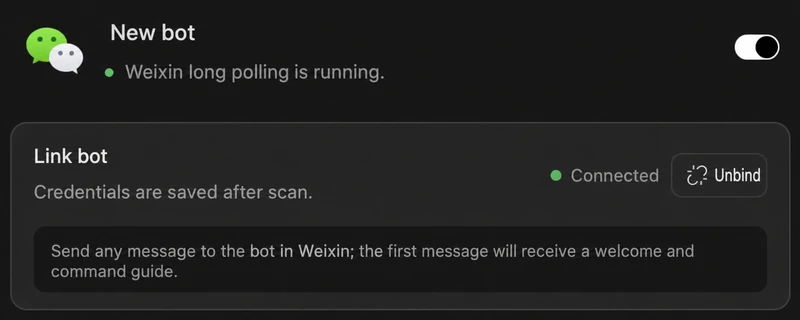 WeChat · Send any message
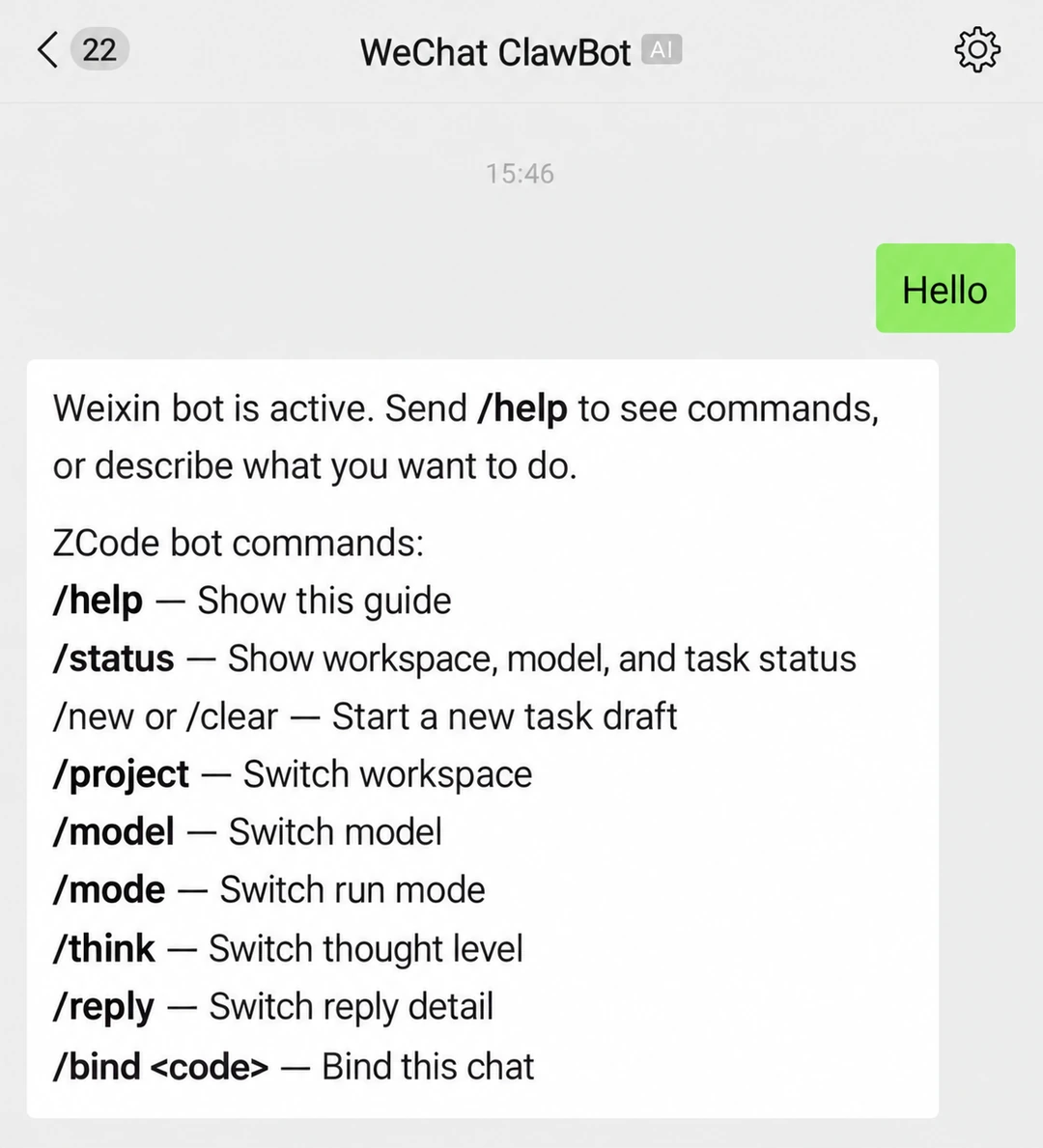
1Connected2One step left: send any message in WeChat3Any message will do4The bot confirms activation and lists the commands
Connect Feishu or Lark
Feishu and Lark follow the same steps: create an agent app first, then bind your private chat to it. Choose Feishu for a tenant in China and Lark for a global tenant.
1. Scan to Create the App
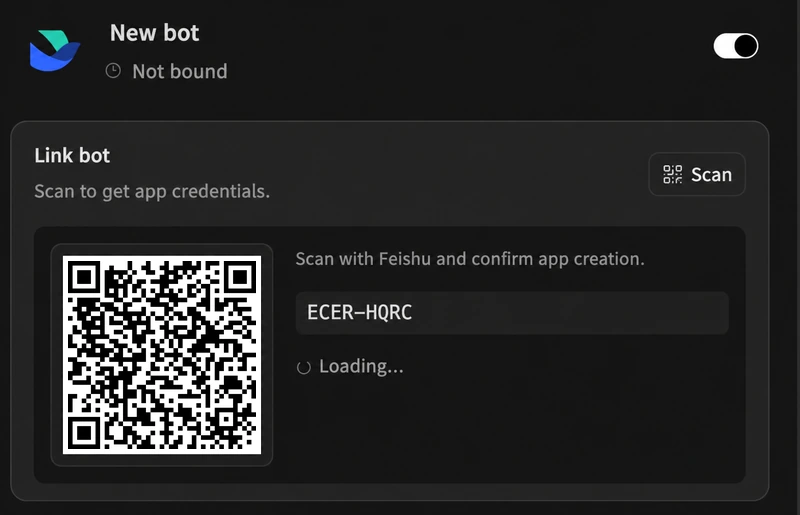
Choose the channel. The panel shows a QR code and a pairing code.
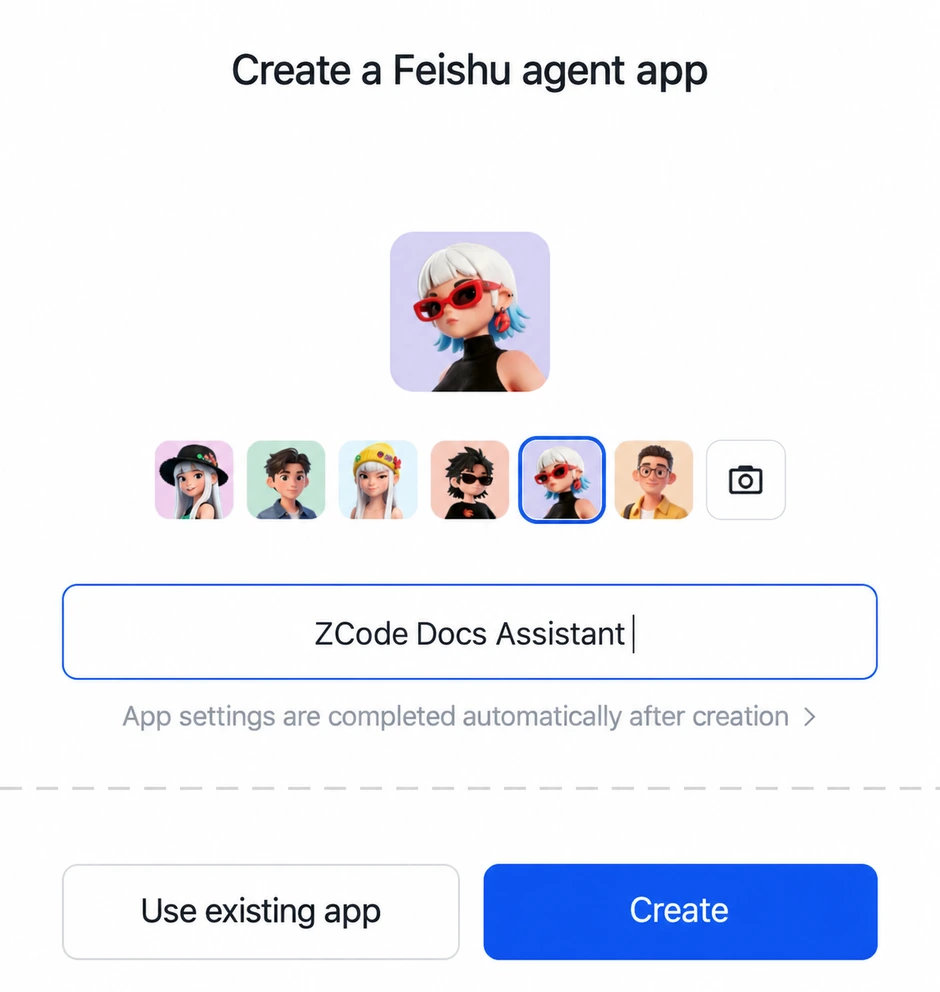
Scan the QR code with the Feishu or Lark app on your phone. The developer platform opens a page for creating an agent app. Change the avatar or the app name if you like, then tap Create (立即创建).
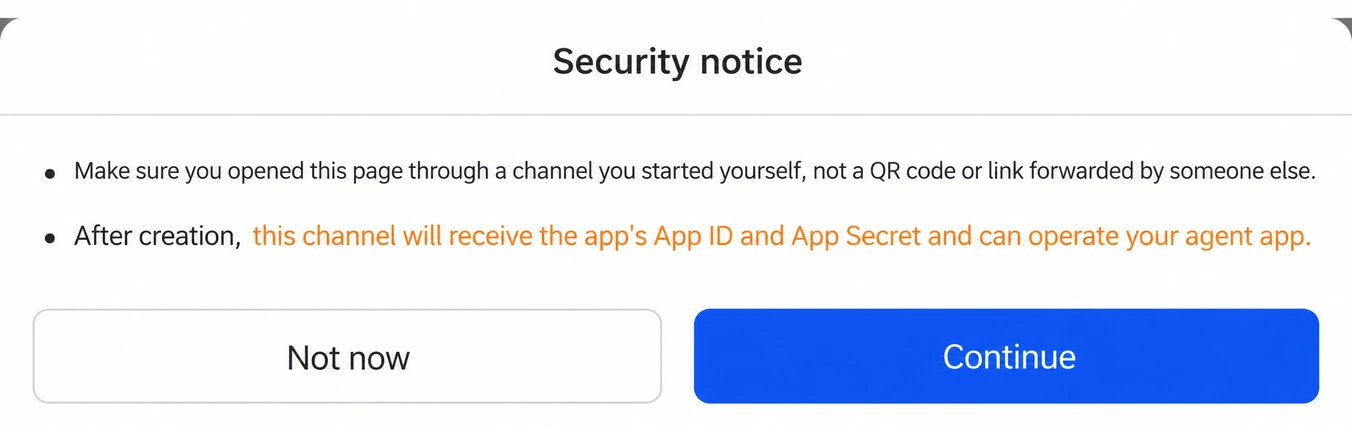
A security notice follows. It asks you to confirm that you started this from ZCode yourself, not from a QR code or link someone forwarded, and tells you that ZCode will receive the App ID and App Secret of the new app. Tap Continue (继续创建) if that is right, and wait for the success page.
 Feishu · Name the app and create it
 Feishu · Confirm it was you
 Feishu · App created
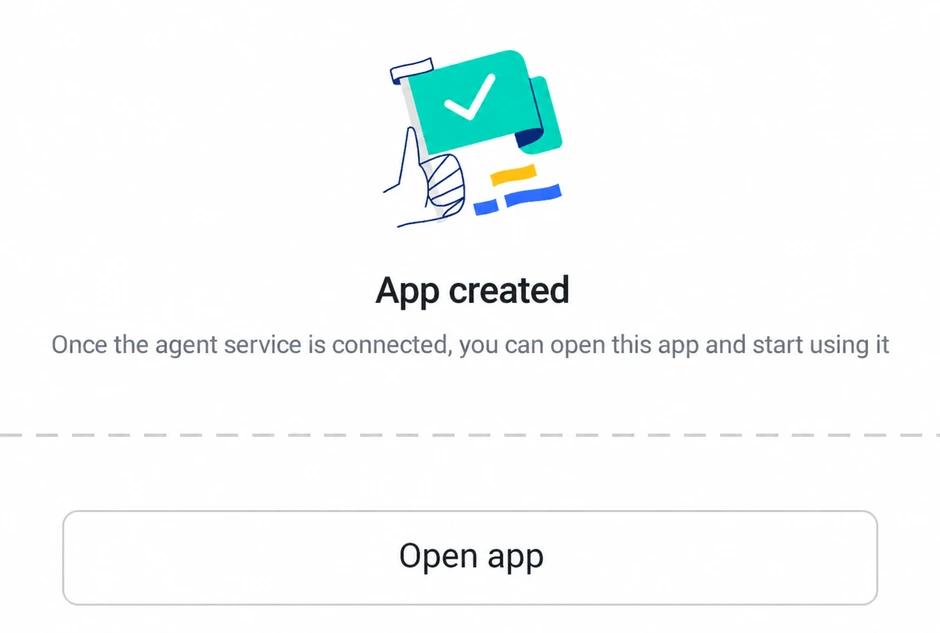
1Scan this QR code with Feishu or Lark2The pairing code for this attempt3The app name can be changed; it becomes the bot name4Create5Continue6Open the app to reach the private chat with the bot
2. Send the Bind Command
When the app is created, the bot in ZCode takes the app's name, and the panel shows a Bind command: /bind followed by a 6-character code.
On the success page, tap Open app (打开应用) to reach its private chat, and send the command currently shown on the panel. The bot replies that binding succeeded and lists the commands.
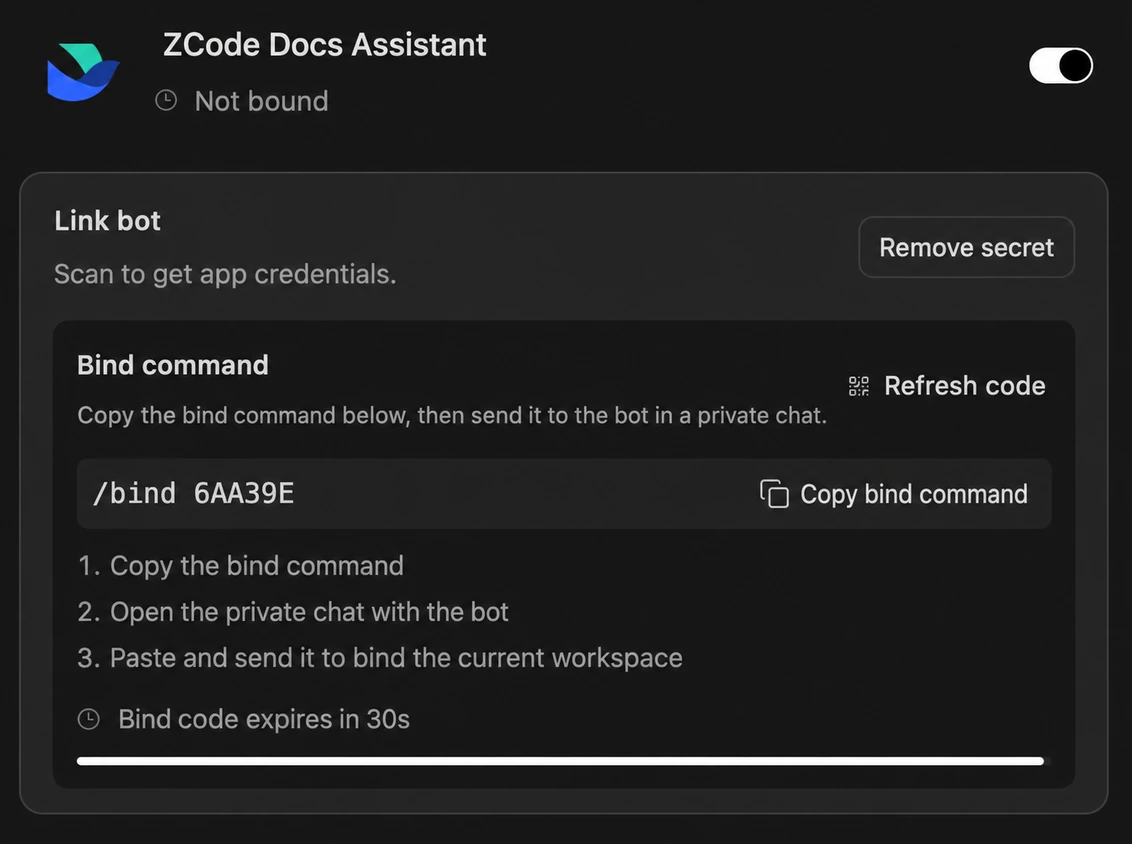 Feishu · Send it to the bot
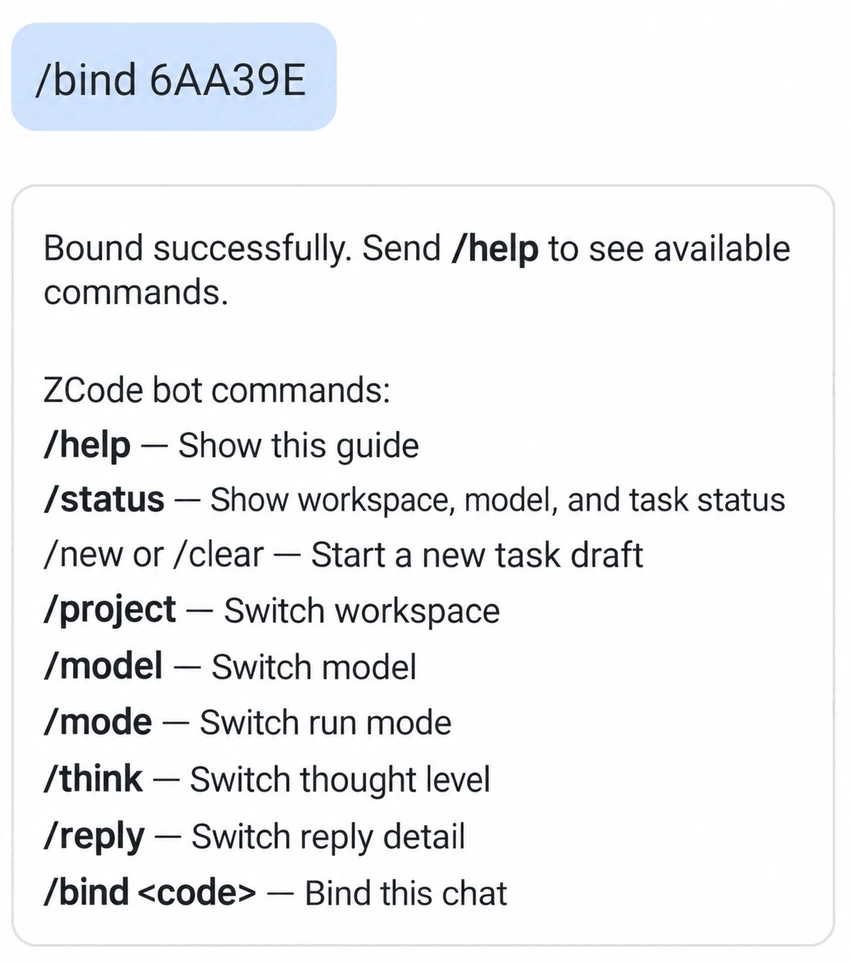
1The current bind command2Refresh code3Time left4Send the same command to the bot5Bound successfully
The bind code is valid for 30 seconds, renews automatically while the panel is open, and can be refreshed by hand. Binding only works in a private chat.
3. Check the Connection
Once bound, ZCode shows Feishu WebSocket is running. and Connected.
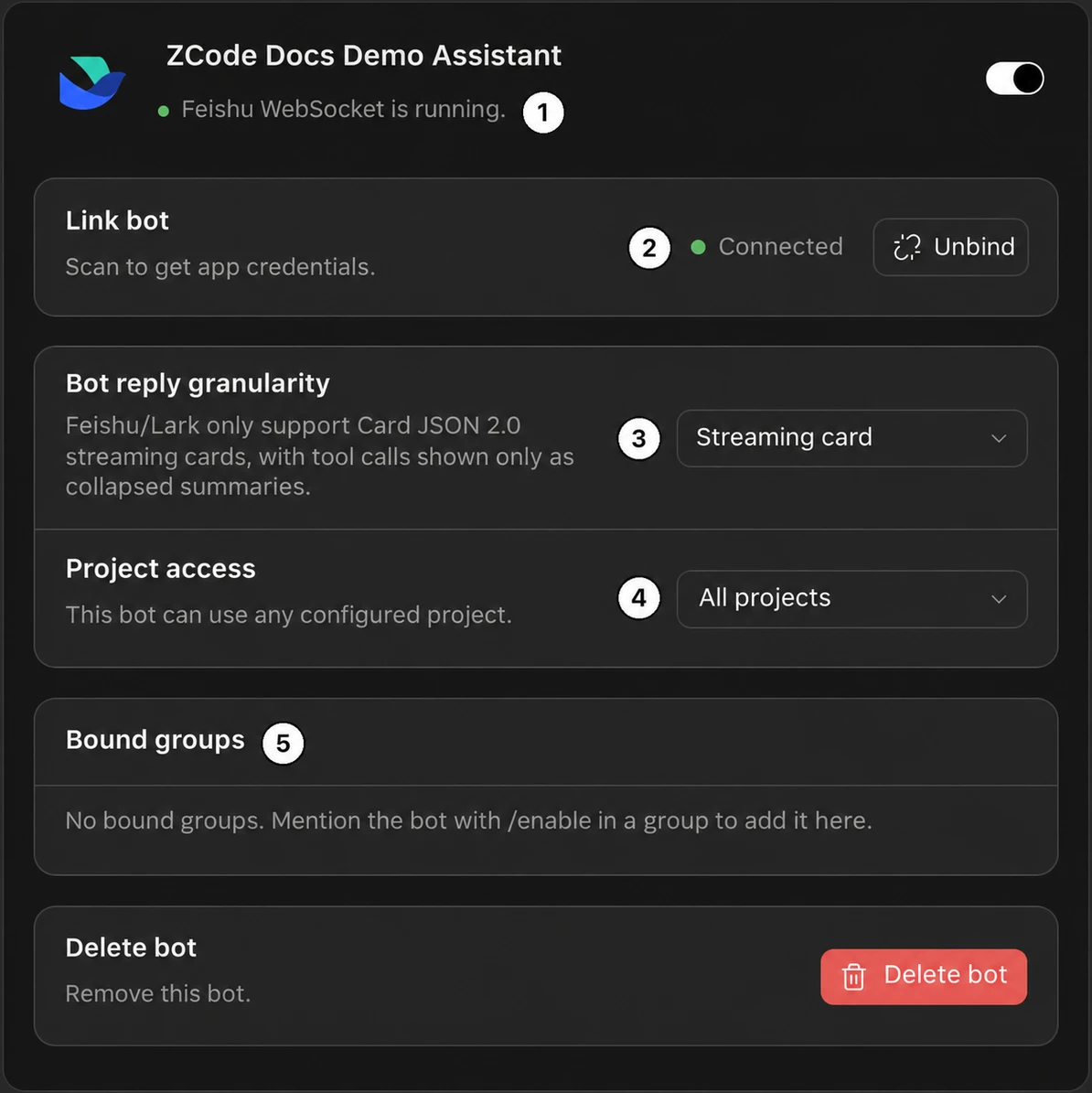
1Run state2Connected; Unbind releases the chat3Replies are always a streaming card4Project access5Bound groups
Streaming Cards
Feishu and Lark replies update in place inside one card. Text is appended in order, tool calls are grouped under Tool summaries, and the bottom of the card shows Running or Completed. While the task runs, the latest group of tool summaries is expanded so you can see each tool and its state; earlier groups, and all groups on a finished card, are collapsed until you open them. When a question comes up, the current card keeps what it had, and ZCode Agent continues on a new card after you answer.
The screenshots below show the earlier example sent in Feishu. In this run ZCode Agent also played the game in the built-in browser after writing it, so the result ends with a verification section.
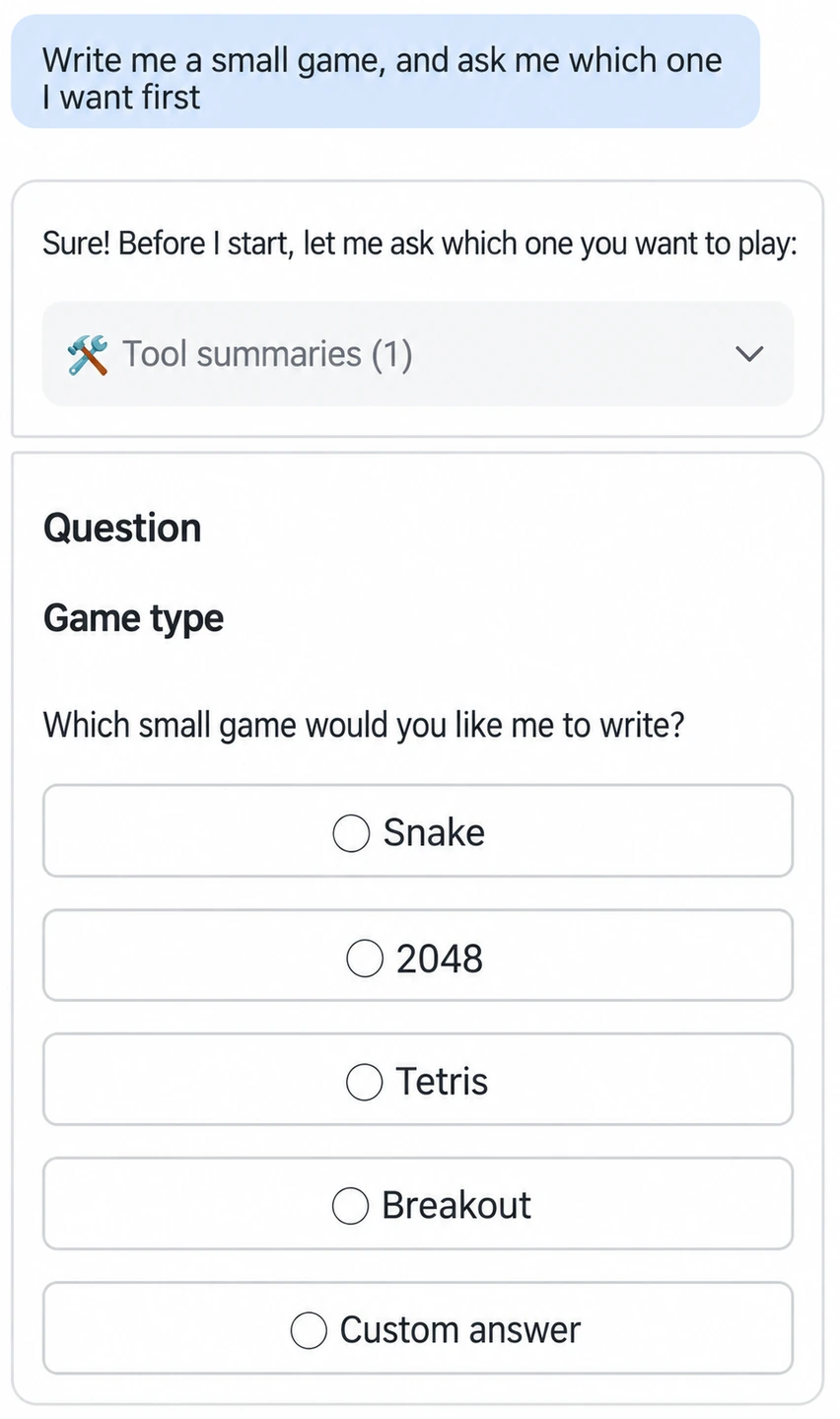
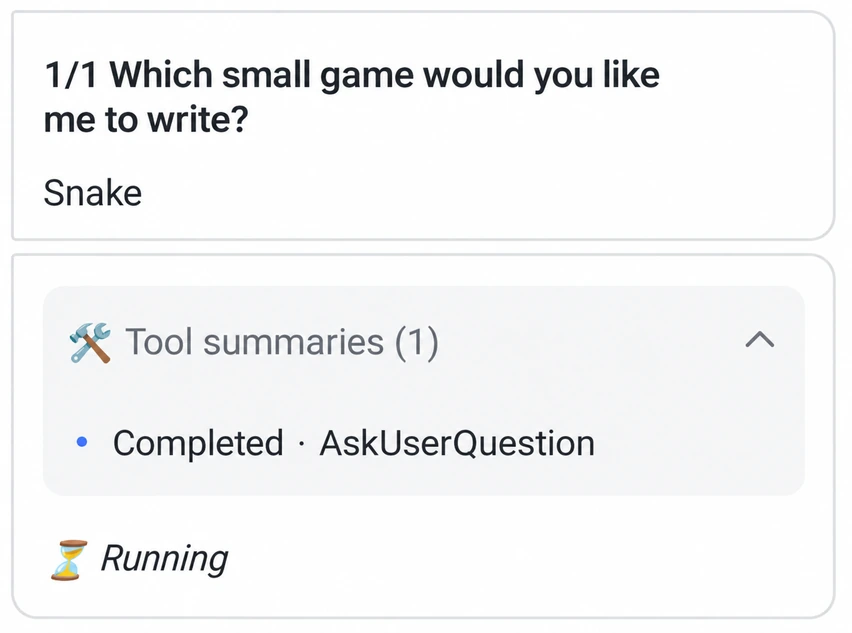 When it ends, the card reads Completed
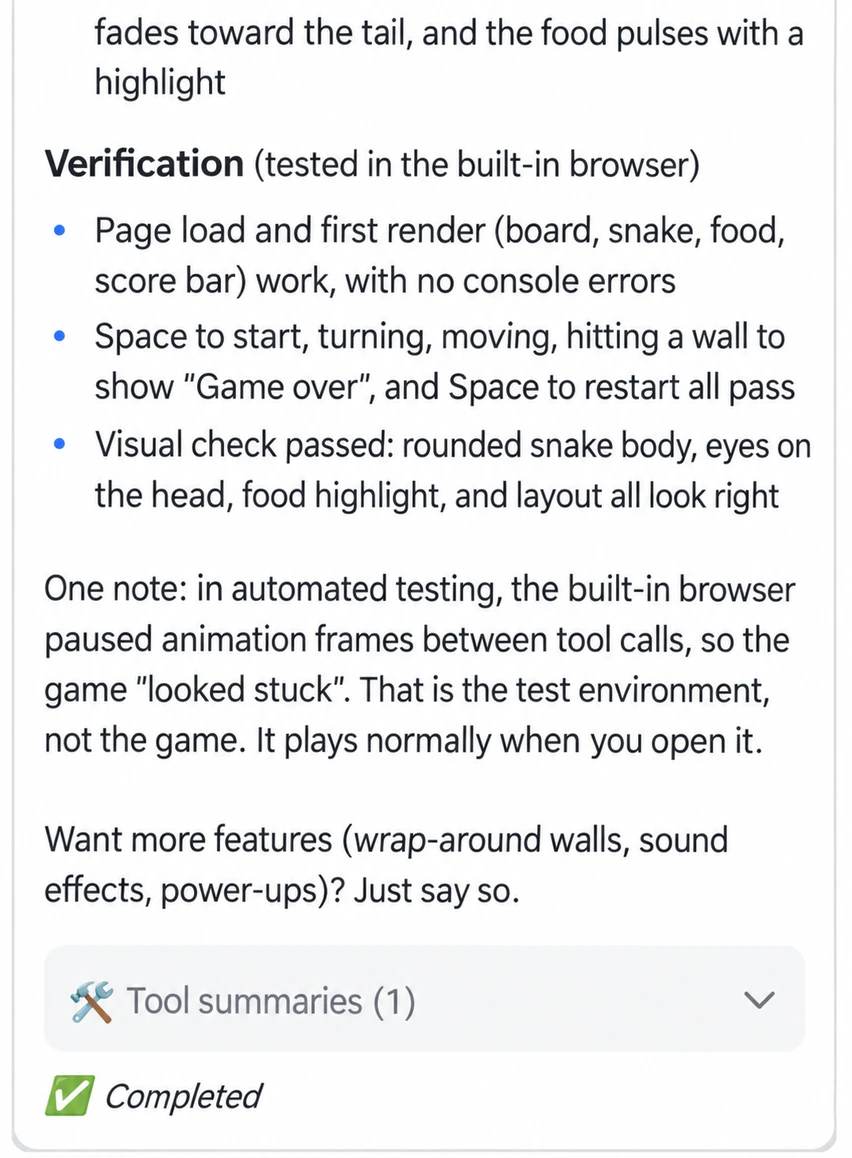
1Tap an option to answer2Or choose the custom answer and write your own3An answered question shows the question and your answer4The latest tool summary is expanded5Running6Tool summaries collapse when the task ends7Completed
Use It in a Group
Once bound, a Feishu or Lark bot can also work in group chats. Add the bot to the group, then have the bound user @mention the bot in the group and send /enable. After that, group members @mention the bot inside a topic to submit a request, and replies are synced back to that topic.
| Command | What it does |
|---|---|
| /enable | Enables the bot in the current group |
| /disable | Disables the bot in the current group; work already accepted stays in the desktop app |
| /history on, /history off | Turns topic history reading on or off. It is on by default; when off, only the current request and explicit quotes are submitted |
Before you start:
- App permissions are required: enabling a group does not mean the app permissions are in place. Ask the app administrator to enable message-reading permissions for the bot app in the developer console, including
im:message.group_msg(read group messages from users). Without permission to read topic history, topic tasks do not run. Optionally enableim:chat.members:read(view group members) to show sender names. - The workspace is shared: members of the same group share the workspace files, so concurrent requests can edit the same files.
- Per-group switch: enabled groups appear under Bound groups in the bot's settings panel, where each can be turned on or off. The switches cannot be changed while the bot is off.

Manage Bots
Bots you have created are listed on the left of the Bots dialog. You can keep several, for example one per channel. Each bot has its own settings:
- Enable switch: at the top right. A disabled bot stops receiving messages.
- Link bot: shows whether the chat is connected, with Unbind to release it. Unbinding takes effect at once, without a confirmation. After unbinding, Telegram and Feishu / Lark only need the bind command again; WeChat needs a new scan.
- Bot reply granularity: how detailed replies are.
- Project access: which workspaces this bot may open.
- Delete bot: removes the bot together with its settings, credentials, and bindings.
Reply Granularity
Telegram and WeChat have three levels. Standard reply is the default:
| Level | What is sent |
|---|---|
| Standard reply | What ZCode Agent says: notes along the way and the final result. Tool-call progress is left out |
| Full reply | Everything in Standard reply, plus tool-call progress |
| Summary reply | Only the final result when the task ends, with nothing in between |
Feishu and Lark always use Streaming card, so these three levels do not apply there.
The level can be changed on the bot panel or from the chat. On Telegram and WeChat, send /reply and pick one:
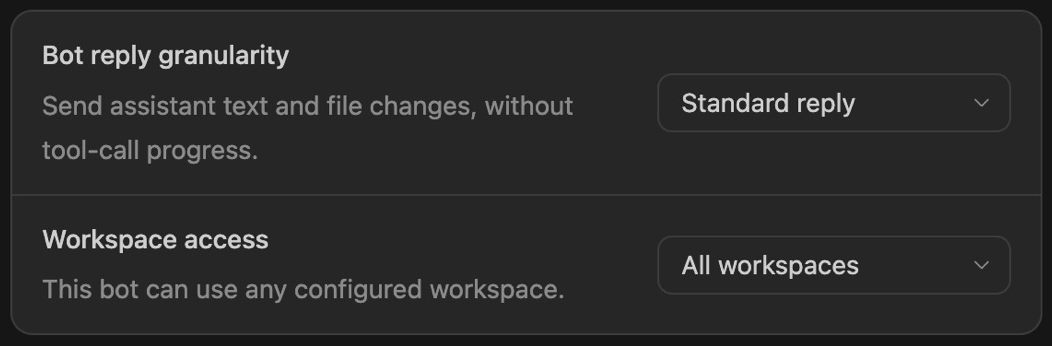 ZCode · Feishu and Lark bots
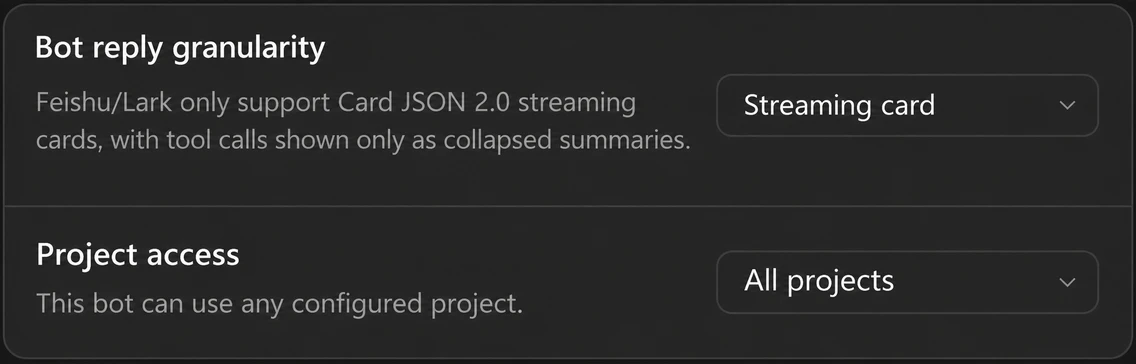
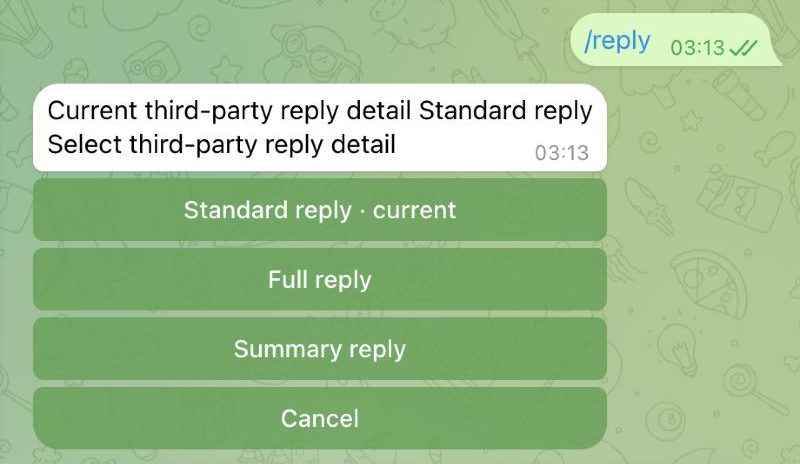
1Three reply levels to choose from2Project access3Fixed to Streaming card4Send /reply in the chat5Tap a level; the one marked current is in use
Project Access
The default is All projects: the bot can open any workspace configured on the desktop. With Selected projects, only the workspace you are currently in is ticked at first, and you add others as needed. The /project list in chat only shows the workspaces that are allowed.
Troubleshooting
When the bot does not respond the way you expect, start with what it replied. These are the common cases:
You sent a message and the bot did not reply at all
Check three things on the computer: ZCode is running and online; the bot panel shows Connected; the switch at the top right is on. The bot cannot reply while the computer is asleep or ZCode is closed. For Telegram, also confirm that the computer can reach api.telegram.org.
The QR code expired
The WeChat QR code is valid for 120 seconds and does not refresh by itself. Go back to the bot panel in ZCode, click Scan for a new one, and scan again.
“This bot is not bound” or “The bind code is invalid or expired”
The private chat is not bound to the bot yet, or the code you sent is more than 30 seconds old. Find the current bind command on the bot panel and send it in the private chat exactly as shown.
“The current task is still running”
The previous task has not finished, and new instructions are not queued. Wait for it, or send /stop and then send your message again.
“No workspace is available” or “The workspace in this chat is no longer authorized”
Project access is set to Selected projects with nothing ticked, or the workspace you were using was removed from the list. Tick the workspaces you need on the bot panel, then send /project to choose again.
“Could not download the attachment”
The file may have expired, been removed, or the bot may not have permission to read it. Send the attachment again and try once more.
“The previous task was deleted, so I created a new task for you”
The task this chat was following was deleted on the desktop. Nothing else is needed: the message is handled in a new task, without the earlier conversation.
Limits and Notes
- Work runs where it always did: commands and file changes happen in the environment the desktop is connected to. The bot does not create a separate one.
- Bind in a private chat: a bind command sent in a group is refused. Bind first, then use the bot in a group.
- One OpenClaw per WeChat account: connecting a new one from the same account releases the previous connection.
- No changes while running: during a task you cannot switch the workspace, model, or thinking level, start a new draft, or add plain messages. Checking status, stopping the task, and changing reply detail still work.
- Disconnected remote workspaces: /status shows that the remote workspace is not connected. Send /reconnect, then send your instruction again.
- Credentials stay on your computer: ZCode stores bot tokens and app credentials on the desktop. Do not pass tokens, bind codes, or login QR codes to anyone.
Scanning a Code or Using a Bot
There are two ways to keep a task moving once you have left the computer, and they differ in the entry point:
- The entry lives in a chat conversation
- Send a message to keep things moving
- Scan from your phone, opens in the browser
- Quick to open, quick to drop; no bot setup
Both drive a session that already exists on the desktop; see Remote Control for the scan option. If what you want to change is where the code runs, that is remote development.