Safety Confirmation
ZCode brings ZCode Agent permission control into the task UI. The permission mode picker sits at the bottom left of the composer, so you can decide, based on task risk, whether the Agent asks first.
The goal is simple: before allowing execution, review what the Agent is about to do. Commands, file changes, network calls, and script execution are surfaced in the task. Switching to full access requires confirming the risks first, and the mode button keeps a warning style while it is on.
Permission Modes
The permission mode decides whether ZCode Agent asks before editing files or running commands. Pick it from the mode menu at the bottom left of the composer. From left to right, the Agent decides more on its own:
Ask before changesDefault
Confirms before every file edit or command.
Best for: critical code and production config
Autonomous mode
Asks only when an action is risky.
Best for: everyday iteration
Full access
Reads and writes files, runs commands, and uses the network without asking each time.
Best for: clear tasks with trusted content
There is also Plan mode: the Agent first only inspects the code and proposes a plan, and starts editing after you confirm. It is a separate checkbox at the top of the mode menu, and you can also turn it on with /plan.
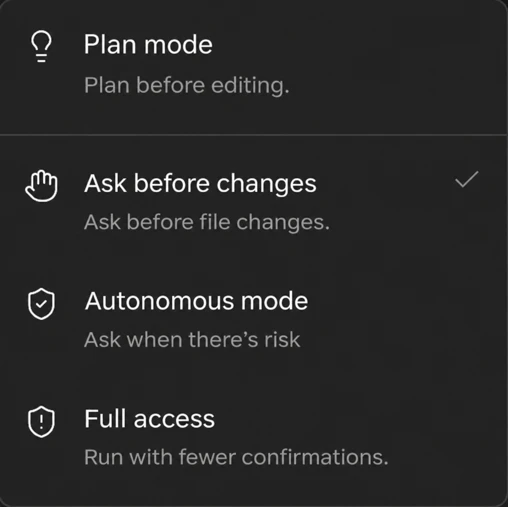
Press Ctrl + Shift + M to cycle through Ask before changes → Autonomous mode → Full access; the shortcut can be changed in Settings → Keyboard Shortcuts.
Full Access Warnings
Full access lets ZCode Agent act without asking for approval each time, so switching to it always opens the Enable full access? dialog first:
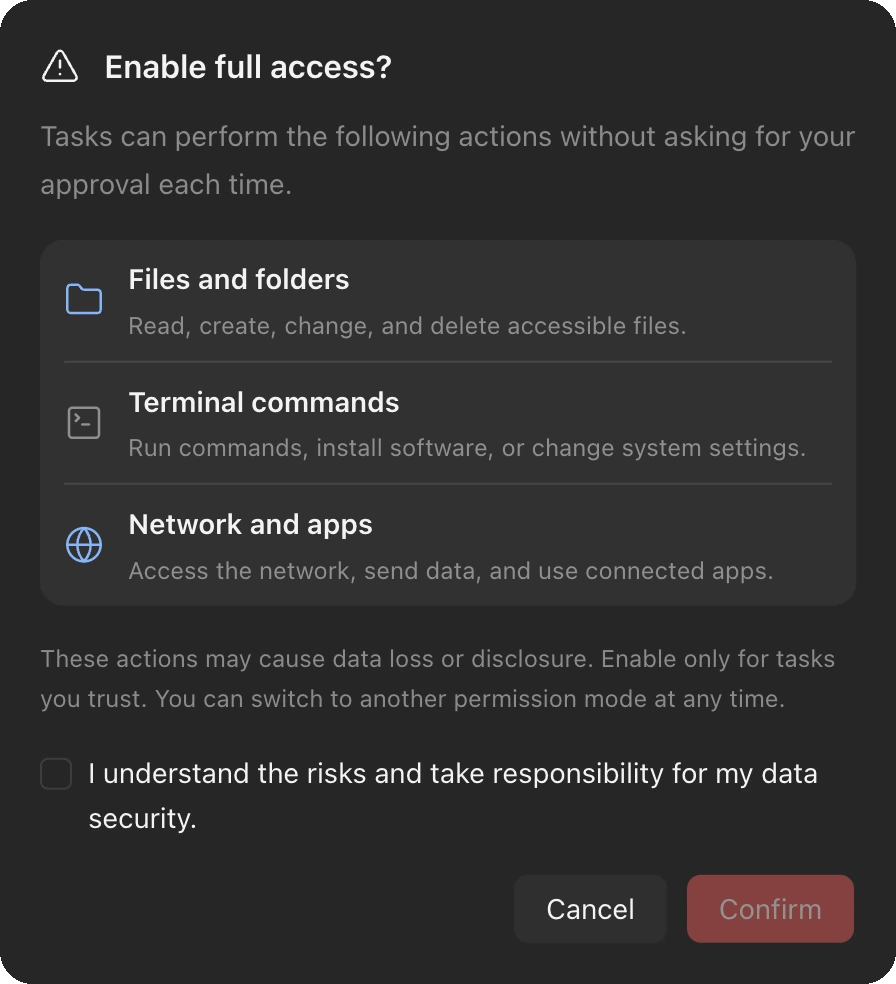
- 1Three kinds of actions stop askingFiles and foldersTerminal commandsNetwork and apps
- 2The risk must be acknowledged
Confirm stays disabled until you tick “I understand the risks and take responsibility for my data security.”
- 3A constant warning while onFull access
Switch back to another mode at any time
Risk warning: these actions may cause data loss or disclosure. Enable full access only for tasks you trust, and switch to another permission mode at any time.
When using full access:
- Enable it only in projects and tasks you trust; switch back to Ask before changes for unfamiliar repositories, scripts of unknown origin, or anything touching production.
- Commit or back up your work first so you can compare and roll back; changes made by terminal commands are outside the scope of Undo File Changes.
- Plugins can also request the "read and write sessions (including full access)" permission, which lets them switch sessions in their project to full access. Grant it only to plugins you trust.
Workflow
- Trigger confirmationA permission-gated request pauses the task and blocks the composer
- Show the requestThe exact command, file change, or tool action to run
- You decideApprove to continue; reject to stop or return to an adjustable state
- Sync task stateScoped to the task: still there when you come back; the sidebar shows it waiting
Decision Options
In Ask before changes or Autonomous mode, when ZCode Agent needs approval, the composer is replaced by a Permission required card that shows the files to change or the command to run. Use Tab or the arrow keys to choose, then press Enter:
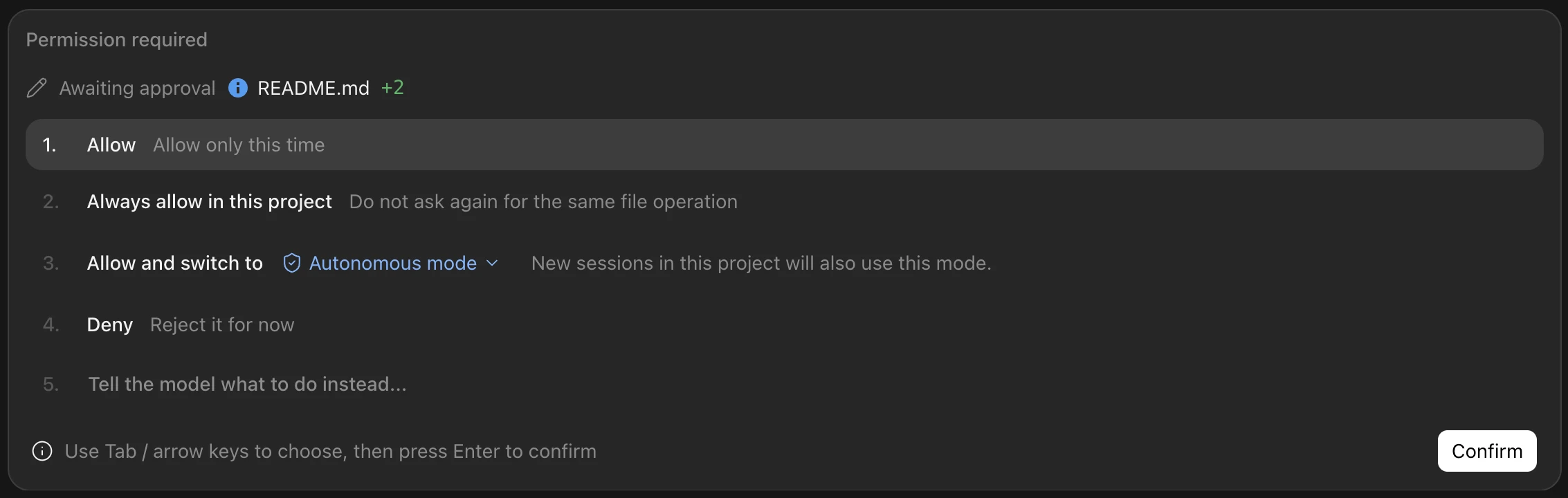
| Option | Effect |
|---|---|
| Allow | Allow only this time. |
| Always allow in this project | Do not ask again for the same file operation in this project. |
| Allow and switch to | Allow this time and switch the permission mode to the one you pick (Autonomous mode or Full access); new sessions in this project use it too. |
| Deny | Reject it for now. |
| Tell the model what to do instead | Deny and add a note, such as "Don't edit the README yet; just list what needs to change", and ZCode Agent continues from your note. |
The options vary by request type:
- Commands: Always allow this command stops asking for the same command in this project, scoped to either the exact command or the command prefix.
- Computer Use: Always allow computer control in this project.
- Some requests also offer Allow for this session, Always allow, or Always deny.
Like full access, the "always allow" options reduce later confirmations, so use them only for actions you have confirmed are safe.
Questions That Continue on Timeout
Beyond permission requests, the Agent sometimes just asks you a question — "approach A or approach B?". These wait five minutes by default, with a countdown appearing in the panel as the time runs low. If you don't answer, the Agent carries on using its own judgment, and that step is marked "No answer; continued automatically" in the conversation history.
Any sign of activity — moving the pointer onto the panel, starting to choose, clicking the countdown, or clicking "Stop timer" in the sidebar — stops the countdown permanently, so take your time thinking.
If you'd rather it never continue on its own, turn off Settings → Behavior and tools → Automatically continue questions; every question will then wait indefinitely. Note that the switch isn't retroactive: questions raised while it was off stay in the waiting state even after you turn it back on.
The countdown applies only to these ordinary questions. Permission requests and plan approvals always wait and are unaffected.
Typical Scenarios
- Running third-party scripts: Python, Shell, or Node.js scripts inside your project.
- Network requests: external API access through
curlor similar tools. - File changes: creating, editing, deleting, or renaming files. ZCode shows a file-change summary with open and undo actions.
- System-level commands: commands that may change system configuration, install dependencies, or delete files.
Best Practices
- Review the command, path, and file names before allowing execution.
- Use Allow when you are unsure; avoid jumping straight to Always allow.
- Always allow and Full access mode reduce future prompts, so use them only when the operation is trusted.
- For large changes, use Plan mode first, confirm the plan, then implement.