Hooks
A hook runs a local command automatically when a specific event occurs, for example injecting team guidelines when a session starts, checking paths before a file is written, or verifying test results before ZCode Agent finishes. Hooks are designed for project maintainers and plugin developers who need consistent checks or policies at each stage of a task.
Security notice: Hooks run commands on your computer and can run outside of the sandbox. Review the source and script of every hook before enabling it.
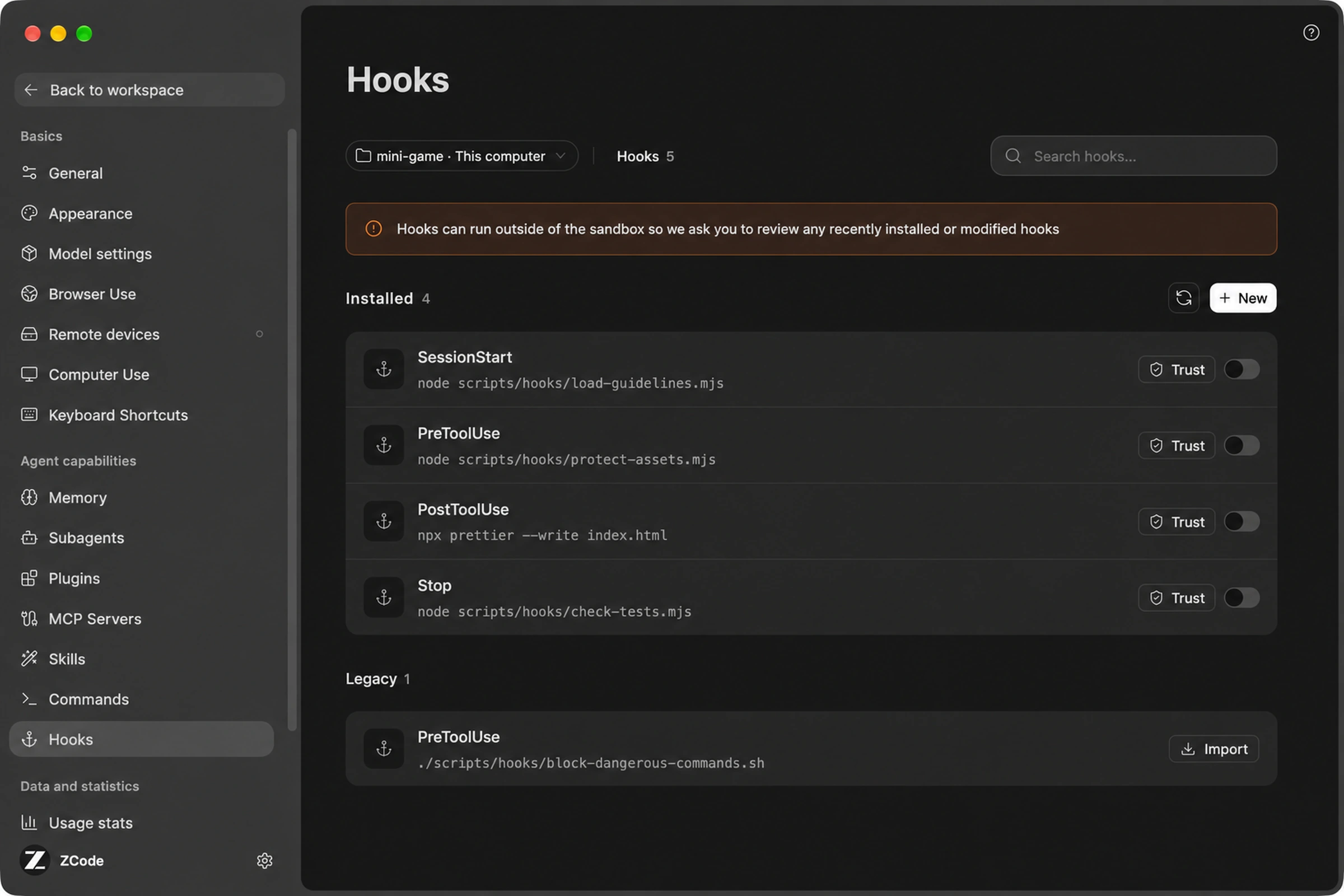
1Switch scope2Refresh and create3Trust and enable4Import legacy hooks
Entry point: open Settings → Hooks.
How Hooks Work
At each trigger point, ZCode writes the event details as JSON to the hook command's stdin, then decides what to do next from its output and exit code. For example, blocking writes to .env at PreToolUse:
For the fields each event receives and what it can return, see stdin Input and stdout and Exit Codes.
Manage Hooks
Use the scope selector at the top of the Hooks page to choose what to view: hooks in the User scope apply to all projects, and selecting a project under Workspaces shows the hooks specific to that project. The list is grouped by source:
- Installed: hooks created or imported in ZCode. Use the switch to enable or disable them. Click a row to open its editor, where you can also delete the hook.
- Hooks provided by plugins: grouped by plugin and read-only. They are enabled and disabled together with their plugin; manage them in Manage Plugins.
- Legacy: hooks read from
.claude/settings.jsonand.agents/settings.json. They are shown for reference only and are not executed. Click Import to write a hook into the ZCode configuration of the current scope and enable it.
Use the search box to find hooks.
Create a Hook
On the Hooks page, click New, fill in the fields below, and click Save:
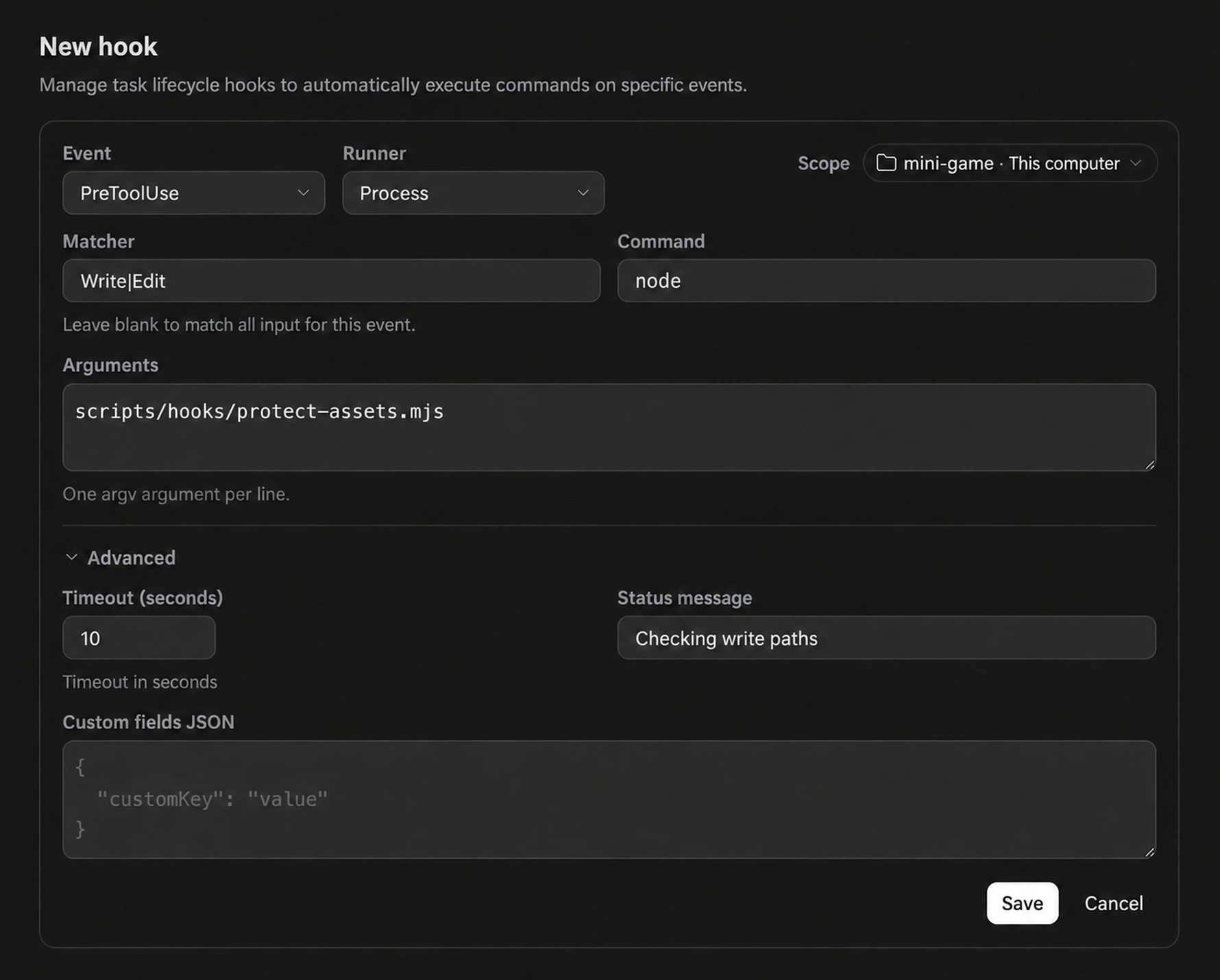 Runner · Shell command
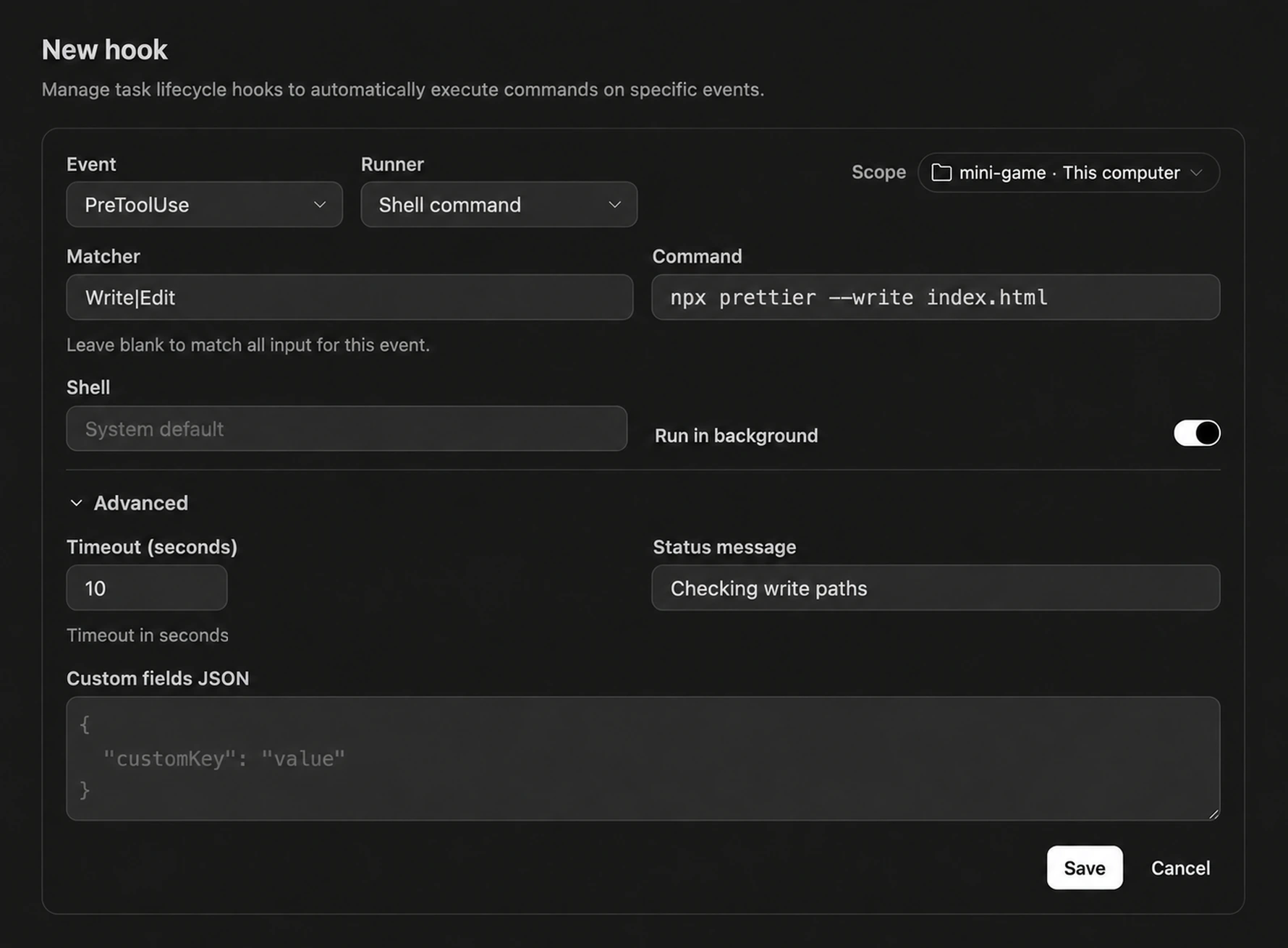
| Field | Description |
|---|---|
| Event | When the hook runs. See Events |
| Runner | Process: starts the command with its arguments directly, without a shell, for clear argument boundaries and better cross-platform behavior. Shell command: passes the whole command to the system shell; you can choose the shell and run it in the background |
| Scope | Save to User (all projects) or a Workspace (that project only). The scope cannot be changed after creation; delete the hook and create it again to move it |
| Matcher | Narrows when the hook runs, for example only when files are written. Leave blank to match everything for the event. See Matcher |
| Command / Arguments | The program to run. With the Process runner, enter one argument per line |
| Run in background | Shell command only. ZCode does not wait for the result, and the hook's output does not affect the current operation |
| Advanced | Timeout in seconds (default 60), a status message, and custom fields JSON saved as is |
A new hook takes effect in the next session. Each session reads the hook configuration once when it starts, so start a new session, or send /reload in the current task, to verify changes to the configuration or to plugins.
Review Workspace Hooks
Workspace hooks live in the project directory and may be changed by others through the code repository, so ZCode requires a review before they run:
- New or modified workspace hooks show a Trust button, and a review notice appears at the top of the page. After confirming the command, click Trust; the hook then runs in later sessions.
- While workspace hooks are pending review, the conversation continues as usual and those hooks do not run. A hook icon appears to the right of the execution mode selector in the composer; click it to see "N workspace hook(s) pending review; disabled for this session", then click Review to open the Hooks settings page, or Dismiss to hide the reminder.
- User hooks and plugin hooks do not need a separate review.

Events
- New sessionSession starts
SessionStart - User submitsBefore the model
UserPrompt Submit - Model requests a toolBefore the tool runs
PreTool Use PermissionPermissionRequest only fires when confirmation is neededRequest - After the toolSuccess / failure
PostTool Use PostTool Use Failure - Model is about to finishFinal check
StopCan ask ZCode Agent to continue, up to 3 times in a row
| Event | Matches against | Main use |
|---|---|---|
SessionStart | Session source: startup / resume | Prepare the environment and inject project guidelines or instructions before the first request |
UserPromptSubmit | Not matched; always runs | Add context before the model is called, or block the request; cannot rewrite the user's input |
PreToolUse | Tool name | Allow, ask, or deny a tool call, or replace its input |
PermissionRequest | Tool name | Runs only when a permission prompt is needed; can allow or deny automatically |
PostToolUse | Tool name | Add context after a tool succeeds; cannot replace the tool output |
PostToolUseFailure | Tool name | Add diagnostics, recovery suggestions, or retry constraints after a tool fails |
Stop | Not matched; always runs | Check results before finishing; can ask ZCode Agent to continue, up to 3 times in a row |
Configuration Files
| Source | Location | Notes |
|---|---|---|
| User hooks | ~/.zcode/cli/config.json | Apply to all projects of the current user |
| Workspace hooks | <project>/.zcode/config.json or <project>/zcode.json | Apply to that project only and require review |
| Plugin hooks | hooks/hooks.json in the plugin directory | Installed, distributed, enabled, and disabled with the plugin |
| Legacy configuration | .claude/settings.json, .agents/settings.json | Shown read-only; run only after being imported in Settings |
Hooks run in this order: user hooks → reviewed workspace hooks → hooks from enabled plugins. Within a source, hooks run in configuration order. Enabling a hook in Settings writes hooks.enabled: true automatically; keep this field when editing the configuration by hand.
Example configuration:
{
  "hooks": {
    "enabled": true,
    "timeoutMs": 60000,
    "maxOutputBytes": 32768,
    "events": {
      "PreToolUse": [
        {
          "matcher": "Write|Edit",
          "hooks": [
            {
              "type": "process",
              "command": "node",
              "args": ["scripts/check-write.mjs"],
              "enabled": true,
              "timeoutMs": 10000
            }
          ]
        }
      ]
    }
  }
}
Quick Start: Your First Plugin Hook
The plugin below adds a team guideline for ZCode Agent when a new session starts. The example requires node to be available on the system.
context-guard/
├── .zcode-plugin/
│   └── plugin.json
└── hooks/
    ├── hooks.json
    └── context.mjs
plugin.json (hooks/hooks.json is in the standard location and is loaded automatically, so the manifest does not need to declare it):
{
  "name": "context-guard",
  "version": "0.1.0",
  "description": "Inject team development guidelines when a session starts"
}
hooks/hooks.json:
{
  "description": "Context Guard hooks",
  "hooks": {
    "SessionStart": [
      {
        "matcher": "startup|resume",
        "hooks": [
          {
            "type": "process",
            "command": "node",
            "args": ["${ZCODE_PLUGIN_ROOT}/hooks/context.mjs"],
            "timeoutMs": 5000
          }
        ]
      }
    ]
  }
}
hooks/context.mjs:
let raw = "";
process.stdin.setEncoding("utf8");
for await (const chunk of process.stdin) raw += chunk;

const input = JSON.parse(raw);
process.stderr.write("[context-guard] " + input.hook_event_name + "\n");
process.stdout.write(JSON.stringify({
  hookSpecificOutput: {
    hookEventName: input.hook_event_name,
    additionalContext: "Run type checks and affected tests before committing in this project."
  }
}));
To verify:
- In Settings → Plugins, add the local plugin source, then install and enable the plugin.
- Open Settings → Hooks and confirm that the
SessionStarthook appears in the plugin's group. The plugin details page shows its matcher and source path. - Start a new session and send a request. The first reply should reflect the injected guideline.
- Write debug output to stderr and only protocol JSON to stdout, so diagnostics do not break parsing.
Runners, Timeouts, and Matchers
| Type | Description | Recommendation |
|---|---|---|
process | command + args[], executed directly from the argument list without a shell; waits for the result | Clear argument boundaries and better cross-platform behavior; recommended for Node, Python, or binaries |
command | Passes the whole string to the system shell; supports shell, async, and timeout | Convenient for existing Claude Code plugins; mind shell and quoting differences across systems |
timeoutMsis in milliseconds; the compatible fieldtimeoutis in seconds. When both are set,timeoutMswins.- The default timeout is 60000 ms and the default stdout limit is 32768 bytes.
- Set
enabled: falseon a hook to skip it at runtime. - A
commandhook withasync: trueruns in the background: the event continues immediately, and its output cannot block the operation, change input, or inject context. statusMessageis shown in Settings and on the plugin details page.onErrordecides what happens when the hook itself fails (an exit code other than 0 or 2, a timeout, or a wrong field type in the output JSON): the defaultallowlets the operation proceed and records a diagnostic;denyapplies toPreToolUseonly and treats the failure like exit code 2, rejecting the tool call. Hooks running in the background are not affected. Adding or removingonError: "deny"on a workspace hook requires reviewing it again.
Matcher
- Missing or
*: matches everything. Do not use an empty string""; it prevents the whole configuration file from loading. - Only letters, digits, underscores, and
|: an exact list of names, such asWrite|Edit. - Any other characters: a JavaScript regular expression. An invalid expression matches nothing.
- Tool events match the actual tool name, with aliases:
AgentandTaskmatch each other, andApplyPatchis matched byWriteandEdit. SessionStartmatches the session source;UserPromptSubmitandStopare not matched.
stdin Input
ZCode writes one line of JSON to each hook's stdin. The input contains both camelCase fields and Claude Code-style snake_case fields, so existing plugins can keep reading snake_case.
{
  "session_id": "session-123",
  "transcript_path": "/tmp/zcode-hook/transcript.jsonl",
  "cwd": "/workspace/demo",
  "permission_mode": "default",
  "hook_event_name": "PreToolUse",
  "tool_name": "Write",
  "tool_input": {
    "file_path": "src/index.ts",
    "content": "..."
  },
  "tool_use_id": "tool-123"
}
| Event | Main fields |
|---|---|
| All events | session_id, transcript_path, cwd, permission_mode, hook_event_name, agent_type |
SessionStart | source, and possibly model |
UserPromptSubmit | prompt |
PreToolUse | tool_name, tool_input, tool_use_id |
PermissionRequest | tool_name, tool_input, and permission_suggestions when available |
PostToolUse | tool_response, plus the tool name, input, and call ID |
PostToolUseFailure | error, error_details, is_interrupt, plus the tool fields |
Stop | stop_hook_active, last_assistant_message |
transcript_path points to a temporary file readable during this run. It is cleaned up after the hook finishes, so do not use it for long-term storage.
Hook processes can also read these environment variables: ZCODE_PROJECT_DIR, ZCODE_SESSION_ID, and the compatible CLAUDE_PROJECT_DIR and CLAUDE_SESSION_ID.
stdout and Exit Codes
Empty stdout means success with no further effect. Output that is not JSON is ignored and never enters the model context. Only valid JSON that starts with { after leading whitespace is parsed by the protocol. Unknown fields are ignored; a wrong field type or mismatched event name marks the current hook as failed without affecting later hooks.
Add context (recommended inside hookSpecificOutput; top-level additionalContext / additional_context is also accepted):
{
  "hookSpecificOutput": {
    "hookEventName": "SessionStart",
    "additionalContext": "Only modify files related to the current task."
  }
}
PreToolUse: Modify or Deny a Tool Call
{
  "hookSpecificOutput": {
    "hookEventName": "PreToolUse",
    "permissionDecision": "allow",
    "permissionDecisionReason": "Redirected to an allowed directory",
    "updatedInput": {
      "file_path": "generated/index.ts",
      "content": "..."
    },
    "additionalContext": "The file was redirected to the generated directory."
  }
}
updatedInput replaces the original input entirely, and ZCode validates it again against the tool's parameter schema. To deny, return permissionDecision: "deny" with a permissionDecisionReason. When results from several hooks are combined, deny takes precedence over ask, and ask over allow.
PermissionRequest: Allow or Deny Automatically
{
  "hookSpecificOutput": {
    "hookEventName": "PermissionRequest",
    "decision": {
      "behavior": "deny",
      "message": "Production directories can only be changed through the release process"
    }
  }
}
To allow, set behavior to allow; decision can also return updatedInput and updatedPermissions (the older permissionUpdates field is accepted).
UserPromptSubmit: Block the Request
{
  "continue": false,
  "reason": "Please provide a ticket number first",
  "hookSpecificOutput": {
    "hookEventName": "UserPromptSubmit",
    "additionalContext": "This request was blocked by team policy."
  }
}
Stop: Ask ZCode Agent to Continue
{
  "decision": "block",
  "reason": "Test commands and results are missing. Add them before finishing."
}
decision: "block" continues only when reason or additionalContext is provided; continue: true with additionalContext is also accepted. After 3 consecutive continuations, the task finishes to prevent infinite loops.
Exit Codes
| Exit code | Meaning |
|---|---|
0 | Success; stdout is parsed |
2 | Block: treated as a denial in events that can be blocked, and as a request to continue in Stop |
| Other non-zero values | The current hook failed; a diagnostic is recorded and the task continues |
Plugin Hooks
- Manifest lookup order:
.zcode-plugin/plugin.json→.claude-plugin/plugin.json→.codex-plugin/plugin.json. hooks/hooks.jsonin the standard location is loaded automatically. The manifest'shooksfield can also point to other JSON files, contain inline configuration, or combine both. Do not point it at the standard file again; duplicates are skipped.- Plugin hooks can read
ZCODE_PLUGIN_ROOT,ZCODE_PLUGIN_DATA,ZCODE_PLUGIN_ID, andZCODE_PLUGIN_NAME, plus the compatibleCLAUDE_PLUGIN_ROOTandCLAUDE_PLUGIN_DATA. These variables are substituted in commands and arguments before execution. - Store long-lived data in
ZCODE_PLUGIN_DATA, not in the plugin installation directory. - Hooks for events ZCode does not support are skipped, and a diagnostic is recorded.
Troubleshooting
If a hook does not take effect, check the following in order:
- The hook and its plugin are enabled.
- Workspace hooks have been approved with Trust in Settings.
- You started a new session, or sent
/reloadin the current task, after changing the configuration; sessions already in progress do not read new configuration automatically. - The matcher matches the actual tool name or session source.
If the problem persists, check the log at ~/.zcode/cli/log/zcode-<date>.jsonl: failed hook runs are recorded as hook.run.failed (with source, event, matcher, and duration), and workspace hooks pending review as config.project_hooks.pending_trust.